n the fast-evolving world of PC hardware, ensuring your graphics processing unit (GPU) performs optimally under heavy loads is crucial for gamers, overclockers, content creators, and PC builders alike. Whether you’re troubleshooting instability, validating an overclock, or simply benchmarking your setup, the best GPU stress test tools can help identify issues like thermal throttling, artifacts, or power delivery problems.
Updated for 2025, this guide incorporates the latest advancements in GPU technology, including support for NVIDIA RTX 50-series, AMD Radeon RX 8000-series, and emerging AI-accelerated features. Let’s dive into why stress testing matters and explore the top tools.
Why Stress Test Your GPU? Understanding the Basics
GPU stress testing simulates extreme workloads to push your graphics card to its limits, revealing potential weaknesses before they cause real-world failures. Unlike simple benchmarks that measure average performance, stress tests focus on sustained loads, monitoring for errors, crashes, or overheating. This is essential for:
- Overclockers: Verify stability after boosting clock speeds.
- Gamers: Ensure smooth gameplay in demanding titles without artifacts.
- PC Builders: Diagnose hardware issues in new rigs.
- Professionals: Test for reliability in rendering or compute tasks.
Common risks include high temperatures (aim for under 85°C) and voltage instability, which can lead to hardware damage if ignored. Always monitor with tools like HWMonitor or MSI Afterburner during tests. In 2025, with GPUs like the RTX 5090 drawing over 500W, safe testing practices are more important than ever.
Top 5 GPU Stress Test Tools for 2025
Based on extensive research from sites like GPU Mag, TechRadar, and user forums, here are the best GPU stress test software options. I’ve ranked them by popularity, features, and user feedback, incorporating elements from benchmarking, burn-in, and diagnostic tools for a holistic view.
1. FurMark: The Ultimate GPU Burner for Intensive Stress
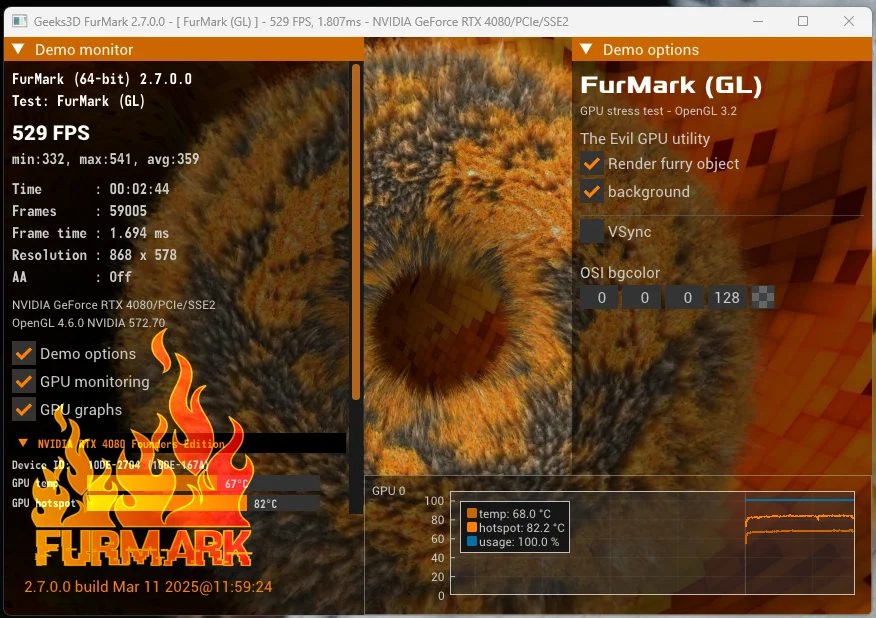
FurMark remains the gold standard for GPU stress testing in 2025, often called the “GPU burner” for its ability to max out power draw and heat generation. It uses OpenGL to render a furry donut scene that stresses shaders and memory, making it ideal for detecting artifacts and thermal limits.
Key Features:
- Customizable resolutions and anti-aliasing levels.
- Real-time monitoring of FPS, temperature, and power usage.
- Free version available; supports multi-GPU setups.
Pros:
- Extremely demanding—perfect for overclock validation.
- Lightweight and easy to use for beginners.
Cons:
- Can overheat GPUs if not monitored; not great for real-world gaming simulations.
In tests, FurMark pushed an RTX 4080 to 100% utilization within seconds, revealing cooling inadequacies. Download it from the official Geeks3D site for the latest build.
3DMark: Comprehensive Benchmarking with Stress Loops
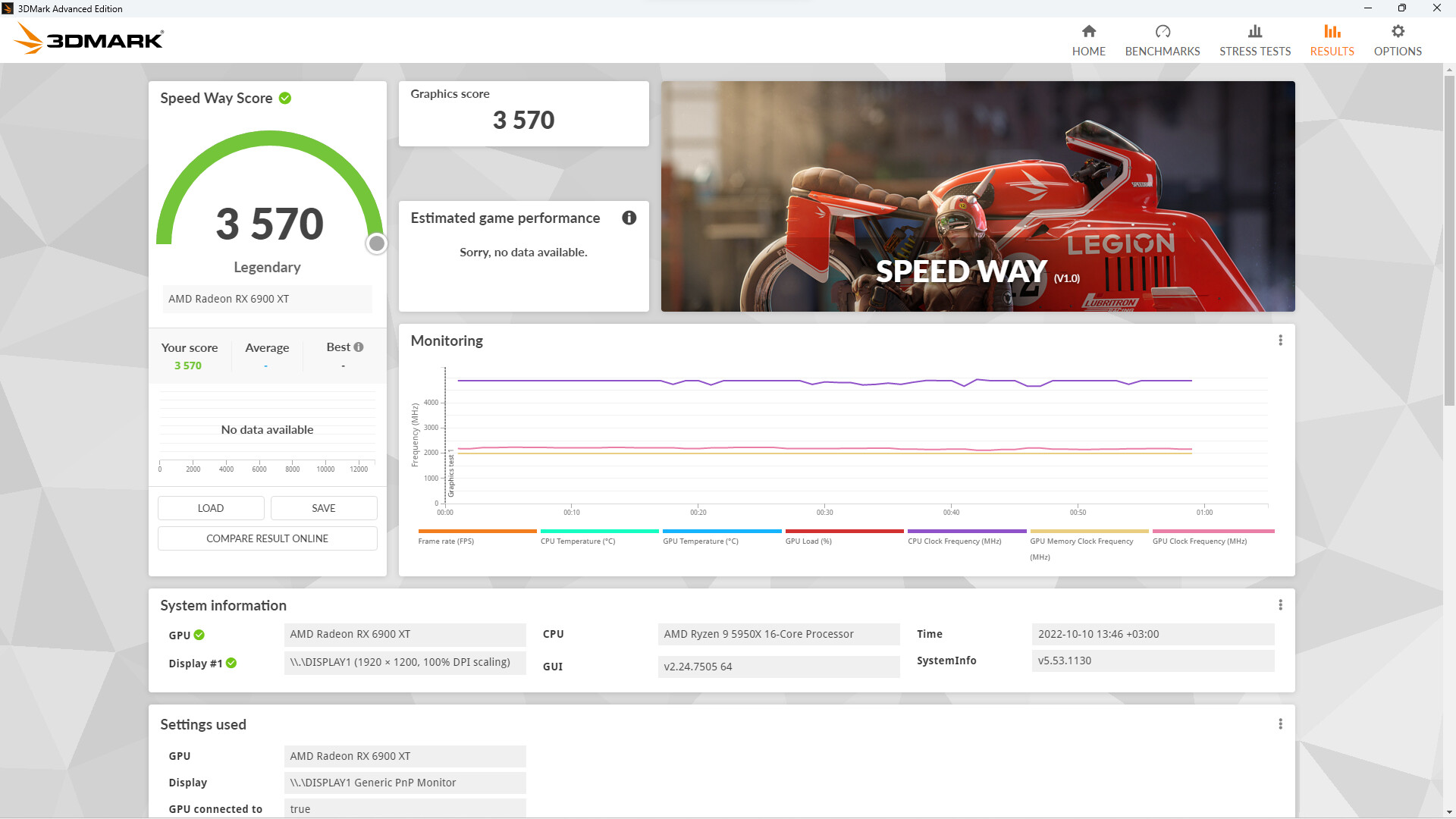
Developed by UL (formerly Futuremark), 3DMark is more than a stress test—it’s a full suite for GPU benchmarking, including Time Spy, Port Royal (for ray tracing), and Steel Nomad. The stress test mode runs loops to check long-term stability, making it popular among reviewers.
Key Features:
- Cross-platform support (Windows, Android, iOS).
- Detailed charts for frame rates, temperatures, and CPU/GPU interplay.
- Paid Advanced Edition unlocks 4K tests; free basic version available.
Pros:
- Simulates real gaming scenarios with DX12 and Vulkan support.
- Online comparison database for global rankings.
Cons:
- Heavier on system resources; paid features needed for full access.
In 2025 updates, 3DMark added AI upscaling tests, scoring an RTX 5090 at over 30,000 in Time Spy Extreme. It’s trusted by sites like Tom’s Hardware for hardware reviews.
Save 75% on 3DMark on Steam
3. OCCT: All-in-One Stability Tester with Error Detection
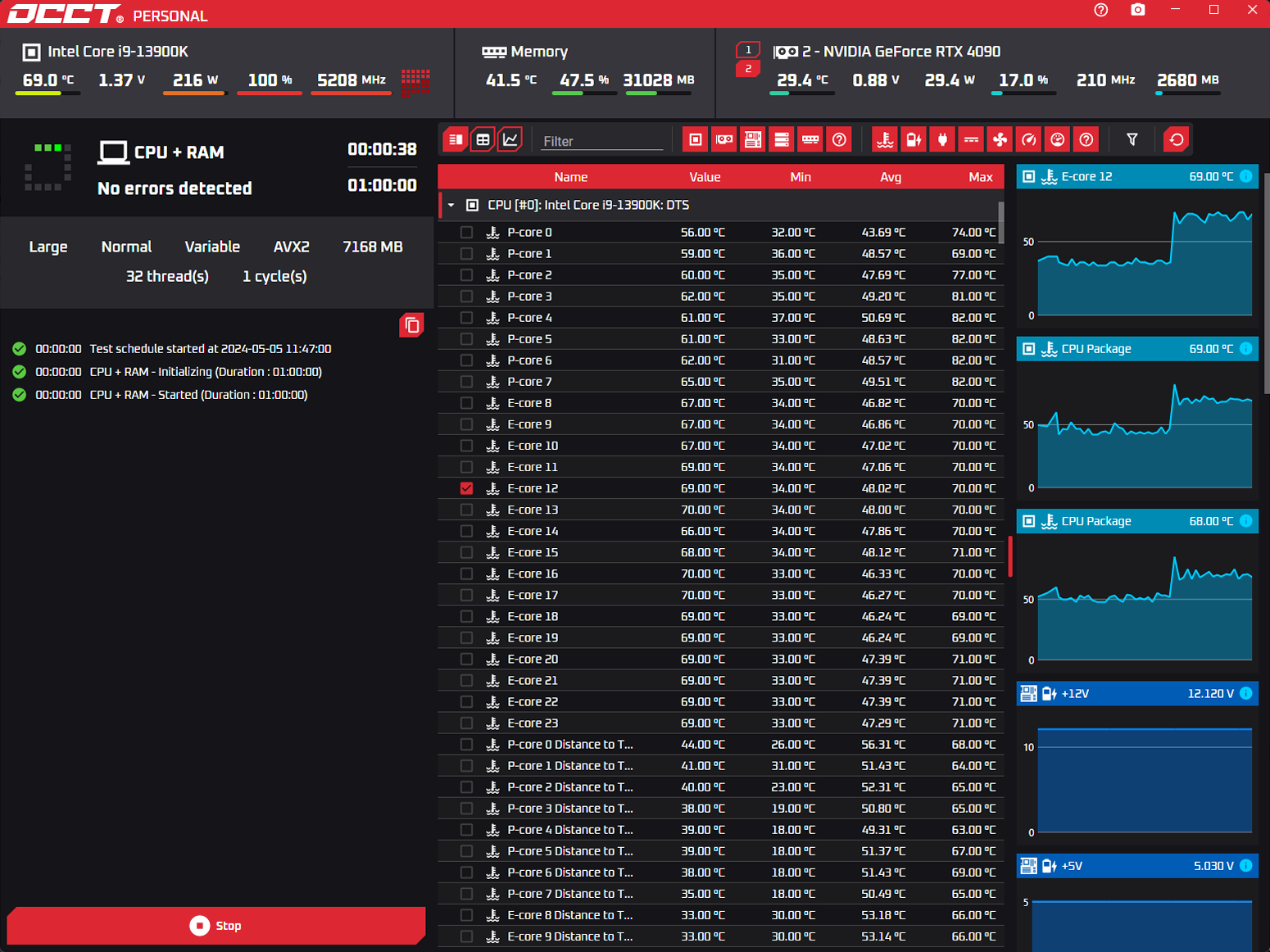
OCCT (OverClock Checking Tool) excels in detecting errors during GPU stress tests, using Linpack and custom shaders to scan for artifacts. It’s free for personal use and includes CPU/RAM tests, making it a versatile diagnostic tool.
Key Features:
- Built-in error scanner for instability.
- Customizable test durations (e.g., 1-hour loops).
- Detailed logging and graphs for voltage, temp, and fan speeds.
Pros:
- Excellent for artifact detection; supports OpenCL and Vulkan.
- Free with no ads; community-backed updates.
Cons:
- Interface feels dated; premium version required for unlimited runs.
Users on Reddit praise OCCT for catching subtle instabilities that FurMark misses. In 2025, it added support for AMD’s latest RDNA 3 architecture.
OCBASE/OCCT : Free, all-in-one stability, stress test, benchmark …
4. MSI Kombustor: Burn-In Specialist for Overclockers
MSI Kombustor, built on FurMark’s engine, adds MSI-specific tweaks like Afterburner integration for real-time overclocking. It’s great for burn-in tests, stressing VRAM and shaders under prolonged loads.
Key Features:
- Multiple test modes (e.g., artifact scanner, physics simulations).
- Integrates with MSI hardware for LED control.
- Free download; supports NVIDIA, AMD, and Intel GPUs.
Pros:
- User-friendly with preset stress levels.
- Good for multi-monitor setups.
Cons:
- Less customizable than standalone FurMark; potential bias toward MSI products.
It’s recommended for entry-level overclocking, with 2025 versions including DLSS testing.

MSI Kombustor 3.5.0 released, New GPU Computing Tests Added …
5. Unigine Superposition: Realistic Benchmark for Artifact Scanning
Unigine Superposition uses photorealistic scenes to stress test GPUs, focusing on VRAM usage and shader complexity. It’s free and excellent for detecting visual artifacts in high-res environments.
Key Features:
- 8K resolution support; VR mode available.
- Detailed scoring system with online leaderboards.
- Cross-API compatibility (OpenGL, Vulkan).
Pros:
- Visually stunning tests that mimic games.
- Free with no watermarks.
Cons:
- Larger download size; less intense than FurMark for pure burn-in.
In forums like TechPowerUp, it’s favored for 2025 GPU reviews, scoring high on RX 8900 XTX setups.

Had some fun with Superposition last night. : r/overclocking
Comparison Table: Best GPU Stress Test Software
To help you decide, here’s a side-by-side comparison based on key criteria:
| Tool | Free/Paid | Intensity Level | Key Strength | Best For | Download Link |
|---|---|---|---|---|---|
| FurMark | Free | High | Burn-in & Heat | Overclockers | Geeks3D |
| 3DMark | Free/Paid | Medium-High | Gaming Benchmarks | Gamers & Reviewers | UL Benchmarks |
| OCCT | Free/Paid | High | Error Detection | Stability Checks | OCBase |
| MSI Kombustor | Free | High | Integrated Monitoring | Beginners | MSI |
| Unigine Superposition | Free | Medium | Visual Artifacts | Diagnostic Scans | Unigine |
This table highlights how each tool fits different needs, ensuring you pick based on your setup.
How to Run GPU Stress Tests Safely: Step-by-Step Guide
- Prepare Your System: Update drivers (NVIDIA GeForce Experience or AMD Adrenalin). Close background apps.
- Monitor Metrics: Use HWInfo or Afterburner to track temps (under 90°C), power, and fans.
- Start Short: Run 15-30 minute tests first; extend to 1-2 hours for burn-in.
- Watch for Issues: Look for crashes, artifacts (visual glitches), or throttling.
- Cool Down: Let your GPU idle post-test to avoid thermal stress.
Safety tip: Never leave tests unattended; use fan curves to prevent overheating.
Free vs. Paid Options: Budget-Friendly GPU Stability Tests
For budget users, free tools like FurMark and OCCT offer robust testing without costs. Paid options like 3DMark’s Advanced Edition ($30) add premium features like custom loops and 4K support, ideal for pros. In 2025, free versions cover 90% of needs for most users.
Advanced Tips for Overclocking and Diagnostics
- Overclocking: Pair with MSI Afterburner for voltage tweaks; test in loops.
- Artifact Scanners: Use OCCT or Superposition for VRAM checks.
- Multi-GPU: FurMark supports SLI/CrossFire.
- Interpreting Results: Aim for zero errors; compare scores online.
FAQs on GPU Stress Testing
What’s the difference between benchmarking and stress testing? Benchmarking measures performance scores; stress testing checks sustained stability.
Is FurMark safe? Yes, if monitored—it’s intense but effective.
Best free tool? OCCT for comprehensive diagnostics.
Conclusion: Choose the Right Tool for Your GPU in 2025
Selecting the best GPU stress test software depends on your goals—FurMark for raw intensity, 3DMark for gaming realism, or OCCT for error hunting. With GPUs advancing rapidly, regular testing ensures longevity and peak performance.