GPU Fan Control Guide for Better Cooling & Lower Noise: 7 Smart Tips for Improved Performance
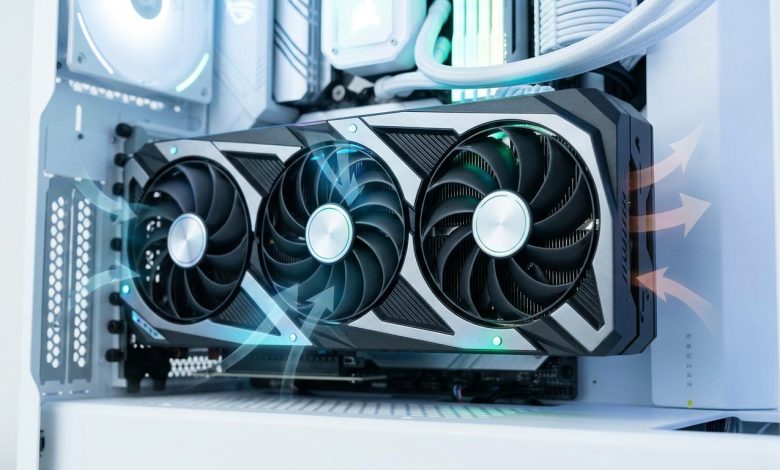
Table of Contents
- Understanding GPU Fans and Their Importance
- Why Control Your GPU Fans? The Benefits
- Methods of GPU Fan Control: Software vs. BIOS
- Popular Software for GPU Fan Control
- Creating Custom Fan Curves: A Step-by-Step Guide
- Advanced Tips for Optimal GPU Cooling and Noise Reduction
- Troubleshooting Common Fan Control Issues
- Conclusion
GPU fan control is an essential aspect of maintaining a healthy and high-performing computer system, especially for gamers, content creators, and professionals who push their graphics cards to their limits. While manufacturers design GPUs with default fan curves intended to balance cooling and noise, these settings often prioritize quieter operation, even at the expense of optimal thermal performance. This can lead to higher operating temperatures, which may cause thermal throttling, reduced performance, and potentially shorten the lifespan of your valuable graphics card. By taking control of your GPU’s fans, you can achieve a more aggressive cooling profile when needed, ensuring stable performance during demanding tasks, or opt for a quieter operation during lighter workloads. This comprehensive guide will walk you through everything you need to know about managing your GPU fans for a better cooling-to-noise ratio.
Understanding GPU Fans and Their Importance
Graphics Processing Units (GPUs) generate a significant amount of heat, particularly under heavy loads such as gaming, video rendering, or cryptocurrency mining. To combat this heat, GPUs are equipped with cooling solutions, most commonly active air cooling systems that utilize heatsinks and fans. These fans are crucial for dissipating the heat away from the GPU die and other components like video memory (VRAM) and voltage regulator modules (VRMs).
Modern graphics cards often feature intelligent temperature-based fan control. This means the fans might remain stationary (0 RPM mode) when the GPU is idle or under light load, only spinning up once a predefined temperature threshold is crossed, typically around 60°C. This 0 RPM mode is designed to provide silent operation during less intensive tasks. However, under sustained load, if the fans do not adequately cool the GPU, temperatures can rise, leading to various issues. Sustained high temperatures can lead to thermal throttling, where the GPU automatically reduces its clock speed to prevent damage, resulting in a noticeable drop in performance and frame rates.
The importance of effective GPU cooling extends beyond just performance. Lower operating temperatures can significantly extend the lifespan of your graphics card by reducing wear and tear on its components. Furthermore, a well-cooled GPU contributes to the overall stability of your system, reducing the risk of crashes or unexpected shutdowns due to excessive heat buildup.
Why Control Your GPU Fans? The Benefits
Taking manual control over your GPU fans offers several compelling benefits that can significantly enhance your computing experience:
- Improved Thermal Management: Custom fan curves allow you to ensure the GPU maintains optimal operating temperatures, preventing overheating and thermal throttling, which ensures consistent performance under heavy workloads. This means your GPU can sustain its maximum boost clock for longer, directly translating into more frames per second (FPS) in games and faster rendering times for demanding applications.
- Reduced Noise Levels: While default fan curves often prioritize quietness, they may still become audibly loud under load. With custom control, you can fine-tune the fan speed to find a better balance between cooling efficiency and acoustics. For instance, you might prefer a slightly warmer GPU during light tasks if it means near-silent operation, or conversely, accept higher fan noise during intense gaming sessions for maximum cooling.
- Enhanced Stability and Longevity: By preventing excessive heat buildup and ensuring stable operating temperatures, dynamic fan control enhances the overall reliability of your GPU. Cooler components experience less stress, potentially extending the lifespan of your graphics card and reducing the need for costly replacements. While a custom fan curve might increase wear on the GPU fans themselves, replacing fans is significantly cheaper than replacing an entire GPU.
- Energy Efficiency: By running fans at lower speeds when the GPU is under lighter loads, you can reduce unnecessary power consumption. This is particularly relevant in environments where energy costs and cooling efficiency are major considerations.
- Customization for Specific Workloads: A single default fan curve cannot optimally serve all scenarios. A custom curve allows you to tailor fan behavior precisely to your usage. For example, a silent profile for browsing and video streaming, a balanced profile for moderate gaming, and an aggressive profile for intensive benchmarks or demanding games.
Methods of GPU Fan Control: Software vs. BIOS
There are generally two primary methods for controlling your GPU fans: through software applications or via the system’s BIOS/UEFI. Each approach has its advantages and limitations.
Software-Based Fan Control
Software-based fan control is the most common and accessible method for adjusting GPU fan speeds. These applications typically provide a graphical interface where you can monitor GPU temperatures, usage, and clock speeds, and then create custom fan curves. The main advantage of software control is its flexibility and ease of use within the operating system. You can often save multiple profiles for different scenarios (e.g., quiet, gaming, overclocking) and switch between them as needed.
However, a key point to remember with most software solutions is that they usually need to be running in the background for your custom fan curve to be active. If the application is closed, the GPU will revert to its default fan behavior. Some software might offer an option to apply the custom curve to the GPU’s firmware, but this functionality is not universally supported across all graphics cards.
BIOS/UEFI-Based Fan Control
While more common for CPU and case fans, some advanced motherboard BIOS/UEFI settings might offer options for controlling GPU fans directly, especially in the case of integrated graphics or specific motherboard-GPU combinations. Controlling fans through the BIOS has the advantage that the settings are applied at a hardware level and are active from the moment the system boots, without needing any software running in the operating system.
However, BIOS options for GPU fan control are generally less granular and more limited compared to dedicated software tools. They might only offer a few predefined points or less precise control over the fan curve. Furthermore, direct GPU fan control through the BIOS is not a universal feature and depends heavily on the specific motherboard and GPU. In many cases, the BIOS only controls system fans based on CPU or motherboard temperatures, not directly on GPU temperatures.
Popular Software for GPU Fan Control
A variety of software tools are available that allow users to monitor and control their GPU fans. The choice often depends on your GPU manufacturer and your specific needs. Here are some of the most widely used and highly regarded applications:
- MSI Afterburner: This is arguably the most popular and versatile GPU utility, compatible with NVIDIA, AMD, and Intel graphics cards. MSI Afterburner offers real-time GPU monitoring, overclocking capabilities, and robust fan control with customizable fan curves. Its intuitive interface makes it a go-to choice for many users. It also bundles RivaTuner Statistics Server (RTSS) for on-screen display of metrics during gaming.
- AMD Software (formerly Radeon Software Adrenalin Edition): For AMD GPU users, AMD’s own software suite provides comprehensive tuning options, including fan curve customization within its “Performance” section. It’s an integrated solution that offers a good balance of features and ease of use for AMD hardware.
- ASUS GPU Tweak III: ASUS provides its own utility for its graphics cards, offering live monitoring, fan profiles, overclocking, and performance overlays. It allows users to create custom fan curves by dragging points on a graph.
- EVGA Precision X1: Tailored specifically for NVIDIA EVGA GPUs, Precision X1 offers real-time monitoring, overclocking, and fan curve adjustments.
- Argus Monitor: This is a powerful third-party hardware monitoring solution that offers extensive fan control capabilities for both CPU and GPU fans, as well as case fans. It allows users to fine-tune fan speeds based on various temperature thresholds and supports PWM-controlled fans.
- FanControl (by Rem0o): Gaining popularity for its advanced and unified control over all system fans (CPU, GPU, and case fans), FanControl is a free, open-source tool that allows combining multiple temperature sources to control a single fan. It provides unparalleled flexibility for creating intricate fan curves.
While each of these tools has its strengths, MSI Afterburner is often recommended due to its broad compatibility and comprehensive feature set, making it an excellent starting point for most users.
| Software | Compatibility | Key Features | Primary Use Case |
|---|---|---|---|
| MSI Afterburner | NVIDIA, AMD, Intel GPUs | Fan control, overclocking, monitoring, OSD | GPU tuning for all brands |
| AMD Software | AMD GPUs | Fan control, performance tuning, gaming features | Native AMD GPU optimization |
| ASUS GPU Tweak III | ASUS GPUs | Fan control, overclocking, monitoring, profiles | Native ASUS GPU optimization |
| EVGA Precision X1 | NVIDIA EVGA GPUs | Fan control, overclocking, monitoring | Native EVGA GPU optimization |
| Argus Monitor | CPU, GPU, Case Fans (Windows) | Advanced fan control, temperature monitoring | System-wide fan control |
| FanControl (by Rem0o) | CPU, GPU, Case Fans (Windows) | Unified fan control, multiple temp sources | Advanced system-wide fan control |
Creating Custom Fan Curves: A Step-by-Step Guide
Setting up a custom fan curve is the most effective way to optimize your GPU’s cooling and noise profile. While the exact steps might vary slightly depending on the software you use, the general principles remain the same. We’ll use MSI Afterburner as a prime example due to its widespread popularity and robust features.
Step 1: Download and Install MSI Afterburner
First, download MSI Afterburner from its official source. During installation, you will likely be prompted to install RivaTuner Statistics Server (RTSS) as well. It is highly recommended to install RTSS as it enables the in-game overlay for monitoring your GPU metrics.
Step 2: Access Fan Control Settings
Open MSI Afterburner. On the main interface, click the gear icon (Settings) to open the settings menu. Navigate to the “Fan” tab. Here, you’ll see an option to “Enable user defined software automatic fan control.” Check this box to activate the custom fan curve editor.
Step 3: Understanding the Fan Curve Graph
Once enabled, a graph will appear. The X-axis represents GPU temperature in Celsius, and the Y-axis represents fan speed as a percentage. The line on the graph, often with several adjustable points (nodes), dictates how your GPU fans will behave at different temperatures. Fans generally spin faster as the GPU gets hotter to keep it sufficiently cooled.
Step 4: Creating Your Custom Fan Curve
You can manipulate the fan curve by dragging the existing nodes or adding new ones by clicking anywhere on the curve. To delete a node, select it and press the “Delete” key on your keyboard. The goal is to create a curve that balances cooling and noise according to your preference. Here’s a general approach:
- Idle/Low Load (e.g., below 40-50°C): Many users prefer 0% fan speed in this range for silent operation, especially if their GPU supports a 0 RPM mode and stays cool enough. However, some prefer a low, constant fan speed (e.g., 20-30%) to ensure some airflow and prevent sudden fan ramp-ups.
- Medium Load (e.g., 50-70°C): For this range, you want the fans to gradually ramp up. A common recommendation is around 55°C at 60% fan speed. The key is a smooth, gradual increase to avoid abrupt and noticeable changes in fan noise.
- High Load (e.g., 70-80°C): As your GPU works harder and temperatures rise, the fans should spin faster to maintain optimal temperatures. For full load, temperatures between 70-80°C are typical. You might aim for 70-80% fan speed in this range. If noise is not a concern, you can set the fans to 100% speed at 80-85°C to prevent thermal throttling.
Remember that the “best” fan curve is subjective and depends on your specific GPU, case airflow, and personal noise tolerance. A linear increase in fan speed as temperature rises is a good starting point.
Step 5: Test and Tweak
After creating your custom curve, click “Apply” and “OK” to save the settings. Then, it’s crucial to test it. Launch a demanding game or a GPU benchmark tool (like 3DMark or FurMark) and monitor your GPU temperature and fan speeds. Observe how the fans react and if the temperatures remain within safe limits (ideally below 80°C under full load). If the GPU runs too hot, make the curve more aggressive. If it’s too noisy, try to reduce fan speeds slightly in less critical temperature ranges.
Repeat the testing and tweaking process until you find a balance that suits your needs. It’s a process of experimentation to find your ideal balance of cooling performance and noise.
Advanced Tips for Optimal GPU Cooling and Noise Reduction
Beyond basic fan curve adjustments, several other strategies can contribute to better GPU cooling and a quieter system overall.
Case Airflow Optimization
Your GPU doesn’t operate in isolation; the overall airflow within your PC case plays a significant role in its cooling. Ensure you have a good balance of intake and exhaust fans to create positive or neutral air pressure. Positive pressure (more intake than exhaust) helps prevent dust buildup and provides a consistent flow of fresh, cool air to components, including the GPU. Proper cable management is also vital to avoid obstructing airflow.
Regular Cleaning and Maintenance
Dust is the enemy of cooling. Over time, dust and debris accumulate on GPU heatsinks and fan blades, acting as an insulating layer and impeding heat dissipation. Regularly clean your GPU and case fans using compressed air to ensure optimal performance. Pay attention to the heatsink fins and between the fan blades.
Replacing Thermal Paste and Pads
For older GPUs (2-3 years or more), the thermal paste between the GPU die and the heatsink, as well as the thermal pads on the VRAM and VRMs, can dry out or degrade. Replacing these can dramatically improve thermal conductivity and lower temperatures. This is a more advanced procedure and should only be undertaken if you are comfortable disassembling your GPU. Always ensure you use the correct thickness for new thermal pads.
Undervolting Your GPU
Undervolting involves reducing the voltage supplied to your GPU while maintaining stable clock speeds. Lower voltage typically results in lower power consumption and, consequently, less heat generation. This can lead to significantly lower temperatures and quieter fan operation without sacrificing performance. MSI Afterburner and other GPU utilities often include undervolting capabilities.
Environmental Factors
The ambient temperature of your room also impacts your GPU’s operating temperature. A cooler room will naturally lead to a cooler GPU. While not always feasible, maintaining a comfortable room temperature can indirectly aid in GPU cooling.
For more detailed information on maximizing your PC’s thermal performance, consider exploring resources on general computer cooling principles, such as Wikipedia’s article on computer cooling.
Troubleshooting Common Fan Control Issues
Even with careful setup, you might encounter issues with GPU fan control. Here are some common problems and their solutions:
- Fans Not Spinning at All:
- 0 RPM Mode: Many modern GPUs enter a 0 RPM (zero fan speed) mode at low temperatures for silent operation. This is normal behavior. Check if the fans spin up under load.
- Loose Cable Connection: Ensure all power cables to the GPU are securely seated. A loose or disconnected fan power cable can prevent fans from spinning.
- Software/Driver Issues: Outdated or corrupted GPU drivers or conflicts with fan control software can cause issues. Try updating your GPU drivers to the latest version. Restarting your PC can sometimes resolve temporary software bugs.
- Dust Obstruction: Physical obstructions like dust buildup can prevent fan blades from spinning. Clean your GPU thoroughly.
- Faulty Fan: If individual fans are not spinning even under load and after troubleshooting, they might be physically damaged or worn out. GPU fans can be replaced, which is often cheaper than a new GPU.
- Fans Spinning Too Loudly/Too Fast:
- Aggressive Fan Curve: Your custom fan curve might be set too aggressively, causing fans to ramp up excessively at lower temperatures. Adjust the curve to be less steep, particularly in the lower to medium temperature ranges.
- Poor Case Airflow: Inadequate case airflow can lead to higher internal temperatures, forcing GPU fans to work harder. Optimize your case fan setup.
- Dust Buildup: Dust on heatsinks means the fans have to spin faster to achieve the same cooling. Clean your GPU.
- High Ambient Temperature: A hot room will inevitably lead to higher GPU temperatures and louder fans.
- Fan Curve Not Applying:
- Software Not Running: Most fan control software needs to be running in the background for custom curves to apply. Ensure the application is open or set to start with Windows.
- Conflicting Software: If you have multiple monitoring or tuning utilities installed (e.g., MSI Afterburner and ASUS GPU Tweak), they might conflict. Use only one primary fan control software.
- GPU Driver Overriding: In some rare cases, GPU drivers might override software-based fan control. Ensure your drivers are up to date.
Conclusion
Mastering GPU fan control is a powerful skill for any PC enthusiast looking to optimize their system’s performance, acoustics, and longevity. By understanding the critical role of GPU cooling, recognizing the benefits of custom fan curves, and leveraging intuitive software like MSI Afterburner, you can tailor your graphics card’s thermal behavior to your exact needs. Whether you prioritize whisper-quiet operation during mundane tasks or maximum cooling during intense gaming sessions, a well-configured fan curve offers the flexibility to achieve your desired balance. Remember to regularly monitor your GPU temperatures, clean your components, and not be afraid to experiment and tweak your settings. With a little effort, you can transform your computing experience, ensuring your GPU runs cooler, quieter, and more efficiently for years to come.