6 Powerful Features of GPU Tweak III – Overclocking & Optimization Guide
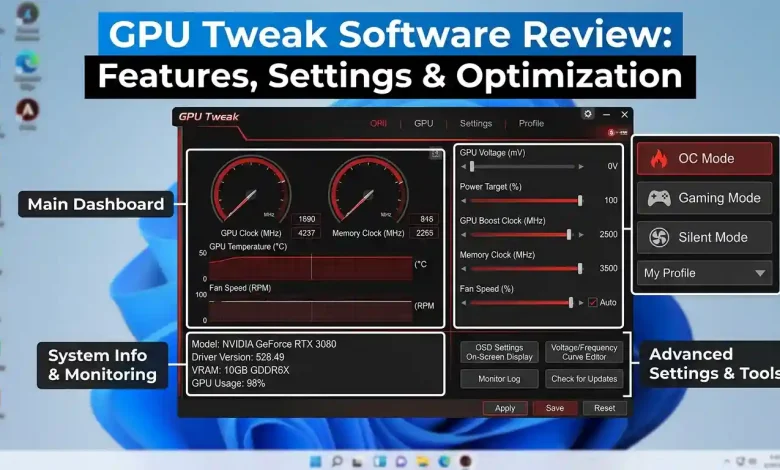
Table of Contents
GPU Tweak software has become an indispensable tool for PC enthusiasts, gamers, and professionals alike, seeking to extract every ounce of performance from their graphics cards. In an era where graphical fidelity and frame rates are paramount, merely relying on factory default settings often leaves a significant portion of a GPU’s potential untapped. This comprehensive review delves into the multifaceted world of GPU tweak software, exploring its core features, critical settings for fine-tuning, and advanced optimization strategies. From basic monitoring to intricate overclocking and undervolting, understanding and utilizing these applications can transform your computing experience, delivering smoother gameplay, faster rendering, and enhanced system stability.
What is GPU Tweak Software?
GPU Tweak software refers to a category of utility applications designed to provide users with granular control over their graphics processing unit’s operational parameters. Unlike basic driver interfaces, these tools offer a deeper level of customization, enabling adjustments that can significantly impact performance, thermals, and power consumption. At its heart, GPU tweak software acts as a bridge between the user and the intricate hardware of the graphics card, making complex settings accessible through intuitive interfaces. It’s essentially a control panel on steroids, empowering users to move beyond the limitations of default configurations.
The primary function of such software is to allow users to modify various aspects of their GPU’s operation, most notably clock speeds (core and memory), voltage, and fan curves. By pushing these parameters beyond manufacturer specifications, users can achieve higher frame rates in games or accelerate demanding computational tasks. Conversely, the software can also be used for undervolting or underclocking, which prioritizes lower power consumption, reduced heat output, and quieter operation, often for systems where raw performance isn’t the sole objective. This flexibility makes GPU tweak software relevant for a wide array of users, from competitive gamers looking for a performance edge to content creators seeking faster render times, or even casual users aiming for a cooler and quieter PC. The software typically provides real-time monitoring capabilities, displaying crucial metrics such as temperature, clock speeds, fan RPM, and power draw, which are essential for safe and effective tuning.
Key Features to Look For in GPU Tweak Software
When choosing a GPU tweak software, several key features differentiate a robust utility from a basic one. Understanding these features is crucial for maximizing your graphics card’s potential while maintaining stability.
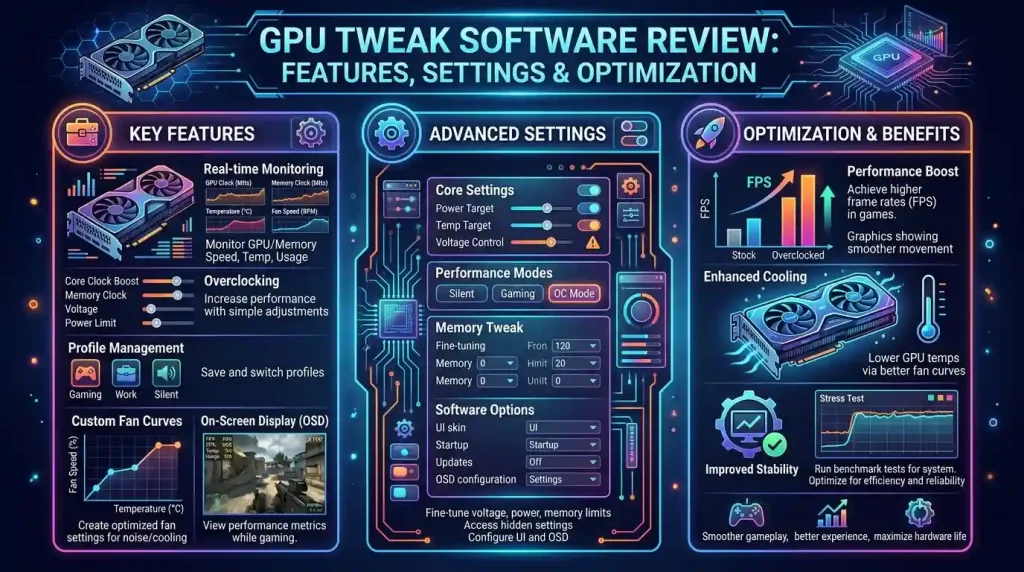
- Core Clock and Memory Clock Adjustment: This is arguably the most fundamental feature, allowing users to increase (overclock) or decrease (underclock) the operating frequencies of the GPU core and its video memory. Higher clock speeds directly translate to more processing power and faster data handling, leading to improved performance.
- Voltage Control: Advanced software provides voltage controls, enabling users to adjust the power supplied to the GPU. While increasing voltage can stabilize higher overclocks, it also leads to increased heat generation and power consumption. Undervolting, conversely, can significantly reduce heat and power draw without a substantial performance loss, or even allow for higher clock speeds at lower power.
- Custom Fan Curves: Effective thermal management is paramount for stable overclocking. GPU tweak software allows users to create custom fan curves, dictating fan speed based on GPU temperature. This offers a balance between cooling efficiency and acoustic performance, preventing overheating while minimizing noise. Many modern GPUs keep fans off at light loads for silent operation, and custom curves can manage the transition to higher speeds smoothly.
- Power Limit and Temperature Limit Control: These settings allow users to define the maximum power consumption and temperature the GPU is permitted to reach. Increasing the power limit gives the GPU more headroom to boost its clock speeds automatically, while a higher temperature limit allows it to run hotter before throttling, potentially sustaining higher clocks for longer periods.
- Hardware Monitoring: Real-time monitoring of crucial metrics such as GPU temperature, clock speeds, fan speed, memory usage, and power draw is vital. A good software will offer an on-screen display (OSD) that can show these statistics during gameplay or other demanding applications, allowing users to assess the impact of their tweaks. Some tools even provide logging capabilities for long-term analysis.
- Profile Management: The ability to save and quickly switch between different custom profiles (e.g., an “overclock” profile for gaming, a “silent” profile for productivity, or an “undervolt” profile for efficiency) significantly enhances usability.
- Automated Overclocking (OC Scanner): For beginners, or those who prefer a hands-off approach, some software includes an “OC Scanner” or similar automated feature. This algorithm analyzes the GPU’s capabilities and automatically finds the highest stable overclock settings.
- On-Screen Display (OSD): A customizable OSD provides real-time data overlays directly within games or applications, eliminating the need to alt-tab and check monitoring software. This allows for immediate feedback on performance and thermal adjustments.
Essential Settings for Performance Tuning
To effectively tune your GPU for optimal performance, understanding and adjusting specific settings within the tweak software is crucial. These adjustments, when made thoughtfully, can unlock significant gains.
- Core Clock Offset: This is the primary lever for GPU performance. Start with small increments (e.g., +10 to +20 MHz) and test for stability using benchmarks or demanding games. Gradually increase until instability (crashes, artifacts) occurs, then dial back slightly to a stable point.
- Memory Clock Offset: Similar to the core clock, memory clock speeds also contribute to overall performance, especially in games with high-resolution textures. Incremental adjustments and stability testing are essential. It’s often recommended to test core and memory clocks separately initially, then combine them.
- Power Limit: Increasing the power limit (often expressed as a percentage, e.g., 100% to 120%) allows the GPU to draw more power, which can help maintain higher clock speeds, particularly during intense workloads. This is often one of the first settings to maximize when aiming for higher performance.
- Temperature Limit: Setting a higher temperature limit gives the GPU more thermal headroom before it begins to throttle its clock speeds to cool down. While higher temperatures are generally undesirable, a slightly higher limit can prevent premature throttling and sustain performance. However, monitoring actual temperatures is critical to avoid damage.
- Fan Curve Customization: A well-configured fan curve is vital for managing temperatures while balancing noise levels. A common strategy is to keep fans quiet at lower temperatures (e.g., below 50-60°C) and then have them ramp up more aggressively as temperatures rise under load. Modern software often allows for very detailed, multi-point fan curves. For advanced control over all system fans, including GPU and case fans, third-party software like Fan Control can be highly effective, allowing for a unified cooling strategy.
- Voltage/Frequency Curve (VF Curve) Editing (for Undervolting): For users focusing on efficiency, undervolting can be highly beneficial. This involves reducing the voltage supplied at specific clock frequencies. By finding the lowest stable voltage for a desired clock speed, you can significantly reduce power consumption and heat, sometimes even achieving higher stable clocks than stock settings due to better thermal management. MSI Afterburner is often praised for its robust VF curve editor.
It is important to approach these settings with caution and make incremental changes, thoroughly testing for stability after each adjustment. Tools like 3DMark or Unigine Heaven are often used for benchmarking and stress testing to ensure stability.
Advanced Optimization Techniques
Beyond the basic adjustments, several advanced optimization techniques can further enhance your GPU’s performance and efficiency. These often require a deeper understanding of GPU architecture and system interactions.
- Undervolting for Efficiency: While often associated with lower performance, intelligent undervolting can actually lead to better sustained performance. By reducing the voltage while maintaining similar clock speeds, the GPU runs cooler and consumes less power. This can prevent thermal throttling, allowing the GPU to maintain its boost clocks for longer periods. It requires careful testing to find the ‘sweet spot’ where stability is maintained with minimal voltage.
- Resizing BAR (Base Address Register): Resizable BAR is a PCI Express feature that allows the CPU to access the entire GPU frame buffer at once, rather than in smaller 256MB chunks. This can lead to significant performance improvements in supported games and applications, especially when combined with optimized GPU settings. Enabling it typically involves BIOS settings and ensuring updated drivers.
- Driver-Level Optimizations: Both NVIDIA and AMD provide extensive control panels (NVIDIA Control Panel, AMD Software: Adrenalin Edition) that offer a multitude of driver-level settings. These include options for texture filtering quality, anisotropic filtering, power management mode (“Prefer Maximum Performance”), vertical sync (V-Sync), triple buffering, and threaded optimization. Fine-tuning these can yield noticeable performance gains and smoother gameplay, sometimes without sacrificing visual quality.
- In-Game Settings Adjustment: Complementing driver-level tweaks, optimizing in-game graphics settings is crucial. Prioritizing critical effects (like resolution, texture quality, anti-aliasing) and reducing less impactful ones (like motion blur, shadows, depth of field) can free up GPU resources. Leveraging technologies like NVIDIA DLSS, AMD FSR, or Intel XeSS (where available) can also dramatically boost frame rates by rendering games at lower resolutions and upscaling them using AI.
- Hardware-Accelerated GPU Scheduling: Modern Windows versions offer hardware-accelerated GPU scheduling, which can improve gaming performance and reduce latency by allowing the GPU to manage its own memory more efficiently. This feature is enabled in Windows Display Graphics settings.
- Monitoring and Logging: Advanced users leverage comprehensive monitoring tools, sometimes even external plugins for their tweak software, to log performance data over time. This data can be invaluable for identifying bottlenecks, fine-tuning profiles, and ensuring long-term stability and health of the GPU. Specialized tools like TechPowerUp GPU-Z can provide detailed hardware information and real-time sensor monitoring.
These techniques, when combined with proper cooling and stability testing, can help unlock the true potential of your graphics card.
Popular GPU Tweak Software Options
The market for GPU tweak software is competitive, with several reputable options catering to different needs and experience levels. Each offers a unique blend of features, usability, and compatibility.
One of the most widely recognized and universally compatible tools is MSI Afterburner. Developed by MSI, it works with graphics cards from all brands, not just MSI. It’s renowned for its robust overclocking capabilities, precise voltage and fan curve control, comprehensive hardware monitoring with an on-screen display (OSD) via RivaTuner Statistics Server, and an intuitive user interface. It also includes an OC Scanner for automated overclocking and supports undervolting through its VF Curve editor. Its widespread adoption makes it a go-to choice for many enthusiasts.
Another prominent contender, especially for ASUS graphics card owners, is ASUS GPU Tweak III. This software provides similar extensive controls for overclocking, undervolting, and fan speed adjustment. It boasts exclusive features like one-click ASUS Preset Modes (OC Mode, Silent Mode, User Mode), an overhauled VF Tuner for easier manual overclocking, and a detachable hardware monitor. It also supports any brand of graphics card, although some features might be optimized for ASUS hardware. However, some users have reported occasional bugs and inconsistencies with applying settings compared to MSI Afterburner.
For users of EVGA graphics cards, EVGA Precision X1 is the tailored solution. It provides detailed monitoring and control specifically for EVGA GPUs, offering features like individual fan control, RGB lighting customization, and voltage/frequency curve tuning. Its interface is designed to complement EVGA’s hardware ecosystem.
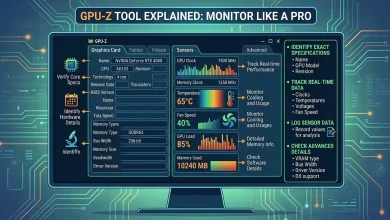
TechPowerUp GPU-Z, while not a tweaking tool in the overclocking sense, is an essential companion for any GPU enthusiast. It’s a lightweight utility that provides detailed information about your graphics card’s specifications, including GPU architecture, memory type, driver versions, and real-time sensor data (temperatures, clock speeds, memory usage, fan speed). It’s invaluable for verifying hardware details and monitoring performance during stability testing.
Finally, for those seeking granular control over all system fans, including GPU and case fans, Fan Control is a powerful third-party application. It allows users to create highly customized fan curves based on various temperature sensors across the system, enabling a unified and optimized cooling strategy. It can override settings from other GPU software, offering a comprehensive solution for noise and thermal management.
| Software Name | Primary Functionality | Key Features | Compatibility |
|---|---|---|---|
| MSI Afterburner | Overclocking, Undervolting, Monitoring | Core/Memory Clock, Voltage, Custom Fan Curves, Power/Temp Limit, OSD, OC Scanner, Profile Management | Universal (NVIDIA & AMD) |
| ASUS GPU Tweak III | Overclocking, Undervolting, Monitoring | Preset Modes, VF Tuner, FanConnect II, Detachable Hardware Monitor, Profile Management | Universal (Optimized for ASUS/ROG cards) |
| EVGA Precision X1 | Overclocking, Monitoring, RGB Control | Specific to EVGA cards, Individual Fan Control, RGB Customization, Voltage/Frequency Curve | EVGA NVIDIA GPUs |
| TechPowerUp GPU-Z | Hardware Information, Monitoring | Detailed GPU Specs, Real-time Sensor Data (Temp, Clocks, Fan Speed, Memory), BIOS Details | Universal (NVIDIA, AMD, Intel) |
| Fan Control | System-wide Fan Control | Highly customizable Fan Curves (CPU, GPU, Case fans), Multiple Sensor Inputs, Mix Fan Curves | Universal (Controls GPU fans if exposed) |
Benefits of Using GPU Tweak Software
The advantages of utilizing GPU tweak software extend beyond simply increasing frame rates. When used correctly, these tools offer a multitude of benefits that enhance the overall computing experience.
- Increased Performance: The most immediate and sought-after benefit is the boost in performance. Overclocking the GPU core and memory can lead to a noticeable increase in frames per second (FPS) in games, smoother gameplay, and faster completion of GPU-intensive tasks like video editing, 3D rendering, and scientific simulations. Users can often see a 5% to 15% increase in FPS. This can extend the competitive lifespan of an existing graphics card, delaying the need for an expensive upgrade.
- Improved Thermal Management: Custom fan curves allow users to optimize the cooling performance of their GPU. By tailoring fan speeds to temperature thresholds, you can prevent overheating during heavy loads, which in turn helps maintain boost clocks and ensures component longevity. Conversely, a gentle fan curve can reduce noise during less demanding tasks.
- Enhanced Efficiency (Undervolting): Undervolting, or reducing the voltage supplied to the GPU, can significantly decrease power consumption and heat generation. This leads to a cooler and quieter system, which is beneficial for energy savings and reducing wear and tear on components, potentially extending the GPU’s lifespan. Often, stable performance can be achieved at lower voltages, making the GPU more efficient per watt.
- Cost Savings: By optimizing an existing GPU, users can often achieve performance levels comparable to a more expensive, next-tier graphics card without the need for a new purchase. This makes GPU tweaking a cost-effective way to upgrade your system’s capabilities.
- Personalized Computing Experience: GPU tweak software offers unparalleled customization. Users can create multiple profiles tailored to specific applications—a high-performance profile for gaming, a silent profile for movie watching, or an undervolted profile for daily productivity. This adaptability allows the system to behave exactly how you want it, when you want it, offering a truly personalized experience.
- System Monitoring and Diagnostics: The integrated monitoring tools provide invaluable real-time data about your GPU’s health and performance. This information is crucial for diagnosing issues, understanding bottlenecks, and ensuring your system is running optimally. It can help identify if your GPU is thermal throttling or if there are other performance limitations.
These benefits collectively make GPU tweak software an extremely valuable asset for anyone serious about getting the most out of their graphics hardware. For more in-depth information on the general concept of pushing hardware beyond its rated speeds, you can consult Wikipedia’s article on Overclocking.
Potential Risks and Best Practices
While GPU tweak software offers powerful optimization capabilities, it’s crucial to be aware of the potential risks involved and adhere to best practices to ensure the stability and longevity of your hardware. Overclocking, in particular, involves pushing components beyond their factory-set limits, which inherently carries some risks.
- Instability and Crashes: Aggressive overclocking or undervolting can lead to system instability, manifesting as application crashes, driver failures, or even complete system freezes. This is often the first sign that your settings are too high or too low.
- Overheating: Increasing clock speeds and voltage significantly increases heat generation. If not properly managed with adequate cooling (e.g., custom fan curves or improved aftermarket coolers), excessive heat can damage components, lead to thermal throttling, and shorten the lifespan of your GPU. GPUs should generally stay below 85°C under load.
- Reduced Lifespan: Operating a GPU consistently at higher temperatures, voltages, and clock speeds can accelerate the degradation of its silicon components, potentially shortening its overall lifespan. While modern GPUs have built-in protections, extreme or prolonged stress can still have an impact.
- Increased Power Consumption: Overclocking, especially with increased voltage, will lead to higher power draw from your power supply unit (PSU). Ensure your PSU has sufficient wattage to handle the increased load to prevent system instability or damage.
- Voiding Warranty: Many manufacturers state that overclocking voids the product warranty. While it’s often difficult for manufacturers to prove overclocking as the cause of failure, it’s a risk to consider.
Best Practices for Safe Tuning:
- Research Your Hardware: Understand the specific capabilities and limitations of your graphics card model. Look for guides or common stable overclocks for your particular GPU.
- Ensure Adequate Cooling: Before attempting any significant tweaks, ensure your PC case has good airflow and your GPU cooler is capable. Consider cleaning dust regularly.
- Update Drivers: Always use the latest graphics card drivers, as they often contain performance optimizations and bug fixes crucial for stable operation.
- Make Incremental Changes: Never apply drastic changes. Start with small adjustments (e.g., +10 to +20 MHz for clocks, small voltage adjustments) and test thoroughly.
- Test for Stability: After each adjustment, run stress tests and benchmarks (e.g., 3DMark, FurMark, Unigine Heaven, demanding games) for at least 30-60 minutes to ensure stability and monitor temperatures. Look for crashes, visual artifacts, or unexpected performance drops.
- Monitor Temperatures and Metrics: Constantly keep an eye on GPU temperature, clock speeds, and power draw using the software’s monitoring features. Stay within safe temperature limits for your GPU (typically below 85°C).
- Save Profiles: Once you find stable settings, save them as a profile within the software. This allows you to quickly revert to known good settings if new tweaks cause instability.
- Start with Power Limit: Often, increasing the power limit is a safe initial step to allow the GPU to boost itself more effectively before manually adjusting clocks.
- Consider Undervolting First: For many users, undervolting before or alongside overclocking can yield better overall results by improving efficiency and thermal headroom.
By following these guidelines, you can safely explore the capabilities of GPU tweak software and optimize your graphics card for a better computing experience without undue risk to your hardware. Remember that moderation and diligent monitoring are key to success. For specific optimization strategies related to your GPU or other components, you might also find value in exploring resources on advanced system performance tuning. For a broader understanding of how software interacts with hardware for optimization, resources like understanding CPU architecture for performance can provide helpful context.
Conclusion
GPU Tweak software represents a powerful suite of tools that allows users to unlock and optimize the true potential of their graphics cards. From intuitive overclocking of core and memory clocks to meticulous voltage control, customizable fan curves, and real-time monitoring, these applications provide an unprecedented level of command over your GPU’s performance characteristics. Key players like MSI Afterburner, ASUS GPU Tweak III, and EVGA Precision X1, complemented by essential utilities like TechPowerUp GPU-Z and Fan Control, offer diverse functionalities to cater to both novice and experienced users.
The benefits of delving into GPU tweaking are clear: increased frame rates, smoother gameplay, faster content creation, improved thermal management, and enhanced energy efficiency through undervolting. These advantages not only elevate the computing experience but can also extend the lifespan and perceived value of your existing hardware, offering a cost-effective alternative to immediate upgrades. However, it is paramount to approach these powerful tools with caution. Understanding the potential risks—such as instability, overheating, and increased power consumption—and adhering to best practices, including incremental adjustments, rigorous stability testing, and constant monitoring, are crucial for safeguarding your components. By embracing GPU tweak software thoughtfully and responsibly, you empower yourself to fine-tune your graphics card, achieving a personalized and optimized performance that truly meets your specific demands.