GPU Tester: Comprehensive Guide to Diagnosing and Optimizing Your Graphics Card
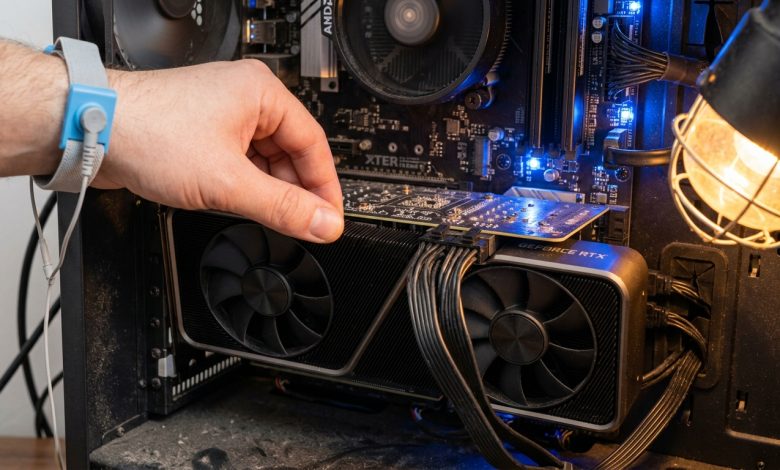
Table of Contents
GPU tester tools are indispensable for anyone seeking to understand, maintain, or optimize their graphics processing unit (GPU). A GPU tester measures how a graphics card handles rendering workloads and performs under stress, providing crucial insights into its performance, stability, and overall health. From professional gamers and content creators to machine learning specialists and everyday PC users, ensuring a GPU operates at peak efficiency is vital for smooth operation and preventing costly hardware failures. These tools push your GPU to its limits, helping to identify potential issues like overheating, driver crashes, visual artifacts, and power delivery problems before they escalate into serious malfunctions.
What is a GPU Tester?
A GPU tester, at its core, is a utility designed to evaluate the performance and stability of a graphics card. It achieves this by subjecting the GPU to demanding workloads, often simulating real-world scenarios such as intensive gaming, 3D rendering, or complex computational tasks. The objective is to monitor various metrics and identify any anomalies that might indicate an underlying problem. These tests can measure factors like frame rate, frame-time consistency, and rendering stability.
While often used interchangeably, it’s important to distinguish between GPU benchmarks and GPU stress tests. A GPU benchmark primarily measures performance, providing a score that can be used to compare different graphics cards or track performance changes over time. These tests typically have a shorter duration and yield a numerical measure of the GPU’s processing and computing capabilities. In contrast, a GPU stress test focuses on stability, pushing the card to its limits for an extended period to identify reliability issues such as crashes, overheating, or driver failures. Both are crucial for comprehensive GPU evaluation.
Modern GPUs are the engines of PCs, responsible for everything displayed on screen, from images and animations to games and design software. Therefore, understanding their thermal properties, clock speeds, memory usage, and overall performance through testing is essential for making informed decisions about hardware upgrades and system enhancements.
Why GPU Testing is Important
Regular GPU testing is akin to performing routine maintenance on a high-performance engine; it ensures your system remains finely tuned for optimal performance and can adapt to new software updates and features that might affect efficiency. The importance of GPU testing extends across various user groups and scenarios:
- Performance Optimization: Benchmarking helps detect bottlenecks, compare GPUs, and optimize performance for demanding tasks such as 3D rendering and AI workloads. For gamers, it ensures smooth frame rates and stable visuals, preventing crashes and stuttering during intense sessions.
- Stability and Reliability: Stress testing helps confirm a GPU’s stability under load, ensuring it can operate without crashes or unexpected shutdowns, especially after new installations or overclocks. It can reveal hidden problems in used GPUs or after driver updates.
- Diagnosing Issues: GPU testers are invaluable for diagnosing common problems such as visual artifacts, overheating, poor performance, or black screens. By monitoring metrics like temperature, clock speeds, and memory usage, users can identify the root cause of issues quickly.
- Hardware Validation: For professionals and those building new PCs, testing validates that hardware meets specific requirements and is functioning as expected. It’s crucial for verifying power, temperatures, and cooling on a new PC build.
- Overclocking and Undervolting: When adjusting GPU settings for higher performance (overclocking) or lower power consumption (undervolting), testing is critical to ensure stability and prevent damage.
- Longevity: Regular checks of temperature, memory use, and overall performance help identify issues early, preventing minor problems from becoming major failures and extending the lifespan of the GPU.
Types of GPU Testers
GPU testers generally fall into two broad categories: software-based and hardware-based. Each type serves different purposes and offers varying levels of detail and control.
Software-Based GPU Testers
The most common type, software-based GPU testers, are applications or online tools that run on your computer to put a load on the GPU and monitor its performance. These tools are often preferred for their accessibility and comprehensive diagnostic capabilities.
- Benchmarking Software: These applications are designed to provide a standardized score for comparing different graphics cards. Popular examples include:
- 3DMark: Developed by UL, 3DMark is widely recognized for its robust suite of stress and feature tests, providing reliable insights into GPU and system performance for gamers and hardware enthusiasts alike. It offers various tests like Wild Life for cross-platform comparison and Port Royal for ray tracing performance.
- Unigine Benchmarks (Heaven, Valley, Superposition): Known for rendering visually stunning 3D scenes, Unigine tools like Superposition are excellent for testing GPU stability under extreme conditions and evaluating cooling system potential. They offer free basic versions and are great for testing at specific resolutions and quality settings.
- UserBenchmark: A free online tool that tests CPU, GPU, RAM, and storage, providing performance scores and comparisons against other users’ hardware.
- GeekBench: A cross-platform benchmark that assesses overall system performance, including CPU and GPU processing power.
- GravityMark: A GPU benchmark that renders a massive quantity of objects in real-time to demonstrate modern GPU capabilities and is suitable for stress, stability, and efficiency testing.
- Stress Testing Software: These tools push the GPU to its absolute limits to test stability over extended periods.
- FurMark: Often dubbed the “GPU burner,” FurMark is an extremely intensive OpenGL and Vulkan benchmark that uses fur rendering algorithms to stress test graphics cards. It’s excellent for testing stability after overclocking and evaluating cooling solutions. ASUS also offers a “ROG FurMark” edition with modern stress tests and artifact scanners.
- MSI Kombustor: A GPU stress test and benchmarking tool that is often included with MSI Afterburner.
- “Stress My GPU” (Browser-based): A free online tool using WebGL and JavaScript for quick GPU and CPU stress testing and benchmarking without downloads.
- Monitoring Software: While not strictly testers, these tools are essential companions, providing real-time data during tests.
- GPU-Z: A lightweight utility that displays detailed information about your video card, including GPU temperature, clock speeds, memory usage, and fan speed. It also includes a GPU load test.
- HWiNFO: A powerful and detailed hardware monitoring tool that provides comprehensive sensor data for CPU, GPU, motherboard, and storage.
- MSI Afterburner: Popular among gamers, this tool offers real-time monitoring overlay for GPU temperature, clock speeds, fan speed, and usage percentages, along with overclocking capabilities.
- HWMonitor: A simple tool that displays essential system data like current, minimum, and maximum temperatures for CPU and GPU.
Hardware-Based GPU Testers
Hardware-based GPU testers are less common for end-users but are vital in manufacturing, repair, and professional diagnostic settings. These typically involve specialized equipment to test specific components or aspects of the GPU.
- Diagnostic Cards/Benches: These are physical cards or test benches that can be used to isolate the GPU from the rest of the system, allowing for direct testing of power delivery, signal integrity, and component functionality. They are crucial for ruling out motherboard or power supply issues.
- Infrared Thermometers/Thermal Cameras: While software can report GPU temperature, physical tools can provide more accurate or localized temperature readings on the PCB and individual components, helping identify hotspots or cooling issues.
- Oscilloscopes and Multimeters: For advanced diagnostics, these tools can measure voltage, current, and signal waveforms on the GPU board itself, pinpointing precise electrical failures.
- Specialized Test Fixtures: Manufacturers use highly specialized fixtures to test GPUs at various stages of production, ensuring every component meets specifications before assembly.
Common GPU Issues Diagnosed by Testers
GPU testers are effective in identifying a range of problems that can plague graphics cards. Understanding these issues helps in leveraging testing tools effectively:
- Overheating: One of the most common issues, overheating, can lead to thermal throttling, reduced performance, system instability, and even permanent damage. Testers monitor GPU temperature under load, allowing users to assess the effectiveness of their cooling solution. If temperatures consistently exceed safe limits (e.g., above 85°C), it indicates a problem.
- Visual Artifacts: Strange squares, lines, flickering, broken textures, or pixelation on the screen are strong indicators of GPU instability, often pointing to failing VRAM or damage to the GPU die. Stress tests can quickly reveal these visual corruptions when the GPU is under load.
- Performance Degradation: Sudden drops in frame rates, stuttering, or general sluggishness, especially during graphically intensive tasks, suggest performance issues. Benchmarking tools help quantify this degradation and compare it against expected performance.
- Crashes and Freezing: Frequent system crashes, Blue Screens of Death (BSODs) with GPU-related error messages (like “VIDEO_TDR_FAILURE”), or application freezing during graphics-intensive tasks are tell-tale signs of a failing GPU, often related to unstable power delivery, overheating, or faulty VRAM.
- Driver Instability: Outdated, corrupted, or incompatible drivers can cause a myriad of issues, including black screens, application crashes, and display resets. While testers don’t fix drivers, they can confirm if the problem persists after driver updates, helping to rule out hardware failure as the sole cause.
- No Display Output: If the monitor remains black or shows “no signal,” even with the PC powered on, it could be a GPU issue. This requires a systematic approach, including checking connections, trying different video outputs, and reseating the graphics card.
- Power Delivery Issues: Insufficient or unstable power can cause GPU crashes and instability. Testing helps to observe power consumption and ensures the PSU is adequate for the GPU’s demands.
How to Choose the Right GPU Tester
Selecting the appropriate GPU tester depends on your specific needs, technical expertise, and the nature of the problem you’re trying to diagnose or optimize. Here are key factors to consider:
- Purpose of Testing:
- For quick performance checks or comparing your GPU to others, benchmarking tools like 3DMark or UserBenchmark are ideal.
- For stability and temperature testing, especially after overclocking, stress test utilities like FurMark or Unigine Heaven are recommended.
- For real-time monitoring of various metrics, tools like GPU-Z, HWiNFO, or MSI Afterburner are essential companions.
- Ease of Use:
- Beginners might prefer browser-based tools like “Stress My GPU” for their simplicity and no-download convenience.
- Applications with intuitive interfaces and clear data presentation, such as HWMonitor, are good starting points for monitoring.
- Depth of Information:
- For advanced users needing detailed sensor data, HWiNFO offers extensive information.
- GPU-Z provides comprehensive specifications and real-time monitoring specific to the GPU.
- Features and API Support:
- Some benchmarks specialize in specific graphics APIs (e.g., DirectX, Vulkan, OpenGL, Metal) or features like ray tracing. Choose tools that support the technologies relevant to your use case.
- Consider if you need cross-platform compatibility if you plan to test on different operating systems or devices.
- Cost:
- Many excellent GPU testing tools offer free versions or are entirely free, such as FurMark (free version), Unigine Heaven (free basic version), GPU-Z, HWiNFO, and HWMonitor.
- Paid versions, like the full suite of 3DMark, often provide more tests, detailed reporting, and advanced features for enthusiasts or professionals.
- Community and Reliability:
- Widely adopted benchmarks are generally more reliable as they provide a good basis for comparison against a large dataset of other users’ results.
- Look for tools with active development and regular updates to ensure compatibility with the latest hardware and drivers.
It’s often beneficial to use a combination of tools: a stress tester for stability, a benchmark for performance comparison, and a monitoring tool to keep an eye on real-time metrics during any test.
| GPU Tester Type | Recommended Tools | Primary Function | Key Metrics Monitored | Best For |
|---|---|---|---|---|
| Benchmarking Software | 3DMark, Unigine Superposition, GeekBench, UserBenchmark, GravityMark | Measures performance and provides a score for comparison. | FPS, Clock Speeds, API Compatibility, Performance Scores | Comparing GPUs, tracking performance changes, validating upgrades. |
| Stress Testing Software | FurMark, MSI Kombustor, “Stress My GPU” (browser-based) | Pushes GPU to its limits to test stability and thermals. | Temperature, Stability (crashes, artifacts), Fan Speed, Power Consumption | Identifying overheating, driver issues, verifying overclock stability, burn-in testing. |
| Monitoring Software | GPU-Z, HWiNFO, MSI Afterburner, HWMonitor | Provides real-time information about GPU status. | Temperature, Clock Speeds, Memory Usage, Fan Speed, Voltage, Utilization | Observing GPU behavior during normal use and tests, diagnosing various issues. |
Best Practices for GPU Testing
To ensure accurate results and prevent potential damage to your hardware, follow these best practices when using a GPU tester:
- Prepare Your System:
- Close Background Applications: Ensure no other programs are running that could interfere with GPU usage or skew results.
- Update Drivers: Always use the latest stable graphics drivers for your GPU. Outdated drivers can cause performance issues or instability during tests.
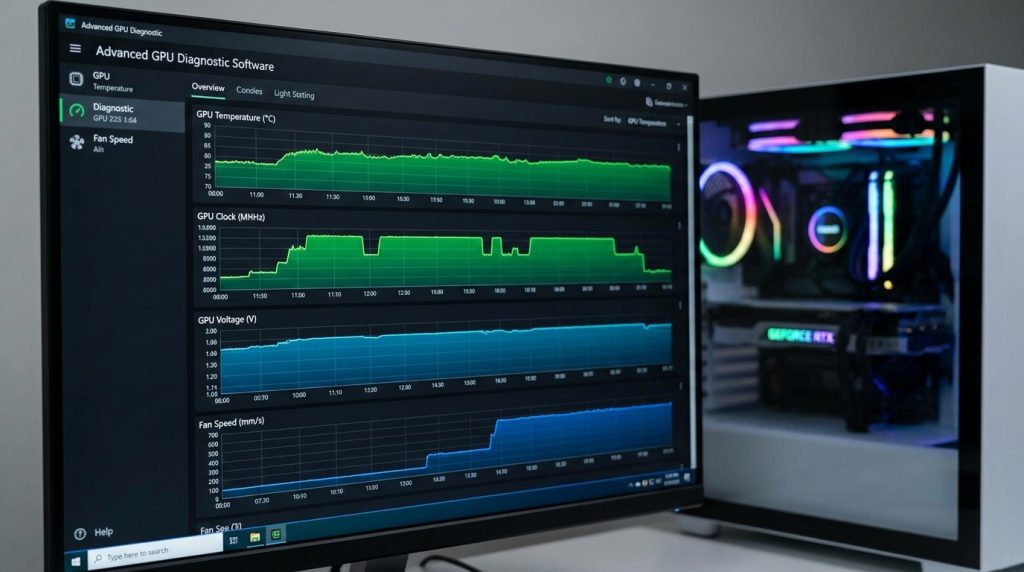
- Monitor Temperatures: Keep a monitoring tool like GPU-Z or HWiNFO open during tests to track GPU temperature, fan speed, and clock speeds. This is crucial for preventing overheating.
- Ensure Adequate Cooling: Make sure your PC has good airflow and that GPU fans are clean and functioning correctly. Overheating is a major cause of GPU problems.
- Start with Short Tests: When conducting stress tests, especially on new or overclocked hardware, begin with shorter durations (e.g., 5-10 minutes) while closely monitoring temperatures. If stable, gradually increase the test duration.
- Establish a Baseline: Before troubleshooting, run a benchmark or stress test on a known good system or configuration to establish a baseline for expected performance and temperatures. This helps in identifying deviations when problems arise.
- Look for Artifacts: During visual benchmarks and stress tests, pay close attention to the screen for any flickering, strange textures, or visual corruptions, as these are clear signs of instability.
- Check for Crashes: A stable GPU should complete stress tests without crashing the application or the entire system. Any crashes indicate a problem that needs further investigation.
- Document Results: Note down benchmark scores, maximum temperatures, clock speeds, and any observed issues. This data is invaluable for troubleshooting or comparing performance over time.
- Consider Your Power Supply: Ensure your power supply unit (PSU) has sufficient wattage for your GPU, especially under heavy load or if you are overclocking. An inadequate PSU can lead to instability.
- Physical Inspection: Before running any tests, perform a quick visual inspection of the GPU. Check if it’s securely seated in the PCIe slot and all power cables are properly connected. Look for any visible damage or dust buildup.
For more detailed troubleshooting, NVIDIA also provides extensive debug guidelines for their GPUs, including steps to verify GPU visibility, check basic information, monitor health metrics like ECC errors, and examine kernel messages for GPU-related issues.
Advanced GPU Testing Scenarios
Beyond basic benchmarking and stress testing, several advanced scenarios require specific testing approaches:
- AI and Machine Learning Workloads: For users in AI and machine learning, GPUs are pushed harder than most applications, stressing both the core and VRAM for long periods. A GPU health test helps track heat buildup and memory stability during training runs, as inadequate cooling or power can quickly damage the GPU. Specialized computational benchmarks, unlike gaming-focused tools, assess metrics like FLOPS, memory bandwidth, latency, and throughput for machine learning inference and large language model performance.
- Ray Tracing Performance: Modern GPUs support real-time ray tracing, a demanding graphical technique. Benchmarks like 3DMark Port Royal specifically test ray tracing performance, providing a realistic example of what to expect in games.
- Multi-GPU Setups: Testing multiple GPUs (e.g., in SLI or CrossFire configurations) requires tools that can properly utilize and monitor each card. Ensuring balanced load distribution and thermal management across all GPUs is critical.
- Content Creation Benchmarks: For video editors, 3D artists, and other creative professionals, GPU performance in applications like Blender, Adobe Premiere Pro, or DaVinci Resolve is paramount. Benchmarks like PugetBench for Creators simulate real-world tasks such as live playback, file export, encoding, and applying GPU-accelerated effects.
- Virtual Reality (VR) Benchmarking: VR applications have stringent performance requirements for a smooth and immersive experience. Specific VR benchmarks assess a GPU’s capability to deliver consistent high frame rates and low latency for VR headsets. Unigine Superposition, for example, offers VR benchmarking.
- Diagnosing Intermittent Issues: For problems that only occur sporadically, long-duration stress tests (several hours) combined with detailed logging from monitoring software are essential. This helps capture rare events or thermal creep that might not appear in shorter tests.
- Cross-Platform Comparisons: For mobile devices or systems running different operating systems, cross-platform benchmarks like 3DMark Wild Life or GeekBench allow for direct performance comparisons.
- Power Consumption Analysis: Beyond performance, monitoring power consumption during stress tests can help assess the efficiency of the GPU and ensure the power supply is not overtaxed. Tools like HWiNFO or the NVIDIA-smi utility on Linux systems provide power usage data. More details on NVIDIA’s official site can be found here: NVIDIA GPU Debugging Guidelines.
Conclusion
GPU testers are indispensable tools for anyone involved with computer hardware, from casual users to seasoned professionals. They provide the necessary means to assess performance, ensure stability, and diagnose potential issues with your graphics card. By utilizing a combination of benchmarking, stress testing, and monitoring software, you can gain a comprehensive understanding of your GPU’s health and optimize its operation for any task. Regular testing, coupled with best practices like driver updates and temperature monitoring, is key to preventing problems, extending hardware lifespan, and maximizing the potential of your system. Whether you’re chasing the highest frame rates, rendering complex 3D scenes, or training AI models, a well-tested GPU is the foundation of a reliable and high-performing computing experience.