GPU Test: A Comprehensive Guide to Evaluating Your Graphics Card Performance
Table of Contents
GPU Test, or Graphics Processing Unit testing, is a critical process for evaluating the performance, stability, and health of your graphics card. Whether you’re a passionate gamer striving for the highest frame rates, a professional content creator relying on GPU acceleration for demanding tasks, or simply troubleshooting system inconsistencies, understanding and performing GPU tests is essential. These tests push your graphics card to its limits, simulating real-world workloads and uncovering potential bottlenecks, overheating issues, or hardware instabilities that might otherwise go unnoticed. Regular GPU testing can help verify hardware stability, establish performance baselines, detect potential issues before they escalate, and validate overclocking settings.
Introduction to GPU Testing: Why It Matters
A GPU test is more than just running a piece of software to get a score; it’s a diagnostic deep dive into one of your computer’s most vital components. The graphics card is at the heart of rendering, computing, and gaming tasks, and its performance directly impacts your overall user experience. From displaying stunning visuals in the latest AAA games to accelerating complex calculations in machine learning and scientific simulations, GPUs are specialized hardware designed for parallel processing, handling multiple tasks simultaneously with a large number of smaller cores.
The importance of GPU testing extends beyond mere curiosity. For new PC builds or recent GPU upgrades, stress testing immediately can confirm that all components are working harmoniously and that the GPU performs as expected under load. It’s also invaluable when adjusting overclock settings, allowing users to find the sweet spot between performance gains and system stability without risking hardware damage. Moreover, a GPU test can be a proactive measure to detect hidden issues like overheating, driver crashes, visual artifacts, or power delivery problems before they disrupt your workflow or gaming session.
Modern computing demands ever-increasing computational power, making it crucial to understand and optimize your graphics hardware’s performance. By running structured tests, you can detect bottlenecks, compare different GPUs, and optimize performance for various demanding tasks like 3D rendering and AI workloads. This process provides objective data, moving beyond anecdotal observations to give you concrete metrics about your GPU’s capabilities and limitations.
Understanding Key GPU Performance Metrics
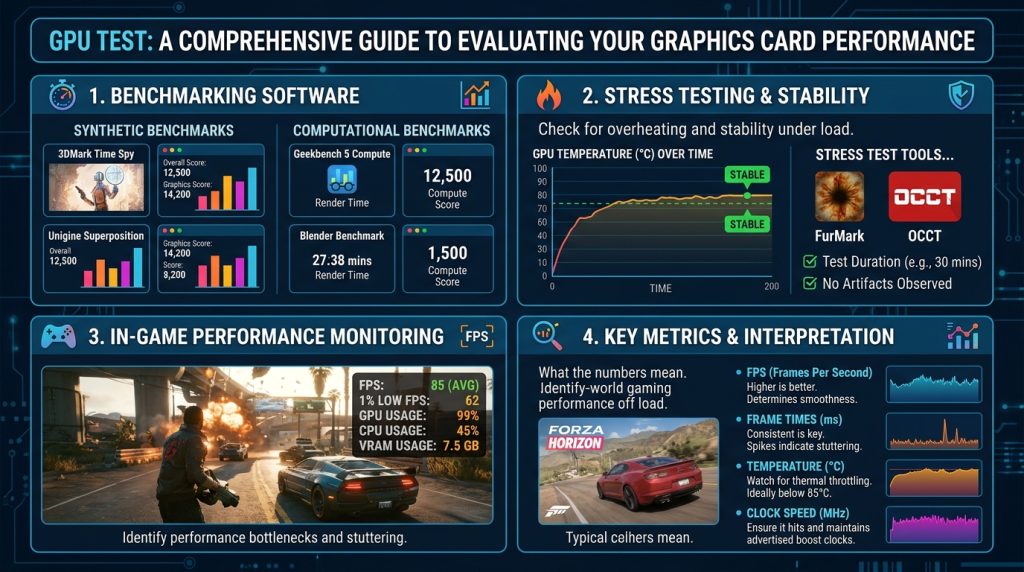
To effectively interpret the results of any GPU test, it’s crucial to understand the metrics being measured. These metrics provide insights into different aspects of your graphics card’s performance and stability. Evaluating GPU health and performance involves monitoring several critical metrics that paint a comprehensive picture of its operational state.
- Frame Rate (FPS – Frames Per Second): This is arguably the most common and easily understood metric, especially for gamers. A higher average FPS indicates smoother gameplay. However, it’s also important to look at 1% Low and 0.1% Low FPS, which represent the lowest frame rates achieved during a test. These metrics provide insight into frame rate consistency and can highlight micro-stutters or significant drops in performance that impact the user experience, even if the average FPS is high.
- Frame Time (ms): Complementing FPS, frame time measures how many milliseconds each frame takes to render. A lower, more consistent frame time indicates smoother visuals. Inconsistent frame times can lead to a “choppy” feeling even with a high average FPS.
- GPU Utilization: This metric tracks how much of the GPU’s compute capacity is being used. High utilization (close to 100%) during demanding tasks is generally good, indicating the GPU is working hard. Low utilization during such tasks might suggest a bottleneck elsewhere in the system, such as a CPU limitation.
- GPU Temperature: Monitoring the GPU temperature is vital, especially during stress tests. High temperatures can lead to thermal throttling, where the GPU automatically reduces its clock speed to prevent damage, or in extreme cases, system shutdowns. Safe operating temperatures typically vary by GPU model but generally remain below 80-85°C under load.
- Clock Speed (Core and Memory): These indicate the operating frequencies of the GPU’s core processing units and its dedicated video memory (VRAM). Benchmarking helps assess how well the GPU can sustain its maximum boost clocks under load. Fluctuations or significant drops in clock speed during a test can point to power limitations or thermal throttling.
- VRAM Usage and Throughput: Video Random Access Memory (VRAM) is crucial for storing textures and other graphical data. Monitoring VRAM usage ensures that workloads are effectively utilizing GPU memory, preventing memory bottlenecks. VRAM throughput measures how quickly data can be transferred to and from GPU memory, which is critical for handling high-resolution textures and complex scenes.
- Power Consumption: GPUs can be significant power consumers. Monitoring power draw helps ensure your power supply unit (PSU) is adequate for your graphics card, especially under heavy load. High or unstable power consumption can sometimes indicate issues or inefficient power usage.
- Floating-Point Operations Per Second (FLOPS): This metric defines the theoretical peak performance of a GPU in handling real-number calculations, quantifying its raw computational throughput. It’s particularly relevant for scientific computing, machine learning, and other parallel processing workloads.
Types of GPU Tests and Benchmarking Software
There are various types of GPU tests, each serving a slightly different purpose, from quick checks to intensive stress testing. These can broadly be categorized into synthetic benchmarks and real-world benchmarks.
Synthetic Benchmarks
Synthetic benchmarks are artificial tests designed to push the GPU to render complex workloads in a standardized, repeatable manner. They provide a numerical score that allows for direct comparison between different graphics cards or configurations.
- 3DMark: Developed by UL Benchmarks, 3DMark is one of the most popular benchmarking suites, offering various tests like Time Spy (DirectX 12), Fire Strike (DirectX 11), and Port Royal (Ray Tracing). It’s widely used by gamers and reviewers to compare GPU performance.
- FurMark: Known as a “GPU killer” by some, FurMark is an extremely intensive stress test primarily used to check thermal stability and maximum temperatures. It can push a graphics card very hard and is useful for identifying cooling system potential under maximum heat output.
- UNIGINE Benchmarks (Heaven, Valley, Superposition): These benchmarks are popular for their detailed graphical environments and ability to stress GPUs. Heaven, though older, is still used to check for stability and artifacts, while Superposition is a more modern, GPU-intensive benchmark suitable for powerful GPUs.
- Cinebench: While primarily known for CPU testing, Cinebench 2024 also includes a GPU test, making it a versatile tool for overall system evaluation.
- Novabench: This free software tests core components including CPU, GPU, memory, and storage, using workloads designed for modern hardware. It offers stress testing modes to assess stability under sustained load.
- UserBenchmark: A free online tool that tests CPU, GPU, RAM, and storage directly in your browser. It offers performance scores and comparisons, though its methodology can sometimes be debated.
- GravityMark: This benchmark focuses on rendering an enormous quantity of objects in real-time, utilizing GPU acceleration and avoiding CPU-based performance bottlenecks. It is designed for comprehensive GPU stress/stability/efficiency testing.
Real-World Benchmarks (In-Game Benchmarks)
Real-world benchmarks typically involve running actual games or professional applications with built-in benchmarking tools or by manually recording performance metrics. These tests are often more relevant for users who want to know how their GPU performs in the applications they actually use. Many modern games, such as Cyberpunk 2077, Horizon Zero Dawn, and Alan Wake 2, include in-game benchmarks that provide accurate FPS and other performance data under various graphical settings. NVIDIA’s FrameView is another valuable tool that captures data from major APIs and nearly all games, providing insights into frame rates, frame times, power usage, and performance per watt.
Interpreting GPU Test Results
Understanding benchmark scores is crucial for making informed decisions about your hardware. Simply looking at a number isn’t enough; context is key. Here’s how to interpret your GPU test results effectively:
Comparison is Key: Benchmark scores are most meaningful when compared against consistent baselines, similar hardware, and standardized test conditions. Compare your scores against online databases of other users with the same GPU model. This helps you determine if your card is performing as expected or if there might be an issue. For instance, 3DMark allows filtering of its score database to compare with similar setups.
Look Beyond Average FPS: While average FPS is a good indicator of overall smoothness, pay close attention to 1% and 0.1% low FPS values. These metrics reveal performance consistency and can highlight stutters or significant drops that impact the gaming experience. If these numbers are consistently lower than expected, it could indicate driver instability, software interference, or even a hardware issue.
Monitor Critical Metrics: During testing, actively monitor GPU temperature, utilization, clock speeds, and VRAM usage. Anomalies in these metrics can quickly point to problems. For example, consistent GPU utilization below 90-100% during a demanding benchmark, while the CPU is not fully utilized, could indicate a GPU-limited scenario. Conversely, if the GPU is idle while the CPU is maxed out, you might be CPU-limited. High temperatures leading to thermal throttling (performance dropping over time) are clear warning signs.
Consistency Matters: Reliable benchmark results are achieved through multiple consecutive test runs to ensure repeatability and eliminate one-off anomalies. Large variations between test runs might indicate driver instability or background interference.
Contextualize for Your Use Case: The “best” result depends on your intended use. For gamers, high and consistent FPS in your preferred games is paramount. For professionals, sustained compute performance and VRAM bandwidth might be more critical. Enterprise-grade benchmarking, for example, focuses on metrics like memory bandwidth, sustained FLOPS, and multi-GPU scalability for data centers.
Understand Synthetic vs. Real-World: Synthetic benchmarks offer standardized, comparable scores, but real-world benchmarks (like in-game tests) often provide a better indication of actual performance in your specific applications. Ideally, a combination of both should be used for a comprehensive assessment.
Here’s a comparison of some popular GPU benchmarking tools:
| Software Name | Primary Use Case | Key Features | Platform Support | Cost |
|---|---|---|---|---|
| 3DMark (UL Benchmarks) | Gaming performance benchmarking, feature tests (Ray Tracing, DLSS) | Comprehensive test suite (Time Spy, Fire Strike, Port Royal, Wild Life, Steel Nomad), detailed score comparison, hardware monitoring graphs, estimated game performance | Windows, Android, iOS | Free Demo (limited tests), Paid Full Version |
| FurMark | Extreme GPU stress testing, thermal stability check | Intense GPU load, temperature monitoring, stability testing, artifact detection | Windows | Free |
| UNIGINE Superposition | Modern GPU benchmark, stability testing, visual fidelity check | High-quality graphics, VR mode, extreme hardware stability testing, cross-platform potential | Windows, macOS, Linux | Free (Basic), Paid (Advanced) |
| Novabench | All-around system benchmark (CPU, GPU, RAM, Storage) | Simple interface, stress testing, monitoring, score comparison, real-world capability scores | Windows, macOS, Linux | Free (Basic), Paid (Plus/Pro for advanced features) |
| UserBenchmark | Quick browser-based system benchmark (CPU, GPU, RAM, Storage) | No download required, real-time path tracing, soft shadow rendering, direct comparison with other users | Browser-based (Cross-platform) | Free |
| NVIDIA FrameView | Real-time in-game performance and power benchmarking | Captures data from major APIs (DirectX, OpenGL, Vulkan), low performance impact, vendor agnostic (with caveats for AMD power), detailed performance and power metrics | Windows | Free |
Practical Applications of GPU Testing
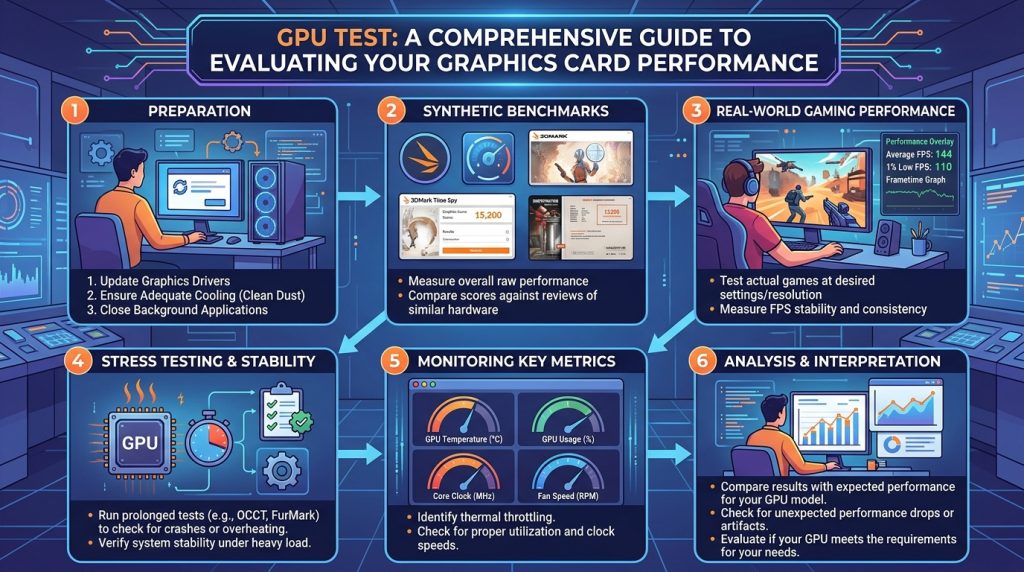
GPU testing serves a multitude of practical purposes across various user profiles and scenarios:
For Gamers
Gamers often represent the largest demographic interested in GPU performance. A GPU test helps them:
- Optimize Game Settings: By benchmarking their GPU with various in-game settings (resolution, texture quality, anti-aliasing, ray tracing, upscaling technologies like DLSS/FSR), gamers can find the optimal balance between visual fidelity and smooth frame rates.
- Verify Upgrades: After installing a new graphics card, running benchmarks confirms that the upgrade delivers the expected performance improvement and integrates seamlessly with the existing system.
- Diagnose Performance Drops: If a game suddenly starts performing poorly, a GPU test can help isolate whether the issue lies with the graphics card, drivers, or other system components.
- Evaluate Overclocks: Overclocking a GPU can yield extra performance, but it risks instability. Benchmarks and stress tests are crucial for validating overclock settings, ensuring stability under load, and monitoring temperatures to prevent thermal throttling.
For Professional Workloads
Professionals in fields like 3D rendering, video editing, CAD, and machine learning rely heavily on GPU power. For them, GPU testing is critical for:
- Hardware Validation: Ensuring that expensive GPUs and multi-GPU setups meet specific performance requirements for compute-intensive tasks.
- Capacity Planning: In enterprise environments, benchmarking is essential for making data-driven decisions about resource allocation, workload management, and scaling GPU infrastructure for AI training and inference.
- Optimizing Workflows: Understanding how a GPU performs with specific software (e.g., Blender, TensorFlow) allows professionals to optimize their settings for maximum efficiency and reduced rendering times.
- Troubleshooting Instability: Unstable GPUs can lead to crashes and data loss in professional applications. Stress tests help identify hardware or driver issues that could cause such problems during critical projects.
For System Builders and Enthusiasts
Those who build their own PCs or constantly tinker with their systems use GPU tests to:
- Establish Baselines: Creating a baseline performance score allows for future comparisons after driver updates, software changes, or component modifications.
- Identify Bottlenecks: Benchmarking can reveal if the GPU is being held back by a weaker CPU, insufficient RAM, or a slow storage drive, helping to optimize system balance.
- Test Stability: After assembling a new PC or making significant changes, stress testing all components, especially the GPU, verifies overall system stability under heavy loads.
- Pre-purchase Evaluation: Benchmarks provide objective data for comparing different GPU models before making a purchase, ensuring the chosen card aligns with performance expectations and budget.
Advanced GPU Testing Considerations
Beyond basic benchmarking, several advanced considerations can enhance the accuracy and utility of your GPU tests:
Controlled Testing Environment
For truly accurate and comparable results, a controlled testing environment is paramount. This includes maintaining consistent ambient temperatures, ensuring proper system cooling, and closing all unnecessary background applications and browser tabs that could interfere with GPU resources. Driver versions should also be kept consistent across comparative tests, as updates can significantly impact performance.
Monitoring and Logging Tools
While many benchmark tools offer built-in monitoring, dedicated software like MSI Afterburner, HWInfo, or GPU-Z provide more detailed real-time data logging for metrics such as temperature, clock speeds, fan speeds, power draw, and VRAM usage. Analyzing these logs after a test can reveal throttling behavior, power limitations, or sudden drops in performance that might not be immediately obvious during the test itself.
Long-Duration Stress Testing
Short benchmarks provide a snapshot of performance, but long-duration stress tests (e.g., 30 minutes to several hours with FurMark or looping 3DMark tests) are crucial for validating stability over extended periods and uncovering thermal issues or intermittent errors that only appear under sustained heavy load. This is particularly important for systems intended for long gaming sessions or continuous professional workloads.
Understanding API and Feature Tests
Modern GPUs support various graphics APIs (DirectX 11, DirectX 12, Vulkan, OpenGL, Metal) and advanced features like ray tracing and DLSS/FSR. Benchmarks that specifically test these aspects, such as 3DMark Port Royal for ray tracing or NVIDIA’s DLSS feature test, provide insights into a GPU’s performance with these newer technologies. Understanding these results helps determine if a GPU is future-proof for upcoming games and applications.
Synthetic vs. Real-World Workload Alignment
While synthetic benchmarks offer standardized scores, it’s beneficial to also test with workloads that mimic your actual use case. For example, if you primarily use Blender, run Blender-specific benchmarks. If you play a particular game, utilize its in-game benchmark. This “workload alignment” ensures that your testing is practically effective for your needs.
Troubleshooting Common GPU Issues During Tests
Encountering issues during a GPU test can be frustrating, but they often provide valuable clues about underlying problems. Here are common issues and troubleshooting steps:
Visual Artifacts
Colored dots, flickering, distorted graphics, or strange lines on the screen during a test are strong indicators of issues. These can be caused by GPU overheating, failing VRAM, an unstable overclock, or even a dying GPU chip.
- Check Temperatures: Immediately monitor your GPU temperature. If it’s too high, improve cooling (clean fans, ensure good airflow in the case, check thermal paste).
- Reduce Overclock: If you’ve overclocked your GPU, revert to default settings to see if the artifacts disappear. Gradually re-apply the overclock, testing stability at each step.
- Driver Reinstallation: Corrupt or outdated drivers can cause artifacts. Perform a clean reinstallation of your GPU drivers using a tool like Display Driver Uninstaller (DDU).
- Check VRAM: Failing VRAM can cause artifacts. Some diagnostic tools have specific VRAM tests.
Crashes or Black Screen
System crashes, blue screens of death (BSODs), or a sudden black screen during a GPU test are serious warning signs.
- Power Supply Unit (PSU): An insufficient or failing PSU might not provide enough stable power under heavy load, leading to crashes. Verify that your PSU meets the recommended wattage for your GPU.
- Loose Connections: Ensure the GPU is firmly seated in its PCIe slot and all power cables (6-pin or 8-pin) from the PSU are securely connected.
- Update/Reinstall Drivers: Driver issues are a common cause of crashes. Update to the latest stable drivers or perform a clean reinstallation.
- BIOS Settings: Ensure BIOS settings are correctly configured to recognize the GPU, and disable integrated graphics if not needed.
- Test in Another System: If possible, test the GPU in a different computer. If it fails there too, the GPU itself is likely faulty. If it works in another system, the problem may be with your motherboard or PSU.
Thermal Throttling
This occurs when the GPU automatically reduces its performance (clock speed) to lower its temperature and prevent damage. You’ll observe a drop in FPS or benchmark scores over time during a test.
- Improve Cooling: Ensure proper airflow in your PC case. Clean dust from fans and heatsinks. Consider upgrading case fans or your GPU cooler.
- Check Thermal Paste: Over time, thermal paste on the GPU die can dry out. Reapplying fresh thermal paste can significantly improve cooling performance.
- Adjust Fan Curves: Use software like MSI Afterburner to create more aggressive fan curves, allowing the GPU fans to spin faster at lower temperatures.
Inconsistent Results
If benchmark scores vary significantly between runs without any changes to your system, it suggests instability or interference.
- Close Background Applications: Ensure no other programs are running that could consume GPU resources or interfere with the benchmark.
- Update Drivers: Ensure your GPU drivers are up-to-date and stable.
- Check for Software Conflicts: Sometimes, other software (e.g., overlay tools, antivirus) can conflict with GPU operation.
- Monitor Power and Thermals: Inconsistent results can sometimes stem from minor power fluctuations or borderline thermal performance.
Diagnosing GPU issues requires patience and a systematic approach. By carefully observing symptoms, monitoring metrics, and methodically troubleshooting, you can pinpoint the root cause of most problems. For further detailed troubleshooting steps, you can refer to comprehensive guides on graphics card issues available from reputable sources such as Wikipedia’s page on Graphics Processing Unit related issues.
Conclusion
GPU testing is an indispensable practice for anyone looking to maximize the performance, stability, and longevity of their computer’s graphics card. From validating new hardware and optimizing settings for the latest games to diagnosing subtle instabilities in professional workstations, the insights gained from a thorough GPU test are invaluable. By understanding key performance metrics, utilizing appropriate benchmarking software, and carefully interpreting the results, users can ensure their graphics cards operate at their peak potential. Regular testing, coupled with diligent monitoring of temperatures and other critical parameters, empowers users to proactively address potential issues, fine-tune their systems, and enjoy a seamless, high-performance computing experience. In an era where GPUs are increasingly central to both entertainment and productivity, mastering the art of the GPU test is more important than ever.