7 Best External GPU Enclosures – Boost Your Laptop’s Gaming Power
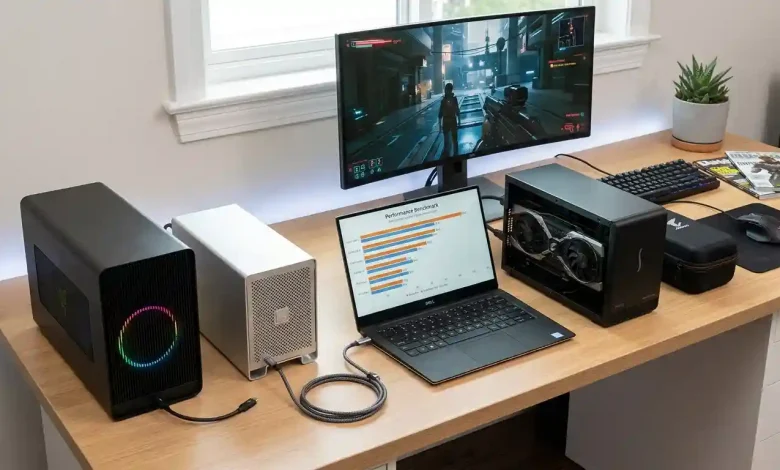
Table of Contents
External GPU enclosures, often simply referred to as eGPUs, have emerged as a revolutionary solution for laptop users seeking to dramatically boost their graphics performance without sacrificing portability. In an era where laptops are becoming increasingly thin and light, integrating powerful, discrete graphics processing units (GPUs) internally is often a compromise. This is where eGPU enclosures step in, offering a bridge between the convenience of a laptop and the raw graphical horsepower of a desktop-grade graphics card. They allow users to transform their portable machines into formidable gaming rigs or powerful workstations capable of handling demanding tasks like 4K video editing, 3D rendering, and even AI workloads.
Why Consider an eGPU for Your Laptop?
The appeal of an eGPU for laptop users stems from several compelling advantages, addressing common limitations of integrated or even entry-level dedicated laptop GPUs.
- Enhanced Graphics Performance: The primary benefit is a significant upgrade in graphical capabilities. Laptops, especially ultrabooks and business models, often come with integrated GPUs that are not designed for intensive graphical tasks. An eGPU allows you to equip your laptop with a full-sized desktop graphics card, unlocking smoother gameplay at higher resolutions and settings, faster rendering times, and improved performance in resource-intensive applications.
- Future-Proofing and Upgradeability: Laptops typically have fixed hardware, making GPU upgrades impossible. With an eGPU, you can easily upgrade the graphics card within the enclosure as newer, more powerful cards become available, extending the lifespan and utility of your laptop without needing to replace the entire system.
- Versatility and Portability: An eGPU offers the best of both worlds: portability when you need it and desktop-class power when you’re at your desk. You can use your lightweight laptop on the go for everyday tasks and then connect it to the eGPU at home or in the office for heavy-duty work or gaming. This flexibility is especially valuable for professionals who move between different work environments.
- Improved Thermal Performance and Noise Reduction: By offloading graphics processing to an external enclosure, the laptop’s internal components run cooler and quieter. The eGPU enclosure typically has its own dedicated cooling system and power supply, reducing the thermal load and fan noise from your laptop.
- Multi-Device Compatibility: Some eGPU enclosures can be shared across multiple compatible laptops, desktops, or even tablets, offering a flexible solution for households or workplaces with various devices.
How External GPUs (eGPUs) Work
An eGPU setup essentially bypasses the limitations of your laptop’s internal graphics by connecting an external, full-sized desktop graphics card to your computer. The core components of an eGPU setup include the eGPU enclosure itself, a desktop graphics card (NVIDIA or AMD), a power supply unit (PSU) within the enclosure, and a high-speed cable, typically Thunderbolt, for connection to the laptop.
Here’s a breakdown of the data path and how these components interact:
- The Enclosure: This is a hardware chassis that houses the desktop graphics card, providing physical mounting, power, and often its own cooling system. It acts as a bridge between your laptop and the powerful desktop GPU.
- The Desktop Graphics Card: You supply a standard desktop GPU (e.g., NVIDIA RTX 40-series or AMD RX 7000-series) which is installed into the enclosure’s internal PCIe slot.
- Power Supply Unit (PSU): The enclosure contains a dedicated PSU to power the graphics card, as laptop power adapters are insufficient for demanding desktop GPUs. Some enclosures can also charge the connected laptop via the Thunderbolt cable.
- High-Speed Interface (Thunderbolt/USB4/OCuLink): The eGPU connects to your laptop via a high-speed interface like Thunderbolt 3, Thunderbolt 4, Thunderbolt 5, USB4, or OCuLink. This interface acts as the “data highway” for communication between your laptop’s CPU and the external GPU.
- Data Flow: Your laptop’s CPU sends GPU-bound instructions over its Thunderbolt or USB4 controller. This traffic is routed through a PCIe tunnel (typically PCIe 3.0 x4 or PCIe 4.0 x4, not the full PCIe x16 lanes found in desktops).
- Processing: The enclosure’s internal switch then forwards this traffic to the installed GPU, which processes the graphics.
- Output: Rendered frames travel back through the same high-speed connection. For optimal performance, it is recommended to connect an external monitor directly to the eGPU’s display outputs (DisplayPort/HDMI) rather than routing the signal back to the laptop’s built-in screen.
The efficiency of this process hinges heavily on the bandwidth and latency of the connection interface. While Thunderbolt 3/4 offers up to 40 Gbps of bandwidth, and Thunderbolt 5 can reach 80 Gbps (or 120 Gbps bi-directional), this is still less than the native PCIe x16 connection within a desktop, which can offer 256 Gbps. This bandwidth limitation is a primary reason why eGPUs often exhibit a performance hit compared to an identical GPU running in a desktop PC.
Key Factors When Choosing an eGPU Enclosure
Selecting the right eGPU enclosure requires careful consideration of several technical specifications and compatibility aspects to ensure it meets your performance needs and works seamlessly with your existing laptop.
- Laptop Compatibility (Thunderbolt/USB4/OCuLink): This is the most crucial factor. Most modern eGPUs require a Thunderbolt 3, Thunderbolt 4, or USB4 port. Look for the lightning bolt symbol next to your laptop’s USB-C port to confirm Thunderbolt compatibility. Not all USB-C ports are Thunderbolt-enabled, and a non-Thunderbolt USB-C port will not work for eGPUs. Some laptops, especially newer ones, might even feature Thunderbolt 5 or OCuLink for even higher bandwidth. You can verify your laptop’s port type and OS support by running
msinfo32(Windows) orsystem_profiler SPThunderboltDataType(macOS). - Power Supply Unit (PSU) Capacity: The eGPU enclosure’s integrated PSU must provide sufficient wattage for your chosen desktop graphics card. High-end cards like the NVIDIA RTX 4080/4090 or AMD RX 7900 XTX typically require enclosures with 650W or even 700W+ PSUs. For mid-range GPUs (e.g., RTX 4060/4070), a 500W PSU might be sufficient. Always check the GPU manufacturer’s recommended power requirements.
- Graphics Card Physical Size and Slot Support: Ensure the enclosure can physically accommodate your desired graphics card. Many enclosures support up to 3-slot wide, full-length desktop graphics cards.
- Connectivity and Port Options: Some eGPU enclosures offer additional ports like USB-A, Ethernet, and additional display outputs, effectively doubling as a docking station. This can simplify your setup, allowing a single cable to connect your laptop to the eGPU, external monitor, and peripherals. However, some enclosures are barebones, focusing solely on GPU expansion.
- Cooling System: Adequate cooling is essential for maintaining optimal GPU performance. Most enclosures have internal cooling systems, often with large fans and vents.
- Portability vs. Desktop Focus: While eGPUs offer “portability when you don’t need power,” the enclosures themselves can vary in size and weight. Some are designed to be more compact, while others are larger and heavier, intended for a more static desk setup.
- Operating System Compatibility: eGPUs generally work well with Windows 10/11 and recent macOS versions (though Apple Silicon Macs currently do not support eGPUs). Linux support can vary depending on the distribution and specific hardware.
- Cost: eGPUs represent a significant investment, comprising the cost of the enclosure and the graphics card itself. Factor in the total cost compared to a dedicated gaming laptop or desktop PC.
Connectivity Standards: Thunderbolt and Beyond
The performance of an eGPU heavily relies on the high-speed interface connecting it to your laptop. Thunderbolt has been the dominant standard, but newer technologies like USB4 and OCuLink are also gaining traction.
- Thunderbolt 3: This was the pioneering interface for eGPUs, offering up to 40 Gbps bandwidth (equivalent to PCIe 3.0 x4). It supports data, video, and power delivery over a single USB-C compatible cable. Many existing enclosures use this standard.
- Thunderbolt 4: While maintaining the 40 Gbps bandwidth ceiling of Thunderbolt 3, Thunderbolt 4 brings stricter certification, mandatory DisplayPort 1.4 support, and improved overall reliability. Most current mid-range to high-end laptops feature Thunderbolt 4.
- Thunderbolt 5: Introduced in 2024, Thunderbolt 5 significantly doubles bandwidth to 80 Gbps and can reach up to 120 Gbps bi-directionally, equivalent to PCIe 4.0 x4. This offers a substantial improvement in performance, especially for higher-end GPUs, and will be crucial for reducing bottlenecks. However, adoption is still in its early stages.
- USB4: USB4 is a newer standard that incorporates the underlying Thunderbolt protocol. It supports PCIe tunneling, making it compatible with eGPUs, often delivering 40 Gbps bandwidth. It provides broader compatibility across devices.
- OCuLink: A less common but emerging alternative, OCuLink (Optical Copper Link) offers direct PCIe signaling over a compact cable, potentially providing lower latency and higher bandwidth (up to full PCIe 4.0 x16 or approximately 64 Gbps) than Thunderbolt in some implementations. While promising for enthusiasts seeking maximum performance, OCuLink ports are not as widely available on laptops.
It’s important to understand that even with the fastest Thunderbolt connections, there will always be some performance loss compared to a GPU installed directly in a desktop’s PCIe x16 slot. This is due to bandwidth limitations and the latency introduced by the external connection. Expect performance ranging from 70% to 90% of a desktop equivalent, with greater losses if you’re using the laptop’s internal display.
Top eGPU Enclosures on the Market
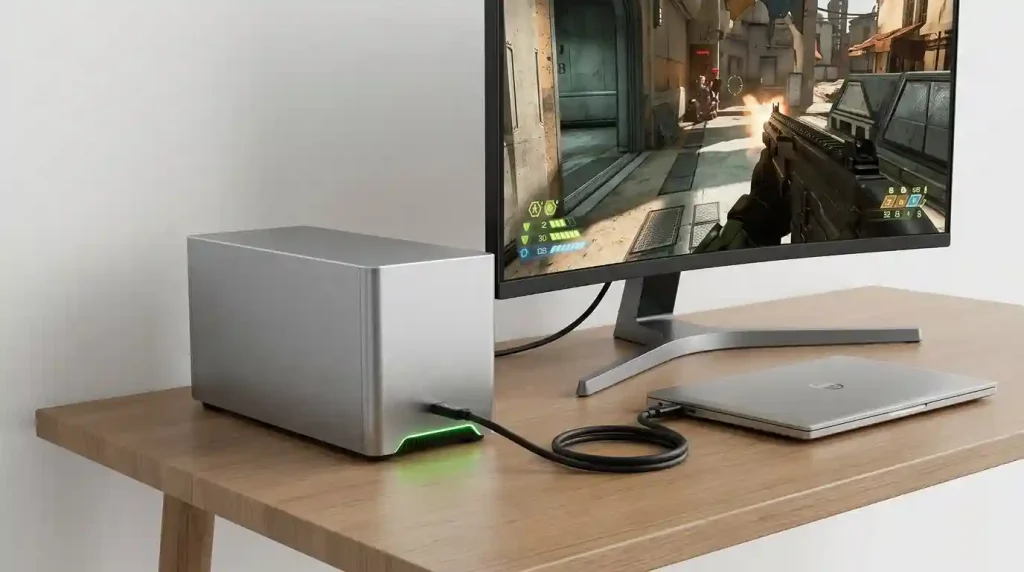
The eGPU market has seen several strong contenders emerge, offering varying features, power delivery, and design philosophies. When choosing, consider the balance between raw power, additional connectivity, size, and of course, price.
| eGPU Enclosure Model | Key Features & Power | Connectivity | Compatibility & Notes |
|---|---|---|---|
| Razer Core X Chroma | 700W PSU, 100W laptop charging. Customizable RGB lighting. Supports 3-slot wide GPUs. | Thunderbolt 3, 4x USB 3.1 Gen 1, Gigabit Ethernet. | Windows & macOS compatible. A robust all-rounder with extra ports. The Razer Core X (non-Chroma) is a more basic version without extra ports or RGB, often cheaper. |
| Sonnet eGFX Breakaway Box 750ex | 750W PSU, 100W laptop charging (varies by model). Supports demanding GPUs. Often praised for quiet operation. | Thunderbolt 3 (or 4/5 depending on model), potentially USB and Ethernet (on ‘ex’ models). | Known for rock-solid Mac support, also Windows compatible. Successor to the popular Breakaway Box 650. |
| AKiTiO Node Titan | 650W PSU, 85W laptop charging. Supports full-length, double-width GPUs. | Thunderbolt 3. Does not include additional USB or Ethernet ports. | Built like a tank with a retractable handle, offering a balance of ruggedness and ease of use. Good value for a full enclosure. |
| ASUS ROG XG Mobile | Integrated GPU (up to NVIDIA RTX 5090 Laptop GPU). Up to 330W power adapter. | Proprietary PCIe connector, HDMI, DisplayPort, USB, Ethernet, SD card reader. (Supports Thunderbolt 5 on 2025 model). | Unique portable design, specifically for compatible ASUS ROG Flow laptops. Not a traditional DIY eGPU; comes with a mobile GPU pre-installed. |
| DIY Solutions (e.g., barebones enclosures/adapters) | User-provided ATX PSU (can be very high wattage). | PCIe to Thunderbolt 3/4 adapter. | Can be a cheaper alternative for tech-savvy users, but requires more assembly and often lacks a clean enclosure. Performance and stability can vary. |
Setting Up Your eGPU: A Step-by-Step Guide
Setting up an eGPU is generally straightforward, but it requires careful attention to detail to ensure proper functionality and performance. Here’s a typical step-by-step guide:
- Verify Compatibility: Double-check that your laptop has a Thunderbolt 3/4/5 or USB4 port. This is non-negotiable. Also, confirm that your chosen eGPU enclosure provides enough power for your selected graphics card.
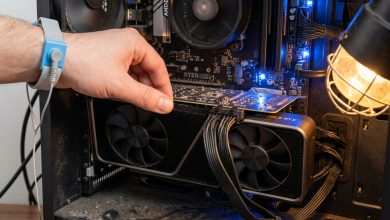
- Install the Graphics Card: Open the eGPU enclosure (most have a tool-less or easy-access design). Gently insert your desktop graphics card into the PCIe slot and secure it with the provided screws or locking mechanism. Ensure all necessary power cables from the enclosure’s PSU are connected to the GPU.
- Connect Power to Enclosure: Plug the eGPU enclosure’s power cable into a wall outlet.
- Connect Enclosure to Laptop: Use the appropriate Thunderbolt or USB4 cable (usually included with the enclosure) to connect the eGPU to your laptop’s compatible port. Your laptop should recognize the new Thunderbolt device. You may need to authorize the Thunderbolt device via the Thunderbolt Control Center application (Windows) or System Information (macOS) if prompted.
- Install/Update GPU Drivers: Once the hardware is connected and recognized by your laptop, download and install the latest graphics drivers for your specific NVIDIA or AMD card from their respective official websites.
- Connect External Monitor (Recommended): For optimal performance, connect your external display directly to the video outputs on the eGPU itself (HDMI or DisplayPort). This bypasses the need for the data to travel back to the laptop’s integrated display, significantly reducing latency and improving frame rates.
- Configure Software (Optional/Advanced): For some applications or games, you might need to manually set them to prefer the external GPU. On Windows, this can be done via Graphics settings (right-click desktop > Display settings > Graphics settings). On macOS, you might find an “Prefer External GPU” option in the application’s “Get Info” menu.
- Restart: A system restart after driver installation and initial setup is often recommended to ensure all changes take effect.
Limitations and Important Considerations
While eGPUs offer a fantastic solution for many, it’s crucial to be aware of their inherent limitations and specific considerations:
- Performance Overhead/Bottleneck: The biggest limitation is the bandwidth constraint of the Thunderbolt/USB4 interface compared to a desktop’s internal PCIe x16 slot. This typically results in a 10-30% performance reduction for the GPU compared to its desktop equivalent. This loss can be even higher (sometimes over 50%) if you route the display signal back to the laptop’s internal screen. High-end GPUs suffer more significant drops than mid-range cards, which can often get closer to their full potential.
- Cost: An eGPU setup involves the cost of both the enclosure and a desktop graphics card, which can be a substantial investment. For some, a dedicated gaming laptop or desktop PC might offer better performance per dollar.
- Not Truly Portable During Use: While your laptop remains portable, the eGPU itself is a stationary setup. It requires external power and is often bulky, negating the portability aspect while actively using the external graphics.
- CPU Bottleneck: Even with a powerful external GPU, a less powerful laptop CPU (especially older or ultra-low voltage models) can become a bottleneck, preventing the GPU from reaching its full potential.
- Driver and Software Issues: While largely improved, occasional driver conflicts or software compatibility issues can arise, especially with less common configurations or operating systems like Linux. Apple Silicon Macs (M1/M2/M3/M4) currently do not support eGPUs, which is a significant drawback for Mac users.
- Hot-Plugging: While Thunderbolt is designed for hot-plugging, it’s generally recommended to connect the eGPU before booting or to close graphically intensive applications before disconnecting to avoid potential system instability.
- Power Delivery Variability: Ensure the enclosure’s power delivery to the laptop (if supported) is sufficient for your specific model, as some laptops might require more than the 65W or 100W typically provided.
For a comprehensive understanding of the technology and community support, resources like the eGPU.io forums are excellent for staying updated on compatibility and troubleshooting.
The Future of External GPUs
The external GPU landscape is continuously evolving, driven by advancements in high-speed connectivity and increasing demand for flexible computing solutions. The introduction of Thunderbolt 5, with its significantly increased bandwidth, promises to further reduce performance bottlenecks and enable even higher-end graphics cards to operate more efficiently with laptops.
We can anticipate several trends shaping the future of eGPUs:
- Improved Performance: With Thunderbolt 5 becoming more widespread, the performance gap between eGPUs and desktop GPUs will likely narrow further, making eGPUs an even more attractive option for demanding users.
- Wider Adoption of USB4 and OCuLink: As USB4 continues to mature and OCuLink gains more support, the range of compatible laptops and enclosures will expand, offering more choice and potentially more affordable solutions.
- Evolving Form Factors: While current enclosures prioritize performance, future designs may strike a better balance between power and portability, perhaps leading to more compact and travel-friendly eGPUs.
- Integration with AI Workloads: As AI and machine learning tasks become more prevalent, the ability to leverage powerful external GPUs for local AI acceleration will become increasingly valuable for researchers and developers using laptops.
- Increased Feature Sets: More enclosures may integrate advanced docking features, expanding beyond basic USB and Ethernet to include faster card readers, additional high-speed ports, and more sophisticated power delivery.
Despite the challenges, external GPUs are poised to play an increasingly important role in providing flexible, high-performance computing experiences for laptop users in the years to come.
Conclusion
External GPU enclosures offer a compelling solution for laptop users who crave desktop-level graphics performance without sacrificing the inherent portability of their machines. By understanding how these devices work, the key factors in choosing an enclosure, and the practical considerations involved, you can make an informed decision to significantly enhance your laptop’s capabilities. Whether you’re a gamer looking for higher frame rates, a content creator needing faster rendering, or a professional requiring powerful computational graphics, an eGPU setup can transform your laptop into a versatile powerhouse. While not without its limitations, the continuous evolution of connectivity standards like Thunderbolt and USB4 suggests a bright future for external graphics, making high-performance computing more accessible and adaptable than ever before.