GPU Fan Troubleshooting and Cooling Optimization Tips: 7 Easy Fixes for Better Performance
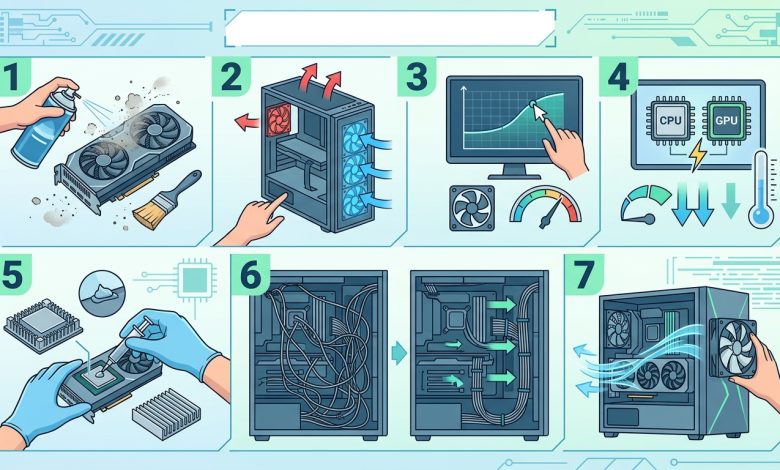
Table of Contents
GPU Fan Troubleshooting and Cooling Optimization Tips are essential for maintaining the performance and longevity of your graphics card. Modern GPUs are powerful components responsible for rendering complex graphics in games, professional applications, and AI workloads, and with great power comes significant heat generation. Effective cooling is paramount to prevent overheating, which can lead to reduced performance, system instability, and even permanent damage to your hardware. This comprehensive guide will walk you through common GPU fan issues, offer step-by-step troubleshooting methods, and provide advanced tips for optimizing your GPU’s cooling system to ensure it operates at its best.
Understanding GPU Fans and Their Importance
Graphics Processing Units (GPUs) generate substantial heat, especially under heavy loads. To counteract this, virtually all graphics cards are equipped with cooling systems that typically feature fans and heatsinks. These fans play a critical role in dissipating heat by drawing cooler air over the heatsink fins, which in turn transfer heat away from the GPU chip and other hot components like VRAM and VRMs.
There are primarily two types of GPU fans:
- Axial Fans: These are the most common type, found on the vast majority of consumer graphics cards. They push air perpendicularly down onto the heatsink. Multi-fan setups (dual or triple axial fans) are prevalent on high-performance GPUs.
- Blower-Style (Radial) Fans: Less common in consumer cards now, these fans draw air in from one end of the card and exhaust it out the rear I/O bracket. They are often found in server environments or smaller form factor PCs where exhausting heat directly out of the case is beneficial.
The importance of well-functioning GPU fans cannot be overstated. When GPU fans fail to operate correctly, heat builds up rapidly. This accumulation of heat can trigger thermal throttling, a protective mechanism where the GPU automatically reduces its clock speeds and performance to prevent damage. This results in lower frame rates, stuttering, and an overall degraded user experience. In severe cases, prolonged exposure to high temperatures can lead to system crashes, blue screens of death (BSODs), display artifacts, and even irreversible hardware failure.
Common GPU Fan Issues and Their Symptoms
Identifying a GPU fan issue early can prevent significant problems. Here are some common issues and their telltale symptoms:
- Fans Not Spinning or Spinning Inconsistently: This is a primary indicator of trouble. Modern GPUs often have a “zero RPM” mode where fans remain stationary at idle or low temperatures (typically below 50-60°C) for quieter operation. However, if the fans do not spin up even when the GPU is under load and temperatures exceed this threshold, there’s a problem. Inconsistent spinning, where one fan spins normally while another stalls, or fans randomly stop and start, also signals an issue.
- Noisy Operation: A healthy GPU fan should operate relatively quietly. Unusual sounds like grinding, rattling, clicking, or a high-pitched whine are strong indicators of a failing fan bearing or an obstruction. These noises suggest that the fan is physically spinning but its rotation is hampered.
- Overheating Issues: Consistently high GPU temperatures (e.g., above 85°C during gaming) despite seemingly adequate case airflow are a clear sign of inefficient cooling, often linked to faulty fans. Monitoring software can confirm if your GPU is running hotter than usual.
- Reduced Performance and System Instability: As a direct consequence of overheating, your GPU will throttle its performance, leading to lower frame rates, stuttering, and overall degraded gaming or application performance. Beyond performance drops, you might experience system errors, crashes to desktop, driver errors, or unexpected shutdowns during intensive tasks.
- Dust Accumulation and Obstructions: Visible dust buildup on the fan blades, heatsink fins, or within the fan shroud can severely impede airflow. Wires rubbing against fan blades can also cause buzzing noises and eventually lead to fan failure.
- Software-Related Problems: Incorrect fan curve settings (either default or user-defined), outdated graphics drivers, or even bugs in the GPU BIOS can sometimes prevent fans from spinning correctly.
Step-by-Step GPU Fan Troubleshooting
When faced with GPU fan issues, a systematic approach to troubleshooting can help diagnose and resolve the problem.
1. Initial Checks and Visual Inspection
Begin by performing basic, non-invasive checks:
- Power Cycle Your PC: Fully shut down your computer, unplug it from the wall, wait a minute, and then restart. This can sometimes clear temporary software glitches.
- Visual Inspection: Power down your PC, open the side panel, and carefully inspect your GPU. Look for:
- Dust and Debris: Check for any significant dust buildup on the fan blades, heatsink, and vents. Dust acts as an insulator, trapping heat.
- Obvious Obstructions: Ensure no loose cables, wires, or foreign objects are physically blocking the fan blades.
- Physical Damage: Look for bent, cracked, or damaged fan blades, or signs of physical wear on the fan motors.
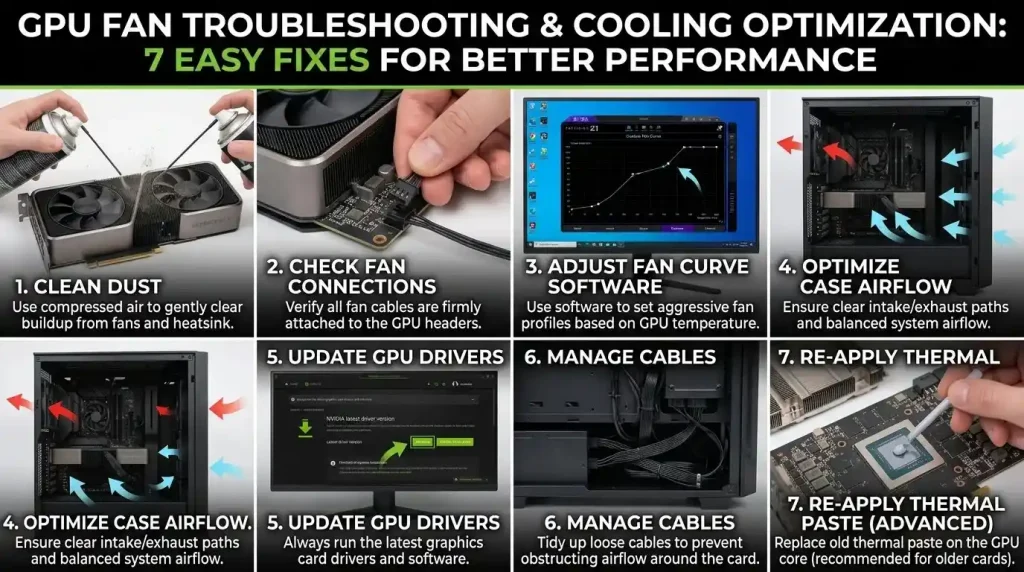
- Power Cables: Verify that all GPU power cables (e.g., 6-pin, 8-pin PCIe) are securely seated into the graphics card and that the internal fan power cable is connected to the GPU PCB. Loose connections can prevent proper power delivery.
- Reseat the Graphics Card: Gently remove and then re-insert your graphics card into its PCIe slot on the motherboard, ensuring it’s securely latched. A defective PCIe slot can also prevent fan functionality, so testing it in a different slot if available can be helpful.
2. Software Monitoring and Control
Software tools can provide valuable insights and control over your GPU fans:
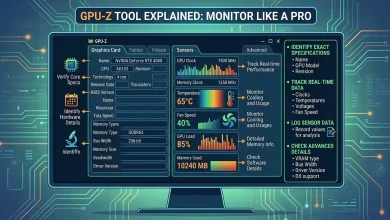
- GPU Monitoring Software: Use tools like MSI Afterburner, GPU-Z, or HWiNFO to monitor your GPU’s temperature, fan speed, and overall load in real-time. This helps confirm if temperatures are indeed high when fans are not spinning, or if fan speeds are stuck at 0 RPM under load.
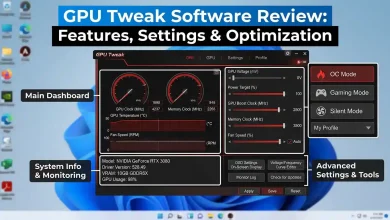
- Manual Fan Speed Control: Within monitoring software like MSI Afterburner, you can manually override the automatic fan control. Enable user-defined software automatic fan control and slide the fan speed to 100% to see if the fans respond. If they spin, the issue might be with the automatic fan curve or temperature sensor rather than a physically broken fan.
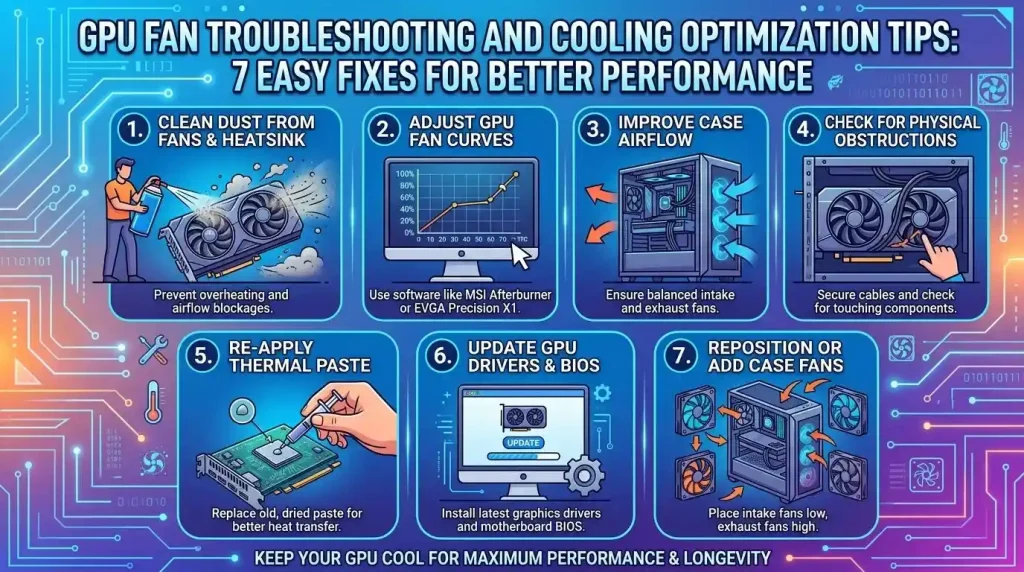
- Custom Fan Curve: If your GPU fans are working but not cooling efficiently, setting a custom fan curve can be highly effective. A custom fan curve allows you to define specific fan speeds at different temperature thresholds, often leading to better cooling and quieter operation than default settings.
3. Cleaning and Maintenance
Dust is a significant enemy of cooling systems.
- Cleaning the Fans and Heatsink: With the PC powered off and unplugged, use a can of compressed air to thoroughly blast dust from the GPU fans, heatsink fins, and any vents on the card. Hold the fans gently to prevent them from spinning too fast, which can damage their bearings. For stubborn dust, a soft brush can be used carefully. Regular cleaning can drop GPU temperatures significantly.
4. Driver and BIOS Updates
Software issues can sometimes manifest as fan problems.
- Update Graphics Drivers: Ensure your graphics drivers are up to date by downloading the latest versions from NVIDIA or AMD’s official websites. A clean installation of drivers can resolve fan control bugs.
- Update GPU BIOS: In some rare cases, a GPU BIOS update from the manufacturer can fix fan control bugs or improve fan curve programming. Exercise extreme caution when flashing the GPU BIOS and follow manufacturer instructions precisely, as a corrupted BIOS can brick the card.
5. Advanced Hardware Checks (If comfortable)
If the above steps don’t resolve the issue, you might consider:
- Replacing Faulty Fans: If a specific fan is physically broken, making excessive noise due to worn bearings, or simply not spinning despite power, it may need replacement. This typically involves disassembling the GPU shroud and heatsink to access and replace the individual fans. This process requires some technical skill, screwdrivers, and possibly thermal paste/pads.
Advanced Cooling Optimization Techniques
Beyond troubleshooting specific fan issues, several techniques can optimize your GPU’s cooling for better performance and longevity.
1. Improving Case Airflow
The overall airflow within your PC case significantly impacts GPU temperatures.
- Fan Placement and Orientation: Ensure your case fans are correctly oriented to create a clear airflow path, typically from front/bottom (intake) to top/rear (exhaust). This prevents hot air recirculation and ensures cool air reaches the GPU.
- Cable Management: Poor cable management can obstruct airflow, creating pockets of hot air. Tidy up cables to allow for unimpeded air movement.
- Positive vs. Negative Pressure:
- Positive Pressure: More air intake than exhaust. This helps prevent dust ingress through unfiltered openings and can be beneficial for internally exhausting GPUs.
- Negative Pressure: More air exhaust than intake. This can be effective for quickly removing hot air, especially from GPUs that exhaust internally, but may lead to more dust buildup.
- Balanced Airflow: Aims to equalize intake and exhaust, combining benefits while minimizing dust.
- Removing Obstructions: Internal drive cages or other components that block airflow to the GPU can be removed or relocated if possible.
2. Repasting the GPU (Thermal Paste Application)
Thermal paste and pads are crucial for transferring heat from the GPU die and other components to the heatsink. Over time, this paste can dry out, crack, and lose its effectiveness, especially in older GPUs (typically after 2-3 years or more).
- Benefits: Replacing degraded thermal paste can lead to a noticeable improvement in cooling performance, lower temperatures (5-10°C drop is possible), more consistent boost clocks, reduced thermal throttling, and extended hardware lifespan.
- Process: This involves disassembling the GPU cooler, carefully cleaning off the old thermal paste with isopropyl alcohol, and applying a new, high-quality thermal compound. Thermal pads, used for VRAM and VRMs, should also be inspected and replaced if they appear dried out or damaged.
3. Undervolting the GPU
Undervolting involves reducing the voltage supplied to the GPU while maintaining similar clock speeds.
- Benefits: This technique can significantly lower GPU power consumption, temperatures, and fan noise without a noticeable performance hit. It effectively makes the GPU more power-efficient.
- Process: Undervolting is typically done using software like MSI Afterburner, where you adjust the voltage-frequency curve. It requires some experimentation to find the lowest stable voltage for your desired frequency.
| Cooling Optimization Technique | Primary Benefit | Complexity Level | Tools/Software Required |
|---|---|---|---|
| Improving Case Airflow | Better overall system cooling, reduced GPU temps | Medium | Case fans, zip ties/velcro, possibly a new case |
| Repasting the GPU | Significant temperature drops, extended GPU lifespan | High | Thermal paste, isopropyl alcohol, screwdrivers, thermal pads (optional) |
| Undervolting the GPU | Lower temps, less noise, power efficiency with minimal performance loss | Medium | MSI Afterburner or similar GPU tuning software |
| Custom Fan Curve | Optimized fan speed for temperature/noise balance | Low-Medium | MSI Afterburner or manufacturer’s software |
| Aftermarket Coolers | Superior cooling for high-end or overclocked GPUs | Very High | Aftermarket air cooler, AIO, or custom liquid cooling kit |
4. Considering Aftermarket Coolers
For users with high-end GPUs, significant overclocking, or persistent thermal issues, aftermarket cooling solutions can provide superior performance.
- Aftermarket Air Coolers: These are larger, more efficient heatsinks with multiple fans, designed to replace the stock GPU cooler.
- All-in-One (AIO) Liquid Coolers: Some GPUs can be fitted with AIO liquid coolers, offering much better heat dissipation than air.
- Custom Liquid Cooling Loops: For enthusiasts, a custom liquid cooling loop that includes the GPU (and often the CPU) provides the best thermal performance, though it’s the most complex and expensive option.
Maintaining Optimal GPU Temperatures
Proactive maintenance and awareness of environmental factors are crucial for sustained optimal GPU temperatures.
- Regular Cleaning Schedule: Implement a routine for cleaning your PC, especially the GPU fans, heatsink, and case dust filters. Depending on your environment, cleaning every 3-6 months with compressed air is a good starting point. Dust is the “silent killer” of airflow and cooling efficiency.
- Monitor Temperatures During Heavy Loads: Regularly use monitoring software to keep an eye on your GPU temperatures while gaming or running demanding applications. Most GPUs are safe up to 85°C, but ideally, you want to stay between 65-80°C for long-term health and consistent performance.
- Environmental Factors: The ambient room temperature significantly affects your GPU’s operating temperature. Keep your room as cool as possible and ensure your PC is not placed in an enclosed space that traps heat. Avoid direct sunlight on your PC and ensure it’s not too close to walls, which can restrict airflow.
- Avoid Overclocking Without Adequate Cooling: While overclocking can boost performance, it also increases heat generation. Only attempt significant overclocking if you have a robust cooling solution and are actively monitoring temperatures. Overclocking without checking temps is a common mistake that leads to overheating.
- Optimize In-Game Settings: Sometimes, simply lowering graphics settings, enabling features like DLSS or FSR, or limiting FPS to your monitor’s refresh rate can significantly reduce GPU load and, consequently, temperatures without a major visual impact.
When to Consider Professional Help or Upgrades
While many GPU fan and cooling issues can be resolved with DIY troubleshooting, there are situations where professional assistance or hardware upgrades are advisable.
- Persistent Issues: If you’ve tried all the troubleshooting steps and your GPU still exhibits overheating, fan failure, or performance throttling, it might be time to consult a professional. There could be underlying hardware damage to the GPU’s PCB or power delivery components that require specialized repair.
- Fear of DIY Repairs: Disassembling a GPU for fan replacement or repasting thermal paste can be daunting for some users. If you’re uncomfortable with the process, especially if your GPU is still under warranty (as disassembly can void it), a professional technician can perform these tasks safely.
- Out-of-Warranty Repairs: For GPUs no longer under warranty, the cost of professional repair for complex issues might approach the cost of a new, entry-level graphics card. Consider the cost-benefit ratio.
- Benefits of a New GPU: Sometimes, an older GPU’s cooling system simply isn’t adequate for modern demands, or the cost of repairing it outweighs its value. Upgrading to a newer graphics card often brings not only performance improvements but also more efficient and powerful cooling solutions.
- Upgrading Case and Cooling Solutions: If your current PC case has poor airflow design or your existing cooling components (case fans, CPU cooler) are insufficient, upgrading these can be a more cost-effective solution than constantly battling GPU temperatures. Investing in a case with better airflow and higher CFM-rated fans can yield significant improvements. For more insights into optimal system cooling, refer to external resources such as Wikipedia’s article on Computer Cooling.
Conclusion
Effective GPU Fan Troubleshooting and Cooling Optimization Tips are vital for any PC user, from casual gamers to hardcore enthusiasts. By understanding the importance of GPU cooling, recognizing common fan issues, and systematically troubleshooting problems, you can prevent performance degradation and extend the lifespan of your valuable graphics card. Regular cleaning, monitoring temperatures, optimizing case airflow, and considering advanced techniques like repasting and undervolting are key to maintaining optimal thermal performance. While many issues are solvable with DIY methods, knowing when to seek professional help or consider hardware upgrades ensures your system continues to run smoothly and efficiently, allowing you to enjoy uninterrupted, high-performance computing. Prioritizing GPU cooling is an investment in your PC’s health and your overall user experience.