6 Reasons to Love External GPUs – Boost Laptop Gaming Easily
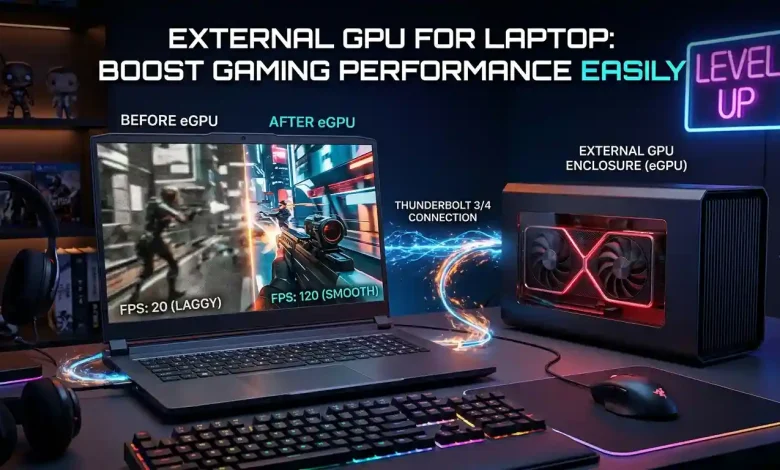
Table of Contents
External GPU for Laptop setups have emerged as a revolutionary solution for gamers and creative professionals alike, offering a compelling way to overcome the inherent graphical limitations of portable computing devices. Laptops, by their very nature, prioritize portability and thin form factors, often necessitating compromises in terms of raw graphical processing power. While integrated graphics have improved significantly, and some high-end gaming laptops pack powerful discrete GPUs, they rarely match the raw performance or upgradeability of desktop counterparts. This is where the external GPU, or eGPU, steps in, providing a pathway to significantly boost gaming performance and enable demanding applications without requiring a complete system overhaul. By connecting a powerful desktop-grade graphics card to a laptop via a high-bandwidth connection, typically Thunderbolt, users can transform an underpowered portable machine into a formidable gaming rig or a potent workstation for tasks like video editing, 3D rendering, and machine learning.
What is an External GPU (eGPU) and How Does It Work?
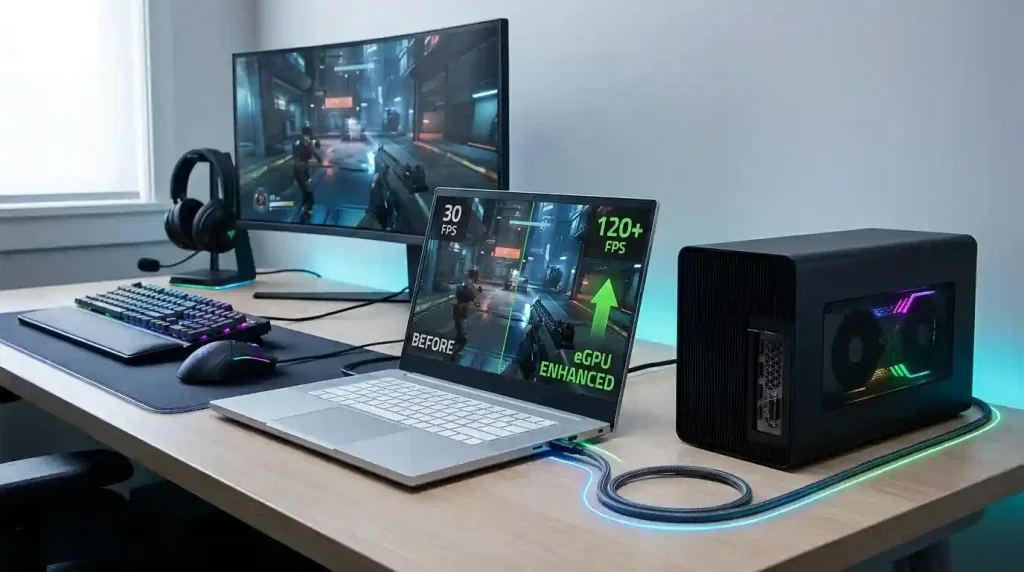
An external GPU (eGPU) is a system that allows you to connect a desktop graphics card to a laptop. At its core, an eGPU setup consists of three main components: a compatible laptop, an eGPU enclosure, and a desktop graphics card. The enclosure acts as a housing for the graphics card, providing power and connectivity to the laptop. The primary connection method for eGPUs is Thunderbolt, specifically Thunderbolt 3 or Thunderbolt 4, due to their high bandwidth capabilities. Thunderbolt 3, for instance, offers up to 40 Gbps (gigabits per second) of theoretical bandwidth, which is crucial for transmitting complex graphical data between the external GPU and the laptop’s CPU and RAM.
When an eGPU is connected, the laptop essentially offloads graphics rendering tasks to the more powerful external graphics card. Instead of the laptop’s internal, often weaker, GPU handling everything, the eGPU processes the game or application’s visual data and sends the rendered frames back to the laptop’s display or an external monitor connected directly to the eGPU. This process bypasses the limitations of the laptop’s integrated or weaker discrete GPU, allowing for higher frame rates, better graphical settings, and support for advanced display technologies like virtual reality (VR) headsets or multiple high-resolution monitors. The communication between the laptop and the eGPU is handled by the Thunderbolt controller, which routes the PCI Express (PCIe) lanes from the desktop graphics card to the laptop’s CPU. This effectively gives the laptop access to the full power of a desktop GPU, albeit with some overhead due to the external connection and data transfer.
Why Consider an External GPU for Laptop Gaming?
Laptop gaming often comes with a set of compromises. While performance has improved dramatically over the years, the thermal and power constraints within a thin and light chassis mean that even dedicated gaming laptops can struggle to keep up with the latest demanding titles at their highest settings. For users who value both portability and high-fidelity gaming, an eGPU presents a compelling middle ground. Instead of investing in a new, bulky gaming laptop every few years, an eGPU setup allows you to leverage the computing power of your existing laptop while upgrading the most crucial component for gaming: the graphics card. This modular approach is not only cost-effective in the long run but also offers flexibility that traditional laptop ownership cannot.
Many modern ultrabooks and business laptops, while excellent for productivity, often feature only integrated graphics, making them unsuitable for serious gaming. An eGPU transforms these machines into capable gaming platforms, allowing users to enjoy AAA titles without the need for a separate desktop PC. This is particularly appealing for students, frequent travelers, or anyone who needs a powerful workstation during the day and a high-performance gaming rig in the evenings, all without juggling multiple expensive devices. Furthermore, the longevity of a laptop can be significantly extended by pairing it with an eGPU. As new games demand more graphical horsepower, instead of replacing the entire laptop, one can simply upgrade the graphics card within the eGPU enclosure, a far more economical and environmentally friendly solution.
Key Benefits of Using an eGPU Setup
The advantages of integrating an eGPU into your computing setup are numerous and can profoundly impact a user’s experience. Primarily, the most significant benefit is the dramatic increase in gaming performance. Laptops with integrated or mid-range discrete GPUs often struggle to maintain playable frame rates at higher resolutions or graphic settings. An eGPU allows you to run the latest AAA titles smoothly, often at 1080p, 1440p, or even 4K resolutions, depending on the chosen GPU, with settings cranked up.
Beyond gaming, eGPUs also offer substantial benefits for content creation and professional applications. Tasks such as video editing, 3D rendering, graphic design, and scientific simulations are heavily reliant on GPU acceleration. By providing access to a powerful desktop-class GPU, an eGPU can drastically reduce rendering times and improve workflow efficiency for professionals using software like Adobe Premiere Pro, Blender, AutoCAD, or DaVinci Resolve. Another key advantage is future-proofing and upgradeability. Unlike a laptop’s internal GPU, which is typically soldered to the motherboard and cannot be upgraded, the graphics card within an eGPU enclosure can be easily swapped out for a newer, more powerful model. This means you can keep your laptop for longer and simply upgrade the GPU as your performance needs evolve or as newer, more demanding games are released.
Moreover, eGPUs offer enhanced display options. Most eGPU enclosures allow for direct connection to external monitors, which can often bypass the laptop’s internal display pathway, potentially reducing latency and improving performance slightly. This also enables support for multiple monitors, high refresh rates, and advanced display technologies that the laptop’s native outputs might not support. Finally, an eGPU setup promotes portability without compromise. You get the lightweight design of your laptop for on-the-go productivity, and when you return to your desk, you simply plug in the eGPU to transform it into a powerful desktop-class machine. This versatility eliminates the need for both a separate gaming desktop and a portable laptop, streamlining your setup and potentially saving costs in the long run.
Understanding eGPU Compatibility and Requirements
Before diving into the world of external GPUs, understanding the critical compatibility requirements is paramount. The cornerstone of any successful eGPU setup is the laptop’s support for Thunderbolt 3 or Thunderbolt 4. These high-speed ports are essential because they provide the necessary bandwidth (40 Gbps) to transfer data efficiently between the laptop and the external graphics card. Older Thunderbolt versions (1 or 2) do not offer sufficient bandwidth for a satisfactory eGPU experience, and standard USB-C ports, while physically similar, lack the underlying Thunderbolt controller and technology. You’ll typically find Thunderbolt ports on newer laptops, especially ultrabooks and premium models, often indicated by a small lightning bolt icon next to the USB-C port.
Beyond the port, the laptop’s CPU also plays a significant role. While the eGPU handles the graphical heavy lifting, the CPU is responsible for processing game logic, physics, and feeding instructions to the GPU. A weaker or older CPU can create a bottleneck, limiting the performance even of a powerful external graphics card. Generally, an Intel Core i5 (8th generation or newer) or an AMD Ryzen 5 (2nd generation or newer) is recommended for a decent eGPU experience, with more powerful CPUs yielding better results, especially in CPU-intensive games. Furthermore, the laptop’s operating system needs to be compatible. Windows 10 and 11 offer robust support for eGPUs, as do macOS (for specific AMD cards). Drivers for both the Thunderbolt controller and the graphics card must be properly installed and kept up-to-date for optimal performance and stability. It’s also wise to check the specific eGPU enclosure’s compatibility list, as some enclosures may have specific requirements or limitations regarding GPU size, power delivery, or supported laptop models. Verifying all these elements beforehand will save you from potential frustration and ensure a smooth setup experience.
Choosing the Right Components: eGPU Enclosure and Graphics Card
Selecting the right eGPU enclosure and graphics card is critical for maximizing performance and ensuring compatibility. The eGPU enclosure is more than just a box; it’s a sophisticated piece of hardware that houses the GPU, provides power, and manages the Thunderbolt connection to your laptop. Key factors to consider when choosing an enclosure include its size, power supply (PSU) wattage, and additional features like USB ports or Ethernet connections. Enclosures come in various sizes, with some being more compact and others larger to accommodate triple-slot graphics cards or longer models. The PSU wattage is crucial; it needs to be powerful enough to supply the chosen graphics card and provide power delivery to the laptop. Many enclosures offer 60W or 100W power delivery, allowing you to charge your laptop while using the eGPU, simplifying cable management.
For the graphics card, the choice largely depends on your budget, desired performance level, and the games or applications you intend to run. Modern GPUs from NVIDIA (e.g., RTX 30 Series, RTX 40 Series) and AMD (e.g., RX 6000 Series, RX 7000 Series) offer excellent performance. Generally, it’s advisable to pick a graphics card that aligns with the capabilities of your laptop’s CPU to avoid bottlenecks. For instance, pairing a budget laptop with an RTX 4090 might lead to a CPU bottleneck, where the CPU cannot feed data to the GPU fast enough. Conversely, a powerful laptop CPU might be underutilized with an entry-level GPU. Researching benchmarks for eGPU setups with similar laptop specifications can provide valuable insights. It’s also important to consider the physical dimensions of the graphics card to ensure it fits within the chosen eGPU enclosure, paying attention to length, height, and thickness (number of slots). Websites like Wikipedia’s Graphics Card page offer extensive details on different GPU generations and their specifications, which can aid in making an informed decision.
| Component | Key Consideration | Example |
|---|---|---|
| Laptop Port | Must have Thunderbolt 3 or 4 | USB-C port with lightning bolt icon |
| Laptop CPU | Intel Core i5 (8th Gen+) or AMD Ryzen 5 (2nd Gen+) recommended | Intel Core i7-11800H |
| eGPU Enclosure | PSU wattage, GPU size compatibility, additional ports | Razer Core X Chroma, Sonnet Breakaway Box |
| Graphics Card | Performance vs. price, power consumption, physical size | NVIDIA GeForce RTX 4070, AMD Radeon RX 7800 XT |
| External Monitor (Optional but Recommended) | Connect directly to eGPU for best performance | High refresh rate 1440p monitor |
Setting Up Your eGPU: A Step-by-Step Guide
Setting up an external GPU might seem daunting at first, but it’s a relatively straightforward process once you have all the compatible components. The first step involves installing the graphics card into the eGPU enclosure. This usually requires opening the enclosure, inserting the GPU into its PCIe slot, and securing it with screws. Then, connect the necessary PCIe power cables from the enclosure’s power supply unit (PSU) to the graphics card. Ensure all connections are snug and secure before closing the enclosure.
Next, you’ll need to connect the eGPU enclosure to your laptop using a high-quality Thunderbolt 3 or Thunderbolt 4 cable. It’s crucial to use a certified Thunderbolt cable to ensure stable data transfer and power delivery. Once connected, your laptop should detect the eGPU. Windows will typically prompt you to acknowledge the new Thunderbolt device; follow the on-screen instructions to approve and connect. After the hardware connection is established, the final and critical step is to install the necessary graphics drivers. For NVIDIA GPUs, download the latest drivers from the NVIDIA website, and for AMD GPUs, download them from the AMD website. Install these drivers as you would for any internal graphics card. It’s often recommended to perform a clean installation to avoid any conflicts with existing integrated or discrete laptop GPU drivers. Some users find it beneficial to disable the laptop’s internal discrete GPU (if it has one) in the device manager when primarily using the eGPU, though this isn’t always necessary for functionality.
Once the drivers are installed, restart your laptop. Upon reboot, your system should recognize and utilize the external GPU. You can verify this in Device Manager under “Display adapters” or by checking the control panel for your respective GPU manufacturer (NVIDIA Control Panel or AMD Adrenalin Software). For optimal gaming performance, it is generally recommended to connect your monitor directly to the eGPU’s display outputs (HDMI, DisplayPort) rather than using the laptop’s internal screen. This allows the eGPU to render frames and send them directly to the monitor, bypassing the laptop’s internal display pathway and reducing potential bandwidth bottlenecks. While playing on the laptop’s internal screen is possible, it incurs additional overhead as the rendered frames must travel back through the Thunderbolt cable to the laptop’s display, which can result in a slight performance hit. For more detailed guides on setting up your gaming peripherals, you can refer to resources on optimizing your gaming peripherals to complete your setup.
Limitations and Potential Drawbacks of eGPUs
While external GPUs offer significant advantages, they are not without their limitations and potential drawbacks. Understanding these can help set realistic expectations and inform your purchasing decision. One of the most common limitations is performance overhead. Despite the high bandwidth of Thunderbolt 3/4, the external connection inherently introduces some latency and a reduction in raw performance compared to a GPU connected directly to a desktop motherboard’s full PCIe x16 slot. This means that even the most powerful desktop GPU will perform slightly less effectively in an eGPU setup than in a dedicated desktop PC. The performance hit can vary, but it’s typically in the range of 10-20% depending on the game, resolution, and specific hardware configuration.
Another significant hurdle can be compatibility issues. While Thunderbolt has become more standardized, not all laptops with Thunderbolt 3/4 ports are equally well-suited for eGPUs. Some laptop manufacturers may have implemented Thunderbolt differently, leading to stability problems or limited functionality. Additionally, some specific graphics cards, particularly newer generations, might not always play perfectly with every eGPU enclosure or laptop combination, requiring careful research. The cost factor is also a consideration. eGPU enclosures themselves can be quite expensive, often ranging from $200 to $500 or more, on top of the cost of a powerful desktop graphics card. When combined, this can approach the price of a mid-range gaming desktop or even a dedicated gaming laptop, leading some users to question the overall value proposition. Furthermore, eGPU setups are inherently less portable than a standalone gaming laptop. While your laptop remains portable, the eGPU enclosure and graphics card are bulky and require a dedicated power source, making them impractical for gaming on the go. They are best suited for transforming a laptop into a powerful desktop replacement at a fixed location.
Finally, there’s the issue of CPU bottlenecks. As mentioned earlier, even with a top-tier external GPU, a less powerful laptop CPU can become the limiting factor, especially in CPU-intensive games or at lower resolutions where the GPU has more headroom. This means that simply adding a powerful eGPU won’t magically turn an entry-level laptop into a high-end gaming machine if the CPU isn’t up to par. This factor highlights the importance of balancing your eGPU investment with the capabilities of your existing laptop hardware. Before making a purchase, it’s advisable to consult reviews and community forums to understand potential compatibility quirks and expected performance for your specific laptop model and target GPU, possibly checking resources on choosing the right GPU for your setup.
The Future of External GPUs in Laptop Gaming
The landscape of external GPUs is continuously evolving, with promising developments on the horizon. The introduction of newer Thunderbolt standards, such as Thunderbolt 4, offers improved stability, better peripheral support, and greater compatibility across different systems, even if the raw bandwidth remains similar to Thunderbolt 3. Future iterations, potentially with higher bandwidth capabilities, could further diminish the performance overhead currently associated with eGPUs, bringing external performance even closer to internal PCIe connections. We might also see advancements in the eGPU enclosure designs themselves, potentially leading to more compact, efficient, and aesthetically pleasing units with integrated cooling solutions tailored for modern high-TDP (Thermal Design Power) graphics cards.
Beyond hardware, software optimization will also play a crucial role. Operating system and driver improvements can further streamline the communication between the laptop and the eGPU, reducing latency and enhancing overall performance. As cloud gaming continues to grow, and streaming technologies improve, the role of local powerful GPUs might shift, but for enthusiasts and professionals who demand the absolute lowest latency and highest fidelity, eGPUs will likely remain a vital component. The increasing power efficiency of graphics cards, coupled with advancements in laptop CPU performance, suggests a future where even thin and light laptops can leverage external GPUs to deliver a premium gaming or content creation experience, blurring the lines between portable and desktop computing even further. The push for more modular and upgradeable computing solutions aligns perfectly with the eGPU concept, suggesting a continued relevance and innovation in this niche but important segment of the PC hardware market.
Conclusion
External GPUs for laptops represent a powerful and flexible solution for significantly boosting gaming performance and enhancing capabilities for demanding professional applications. They allow users to extend the lifespan of their existing laptops, tap into the raw power of desktop-grade graphics cards, and enjoy a modular approach to system upgrades. While considerations such as Thunderbolt compatibility, potential performance overhead, and initial cost are important, the benefits of improved frame rates, enhanced graphical fidelity, and the ability to drive multiple high-resolution displays often outweigh these drawbacks for the right user. As technology advances, particularly with higher bandwidth connections and optimized software, eGPUs are poised to become an even more seamless and compelling option, continuing to bridge the gap between the portability of laptops and the uncompromising power of desktop PCs. For anyone looking to unlock the full gaming or creative potential of their laptop without investing in an entirely new system, an eGPU offers an accessible and highly effective upgrade path.