GPU Repair: A Comprehensive Guide to Troubleshooting, Fixing, and Maintaining Your Graphics Card
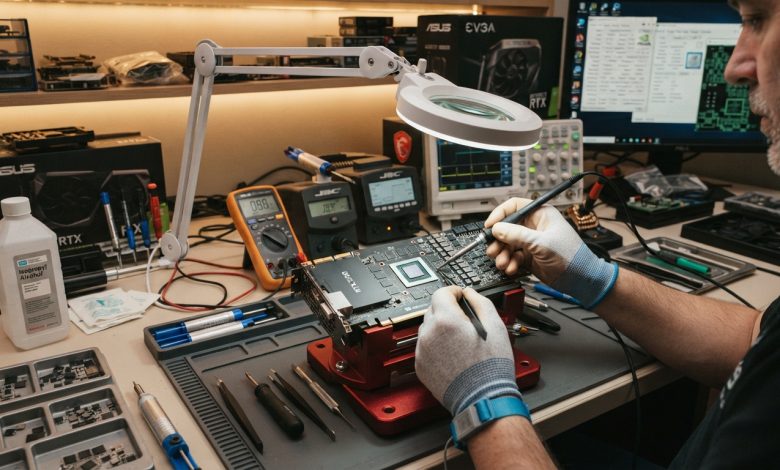
Table of Contents
GPU repair has become an increasingly relevant topic for PC users, gamers, and professionals alike, as Graphics Processing Units (GPUs) are pivotal components responsible for rendering visual output, from everyday computing to high-fidelity gaming and complex AI applications. Modern GPUs are intricate pieces of engineering, and while robust, they are susceptible to faults due to wear, overheating, manufacturing defects, or even minor accidental damage. Understanding the common issues, diagnostic methods, and repair options can save users significant costs and extend the life of their valuable hardware.
Understanding GPU Failures: Common Symptoms and Causes
Identifying the early signs of GPU failure is crucial for preventing further damage and potentially avoiding expensive replacements. GPUs are often the most expensive component in a PC, especially in gaming rigs or workstations, and their malfunction can lead to a range of disruptive symptoms. The average lifespan of a well-maintained GPU typically falls between 5 to 8 years under normal use, though this can be significantly shorter—perhaps 2 to 3 years—under heavy, continuous workloads like cryptocurrency mining or data center operations. However, GPUs often become technologically obsolete before they experience catastrophic hardware failure.
Common indicators that your GPU might be failing include a variety of visual artifacts on the screen. These can manifest as strange colors, screen pixelation, horizontal or vertical lines, grid-like overlays, texture corruption, or flickering/flashing screens. Users might also experience intermittent display images or a complete lack of display output even when the system appears to be powered on.
Beyond visual anomalies, performance degradation is another tell-tale sign. This can include sudden drops in frames per second (FPS), increased graphic loading times, overall system slowdown when running visual applications, image stuttering, and lag. More severe symptoms involve system instability, such as frequent crashes or freezing during graphics-intensive tasks, Blue Screen of Death (BSOD) errors (often with messages like “VIDEO_TDR_FAILURE”), unexpected computer shutdowns, or graphic applications crashing unexpectedly.
Overheating is a primary culprit behind many GPU failures. If your GPU fans are constantly running at maximum speed or the card feels excessively hot to the touch even when idle, it could indicate a failing cooling system or dried-out thermal paste. Dust accumulation on fans and heatsinks can severely hinder cooling efficiency, leading to thermal throttling and accelerated component degradation. Other causes include unstable power delivery, faulty VRAM modules, manufacturing defects, or even physical damage like burnt elements or bulging capacitors.
Diagnosing GPU Problems: Pinpointing the Issue
Accurately diagnosing a GPU issue is the first critical step toward repair. A systematic approach helps differentiate between software-related glitches and actual hardware failures.
- Driver Issues: Often, display problems can be resolved by updating, reinstalling, or rolling back GPU drivers. Corrupted or outdated drivers can mimic hardware failure symptoms, including driver timeouts, crashes, or recovery messages.
- Software Conflicts: In rare cases, conflicts with other software or operating system components can cause display anomalies. Booting into Safe Mode can help determine if the issue persists without third-party software interference.
- Physical Inspection: A visual inspection of the GPU can reveal evident damage such as burnt components, bulging capacitors, or damaged cooling fans. Dust and debris buildup on the heatsink and fans are also easily identifiable and can often be remedied with a thorough cleaning.
- Monitoring Tools: Software tools like MSI Afterburner or HWMonitor can provide real-time data on GPU temperatures, fan speeds, clock speeds, and usage. Consistently high temperatures (e.g., above 85°C under load) are strong indicators of cooling problems.
- Stress Testing: Running GPU stress tests (e.g., FurMark, MSI Kombustor) can push the graphics card to its limits, helping to identify stability problems or reproduce visual artifacts that only appear under heavy load. If artifacts or crashes occur during these tests, it strongly suggests a hardware fault.
- Cross-Verification: If possible, test the problematic GPU in another known-working PC, or install a known-good GPU into your system. This helps rule out other components like the motherboard, PSU, or monitor as the source of the problem. For no display output issues, ensure adequate power supply meets the GPU requirements.
DIY vs. Professional GPU Repair: Weighing Your Options
Once a GPU issue is diagnosed, the decision between attempting a DIY repair and seeking professional help depends on the complexity of the problem, your technical skills, and the available tools.
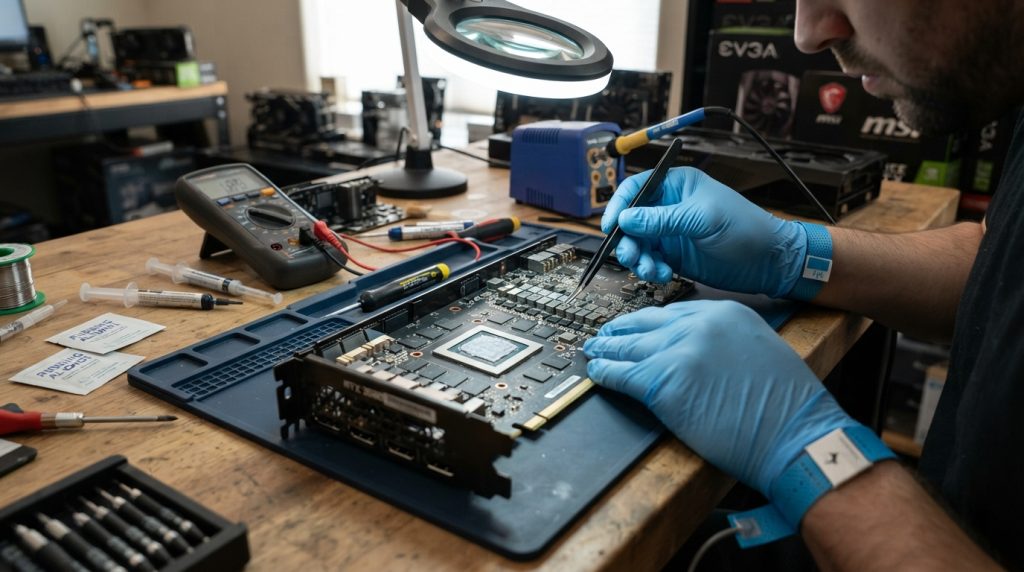
DIY Repair: For minor issues, DIY repair can be a cost-effective solution. Tasks such as cleaning dust, reapplying thermal paste, or replacing a faulty fan are relatively straightforward and can be performed by users with basic technical knowledge. Regular cleaning of dust from fans and heatsinks, along with periodically replacing thermal paste and thermal pads, can significantly extend a GPU’s life and prevent overheating. These maintenance steps are often sufficient to resolve common thermal throttling or noise issues.
However, DIY repair of more complex issues, like repairing faulty memory modules or the GPU die itself, is highly challenging and carries significant risks. Improper handling can cause irreversible damage to the card or other PC components. While there are numerous online guides, advanced repairs require specialized equipment and expertise that most home users do not possess.
Professional Repair: For intricate problems such as component-level repair, BGA reballing, or issues with the main GPU core, professional repair services are almost always recommended. These services have the specialized equipment (e.g., BGA rework stations, oscilloscopes, advanced multimeters) and trained technicians to diagnose and fix complex faults accurately.
The cost of professional GPU repair can vary widely, from minor fixes being inexpensive to more significant repairs approaching the cost of a new card. Diagnostic fees typically range around $199, often credited towards the repair cost. Major repairs can range from $295 to $495, and the success rate for complex issues, especially those involving the main core, can be around 50%. This is why the “repair vs. replace” dilemma is common, especially if the card is significantly outdated or repair costs exceed the price of a comparable new card.
Essential Tools for DIY GPU Repair
For those venturing into DIY GPU maintenance and minor repairs, having the right tools is paramount. A basic GPU repair kit typically includes several key items:
- Screwdriver Set: Precision screwdrivers (especially Phillips #0 and small Torx bits) are essential for disassembling the graphics card and cooler assembly.
- Thermal Paste and Thermal Pads: Fresh thermal paste is crucial for efficient heat transfer from the GPU die to the heatsink. Thermal pads facilitate heat transfer from VRAM and VRMs. These need to be replaced periodically as they dry out or degrade over time.
- Isopropyl Alcohol (IPA): High-purity (70-90% or higher) isopropyl alcohol is used for cleaning old thermal paste, flux residue, and general grime from the PCB and components.
- Compressed Air or Air Blower: For removing dust and debris from heatsinks, fans, and PCB crevices. It’s important to hold fans still while blowing air to prevent over-spinning and potential damage.
- Soft Brushes and Microfiber Cloths: For gently scrubbing away stubborn dust and wiping surfaces without scratching.
- Anti-Static Wrist Strap: Essential for preventing electrostatic discharge (ESD) damage, which can be catastrophic to sensitive electronic components.
- Multimeter: For advanced diagnostics, a multimeter can measure voltage, current, and continuity to identify electrical faults or short circuits.
Advanced GPU Repair Techniques: Reflowing and Reballing
For more severe GPU failures, particularly those involving the Ball Grid Array (BGA) connections between the GPU chip and the PCB, advanced techniques like reflowing and reballing are employed. These are complex procedures typically performed by specialized technicians due to the high precision and specialized equipment required.
Reflowing: This process involves heating the GPU chip and the surrounding area to a temperature sufficient to melt and “reflow” the solder balls that connect the chip to the PCB. The goal is to correct dry joints or cracked solder balls, which are common issues caused by repeated heating and cooling cycles, especially with lead-free solder used in modern graphics cards.
Reflowing can be done using a specialized infrared oven or a hot air rework station. The process requires precise temperature control and thermal profiles to avoid damaging other components on the board. While it can temporarily fix issues, some argue that reflowing is not a permanent solution as it doesn’t replace the degraded solder, and the problem may recur. Tips to prolong the lifespan of a reflowed GPU include applying high-quality thermal paste and ensuring excellent cooling.
Reballing: Considered a more robust, albeit more complex, repair than reflowing, reballing involves removing the GPU chip from the PCB, cleaning off the old solder balls, applying new solder balls (often using a stencil), and then re-soldering the chip back onto the board. This process directly addresses the issue of degraded solder balls by replacing them entirely.
Reballing requires highly specialized equipment, such as BGA rework stations (often with three heating zones), precise stencils, and microscopic inspection tools to ensure proper alignment and soldering. The success rate of reballing depends heavily on the technician’s skill and the quality of the equipment. It is frequently used in professional settings, including for failure analysis by manufacturers. While more effective, reballing is also more time-consuming and costly than reflowing. For a deeper understanding of BGA technology, one might refer to Wikipedia’s entry on Ball Grid Array.
| Repair Method | Description | Complexity | Typical Cost (Estimate) | Success Rate |
|---|---|---|---|---|
| Cleaning/Maintenance | Removing dust, reapplying thermal paste/pads. | Low | DIY (cost of materials: $10-$50) | High (for thermal issues) |
| Component Replacement | Replacing fans, capacitors, or minor surface-mount components. | Medium | DIY (cost of parts: $20-$100), Professional ($100-$250+) | Medium-High |
| Reflowing | Heating the GPU chip to re-melt and reseal existing solder balls. | High (requires specialized equipment) | Professional ($150-$350) | Medium (often temporary fix) |
| Reballing | Removing, cleaning, and replacing solder balls on the GPU chip. | Very High (requires specialized equipment and skill) | Professional ($300-$500+) | Medium-High (more permanent than reflow) |
Preventative Maintenance for GPU Longevity
Proactive maintenance is key to maximizing your GPU’s lifespan and preventing common failures. Many GPU issues stem from prolonged exposure to high temperatures and dust accumulation.
Extending Your GPU’s Lifespan
Several practices can significantly extend the operational life of your graphics card:
- Optimal Cooling and Ventilation: Heat is the biggest enemy of electronic components. Ensure your PC case has good airflow and that internal fans are correctly configured to dissipate heat efficiently. Consider adding or optimizing case fans.
- Regular Cleaning: Dust buildup clogs heatsinks and fans, acting as an insulator and hindering cooling. Perform a light dusting of your GPU every 3-6 months using compressed air, and a deeper clean (including reapplication of thermal paste) every 1-2 years. When cleaning, hold the fans still to prevent them from over-spinning and generating static electricity.
- Thermal Paste and Pad Refresh: Over time, thermal paste can dry out or become less effective, and thermal pads can degrade. Periodically replacing these ensures optimal heat transfer and prevents overheating.
- Stable Power Supply: Ensure your Power Supply Unit (PSU) is stable and provides adequate power that meets or exceeds your GPU’s requirements. Unstable power can stress components and reduce longevity.
- Monitor Temperatures: Use monitoring software to keep an eye on GPU temperatures, especially during gaming or intensive workloads. Aim to keep temperatures below 85°C under load.
- Avoid Excessive Overclocking: While tempting for performance boosts, aggressive overclocking can increase heat and stress on the GPU, potentially shortening its lifespan if not managed with robust cooling.
- Ambient Temperature Control: Maintaining a lower ambient room temperature can contribute to lower internal PC temperatures, further aiding GPU longevity.
When to Consider Replacement
Despite best efforts in maintenance and repair, there comes a point where replacing a GPU becomes more sensible than continuing to repair it. The average consumer GPU might last 8-9 years, often being decommissioned due to technological obsolescence rather than hardware failure. For heavy users, a GPU might become outdated and struggle with modern demands within 2-4 years, even if hardware is still functional.
Factors to consider for replacement include:
- Age of the Card: If your GPU is significantly outdated (e.g., 5+ years old), a new card will offer substantial performance improvements and better compatibility with current software and games.
- Repair Cost vs. New Card Cost: If the estimated repair costs approach or exceed the price of a comparable new card, investing in a new GPU is financially more sound. This is particularly relevant for high-end cards where repairs can be costly.
- Recurring Issues: If a GPU consistently develops the same or new problems shortly after a repair, it might indicate deeper, systemic issues that are not cost-effective to fix permanently.
- Performance Needs: For gamers or professionals who require the latest performance for demanding applications, upgrading to a newer GPU is often the only way to meet evolving technological requirements.
- Lack of Parts: Sometimes, replacement parts for older or specific GPU models become scarce or unavailable, making repairs unfeasible.
Modern GPUs, especially those used in AI clusters, operate under extreme conditions where failures are not uncommon but expected. Large-scale AI training environments, for instance, can see significant GPU failure probabilities, making infrastructure resilience and planned replacement cycles crucial for operational continuity. The economics of AI have even made infrastructure a far larger expense, with GPU utilization becoming a critical business KPI. While the consumer market differs, this highlights the inherent stresses on advanced graphics hardware.
Conclusion
GPU repair, maintenance, and diagnostics are essential aspects of owning a modern computer, particularly for those who rely on high-performance graphics. While basic maintenance and minor fixes can often be handled by enthusiastic DIYers, complex issues demand the expertise and specialized equipment of professional repair services. Understanding the common symptoms of failure, performing diligent preventative maintenance, and knowing when to consider professional help or a complete replacement can significantly enhance your computing experience and extend the longevity of your graphics card. By staying informed and proactive, users can ensure their GPUs continue to deliver optimal performance for years to come.