7 Easy Steps to Setup eGPU – Boost Gaming & Creative Workflows
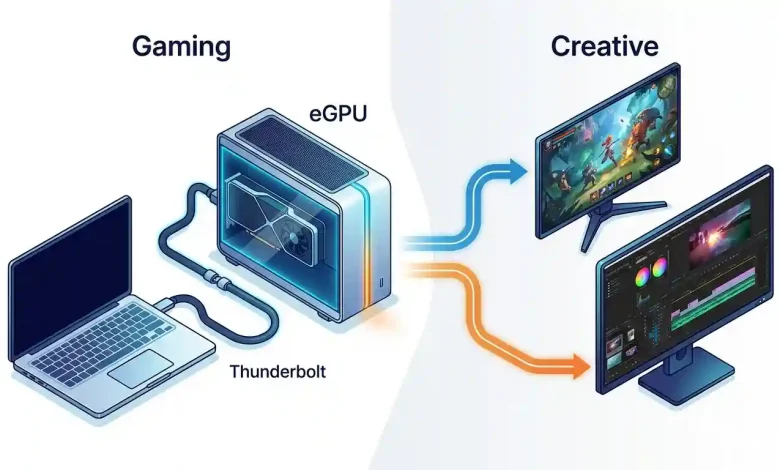
Table of Contents
eGPU Setup Guide for Gaming and Creative Workflows is an indispensable resource for anyone looking to supercharge their laptop’s graphical capabilities, transforming a modest portable machine into a formidable desktop-class powerhouse. For years, the dream of having a lightweight laptop for portability and a robust gaming or workstation setup for intensive tasks remained a dichotomy. External Graphics Processing Units (eGPUs) have emerged as the bridge, offering a compelling solution that allows users to harness the power of a dedicated desktop graphics card through a high-speed connection, typically Thunderbolt. This guide delves into every aspect of setting up an eGPU, from understanding its core principles to optimizing its performance for both demanding gaming sessions and professional creative applications like video editing, 3D rendering, and graphic design.
What is an eGPU and Why Consider One?
An eGPU, or external Graphics Processing Unit, is essentially a desktop graphics card housed within an external enclosure, connected to a laptop or a small form-factor PC via a high-bandwidth cable, most commonly Thunderbolt. This innovative technology allows systems with integrated or less powerful discrete GPUs to access the raw processing power of a high-end graphics card, significantly boosting performance in graphically intensive applications. The concept addresses a fundamental limitation of laptops: their inherent lack of upgradeability and thermal constraints that restrict the inclusion of powerful GPUs.
The primary reason users consider an eGPU setup is the desire for enhanced graphical performance without sacrificing the portability of their laptop. Instead of investing in a bulky, often expensive gaming laptop or a dedicated desktop PC, an eGPU offers a modular approach. When at home or in the office, users can simply plug in their laptop to the eGPU enclosure and instantly gain access to desktop-level graphics horsepower. When on the move, they can disconnect and enjoy their lightweight, portable device. This flexibility makes eGPUs particularly attractive to a diverse range of users.
For gamers, an eGPU can unlock higher frame rates, enable gaming at higher resolutions (e.g., 1440p or 4K), and allow for the use of more demanding graphical settings in the latest titles. It breathes new life into older laptops or those with entry-level GPUs, turning them into capable gaming rigs. The ability to upgrade the graphics card within the eGPU enclosure independently of the laptop also provides a future-proof solution, allowing users to keep up with evolving hardware demands.
For creative professionals, the benefits are equally profound. Applications like Adobe Premiere Pro, DaVinci Resolve, Blender, AutoCAD, and various CAD/CAM software rely heavily on GPU acceleration for tasks such as video rendering, 3D modeling, animation, and complex simulations. An eGPU can dramatically reduce rendering times, improve real-time playback performance, and enhance the responsiveness of demanding creative suites. This translates directly into increased productivity and a smoother workflow, empowering professionals to tackle more ambitious projects without being tethered to a traditional desktop workstation. The external nature also means better thermal management for the powerful GPU, as it’s not confined within the laptop’s chassis.
Essential Components for Your eGPU Setup
Building an effective eGPU setup requires several key components, each playing a crucial role in the overall system’s performance and stability. Understanding these elements is the first step towards a successful integration.
- The eGPU Enclosure: This is the housing for your desktop graphics card. Enclosures come in various designs and features, but their core function is to provide power, cooling, and a high-speed connection to your host device. Key features to look for include:
- Thunderbolt Version: Most modern enclosures utilize Thunderbolt 3 or Thunderbolt 4 for maximum bandwidth.
- Power Delivery (PD): Many enclosures offer power delivery to charge your laptop simultaneously, reducing cable clutter. Look for enclosures that provide sufficient wattage for your laptop.
- GPU Clearance and Cooling: Ensure the enclosure can accommodate the physical dimensions (length, height, thickness) of your chosen graphics card and provides adequate airflow for optimal cooling.
- Additional Ports: Some enclosures include extra USB ports, Ethernet, or even SATA connections, expanding your laptop’s connectivity options.
- The Graphics Card (GPU): This is the heart of your eGPU setup. You’ll need a standard desktop PCIe graphics card. The choice depends on your budget, intended use (gaming, creative work), and desired performance level. Both NVIDIA (GeForce RTX series) and AMD (Radeon RX series) offer excellent options. Consider the card’s power consumption and physical size in relation to your chosen enclosure. For creative work, specific professional cards like NVIDIA Quadro or AMD Radeon Pro might offer optimized drivers and features, though many consumer cards perform exceptionally well.
- Host Laptop or PC with Thunderbolt Port: Your laptop or small form-factor PC must be equipped with a Thunderbolt 3 or Thunderbolt 4 port. This is non-negotiable, as Thunderbolt’s high bandwidth is essential for external GPU communication. Older Thunderbolt 1 or 2 ports do not offer sufficient bandwidth for a viable eGPU experience. It’s also beneficial for your laptop to have a relatively powerful CPU to avoid bottlenecks, as even the fastest GPU can be held back by an underpowered processor.
- Thunderbolt Cable: A high-quality, certified Thunderbolt 3 or Thunderbolt 4 cable is crucial. The cable length can impact performance, with shorter cables generally being preferred for stability and maximum bandwidth. Ensure it’s a “full-feature” cable capable of 40Gbps data transfer, power delivery, and display output.
- External Monitor (Optional but Recommended): While you can often use your laptop’s internal display with an eGPU, connecting an external monitor directly to the eGPU enclosure’s display outputs will generally yield better performance. This bypasses the need for the data to travel back to the laptop’s integrated display controller, reducing latency and maximizing bandwidth utilization.
Compatibility Considerations: A Crucial First Step
Before investing in an eGPU setup, thorough compatibility checks are paramount. Skipping this step can lead to frustration and costly mistakes. The ecosystem, while much more mature than a few years ago, still has nuances.
The most critical factor is the presence of a Thunderbolt 3 or Thunderbolt 4 port on your host device. Not all USB-C ports are Thunderbolt compatible; many are merely USB 3.1 or USB 3.2, which lack the necessary bandwidth. Look for the lightning bolt logo next to the USB-C port to confirm Thunderbolt capability. Additionally, ensure your laptop’s BIOS/UEFI settings have Thunderbolt enabled and that any required firmware updates have been applied. Some manufacturers also have specific drivers or software for their Thunderbolt controllers that should be installed.
Next, consider Operating System support. Windows 10 and 11 offer robust eGPU support, often automatically detecting the external GPU and allowing for easy driver installation. macOS has historically had specific eGPU support, particularly for AMD GPUs, but compatibility can vary significantly between macOS versions and specific Mac models. It’s essential to check Apple’s official support documentation for your particular Mac. Linux support for eGPUs exists but often requires more technical expertise and manual configuration, making it less plug-and-play for most users.
GPU compatibility with the enclosure is also vital. While most eGPU enclosures are designed to be relatively universal, always double-check the maximum dimensions and power delivery capabilities of the enclosure against your chosen graphics card. Some larger, triple-slot GPUs might not fit in compact enclosures, and extremely power-hungry cards might exceed the enclosure’s PSU capacity, even if the enclosure states a high wattage (as some of that power is reserved for the host laptop). Consulting the enclosure manufacturer’s compatibility list is always a good practice.
| Component | Key Considerations | Impact on Performance/Experience |
|---|---|---|
| eGPU Enclosure | Thunderbolt version (3/4), Power Delivery (PD) to laptop, GPU clearance (length, width, height), PSU wattage, Cooling design, Additional ports. | Determines maximum bandwidth, laptop charging convenience, compatible GPU size, overall system stability and thermal performance. |
| Graphics Card | GPU model (NVIDIA RTX/AMD RX), VRAM, Power consumption, Physical size, Intended use (gaming vs. professional applications). | Directly dictates graphical horsepower, frame rates, rendering speed, and ability to run demanding software. |
| Host Laptop/PC | Thunderbolt 3/4 port, CPU strength, RAM, SSD storage. | Essential for eGPU connectivity. CPU can bottleneck GPU, especially in CPU-bound games or tasks. Sufficient RAM/storage improves overall system responsiveness. |
| Thunderbolt Cable | Certified, full-feature (40Gbps, PD), Length (shorter is better). | Ensures stable connection and maximum data transfer speeds. Poor quality can lead to connectivity issues or reduced performance. |
| External Monitor | Resolution, Refresh Rate, Connection type (DisplayPort, HDMI). | Significantly improves performance by eliminating internal display bottleneck. Allows full utilization of GPU’s display outputs. |
The Step-by-Step eGPU Setup Process
Once you have all your components, setting up your eGPU can be a straightforward process if you follow these steps carefully. The exact order might vary slightly based on your specific hardware, but the general workflow remains consistent.
- Install the Graphics Card into the Enclosure:
- Unbox your eGPU enclosure and open it according to the manufacturer’s instructions. This usually involves removing screws or latches.
- Carefully insert your chosen desktop graphics card into the PCIe slot within the enclosure. Ensure it’s seated firmly and the retention clip engages.
- Connect the necessary PCIe power cables from the enclosure’s power supply to the graphics card. Modern GPUs often require 6-pin, 8-pin, or even dual connectors. Make sure all required power connectors are securely attached.
- Close the enclosure, ensuring all screws or latches are re-secured.
- Connect the eGPU to Your Laptop:
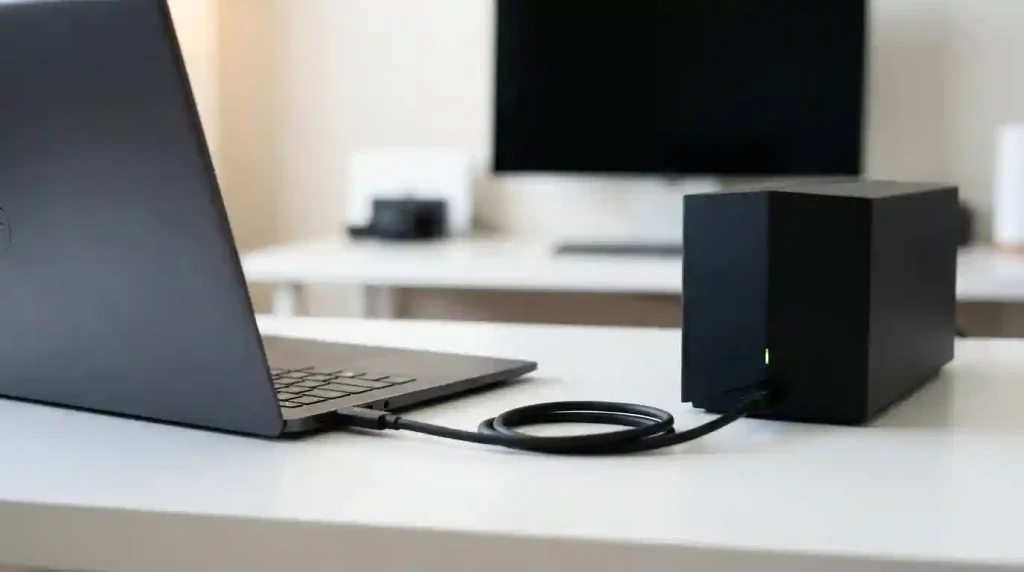
- With your laptop powered off, plug one end of the Thunderbolt cable into the eGPU enclosure and the other end into a Thunderbolt 3 or Thunderbolt 4 port on your laptop.
- If you are using an external monitor, connect it directly to one of the display outputs on the graphics card within the eGPU enclosure (e.g., DisplayPort or HDMI).
- Power On and Initial Detection:
- Power on the eGPU enclosure. Most enclosures have a power button or switch.
- Power on your laptop.
- Windows should detect the new hardware. You might see a prompt asking to approve the Thunderbolt device. Always approve it for full functionality.
- Check Device Manager (right-click Start -> Device Manager) under “Display adapters” to see if your new GPU is detected. It might appear as a generic device initially.
- Install Graphics Drivers:
- If Windows doesn’t automatically install the correct drivers, you’ll need to download them manually. Visit the official website for your graphics card manufacturer (NVIDIA or AMD) and download the latest drivers for your specific GPU model and operating system.
- Run the driver installer. Follow the on-screen prompts. It’s often recommended to perform a “clean installation” to avoid conflicts with existing drivers (especially if you have an existing discrete GPU in your laptop).
- After the installation, a restart might be required.
- Verify Installation and Configure:
- Once restarted, check Device Manager again to confirm your graphics card is listed with its proper name.
- Open the NVIDIA Control Panel or AMD Radeon Software. These control panels allow you to manage settings, ensure the eGPU is the primary rendering device for games and applications, and optimize performance.
- For gaming, ensure your games are configured to use the eGPU. For creative applications, verify that GPU acceleration is enabled and correctly pointing to your external GPU within the software’s preferences.
Optimizing Your eGPU for Peak Gaming and Creative Performance
While a basic eGPU setup can offer a significant performance boost, fine-tuning and optimization are key to extracting every ounce of power from your external graphics card. These strategies can significantly improve your experience, particularly in demanding gaming and professional workloads.
- Use an External Monitor: As previously mentioned, connecting an external monitor directly to the eGPU’s display outputs is perhaps the most impactful optimization. When using the laptop’s internal display, the rendered frames from the eGPU must travel back through the Thunderbolt cable to the laptop’s integrated display controller. This “bandwidth hairpin” can introduce latency and reduce overall performance by approximately 10-20% compared to an external display. An external monitor ensures the eGPU handles the entire display pipeline, maximizing its efficiency.
- Close Background Applications: Just like with any high-performance setup, closing unnecessary background applications frees up CPU cycles and RAM, allowing your games or creative software to utilize more system resources. This is especially important for CPU-intensive tasks where the laptop’s processor might be the limiting factor.
- Update Drivers and Firmware Regularly: Graphics drivers are constantly being updated with performance improvements and bug fixes for the latest games and applications. Regularly updating your GPU drivers (NVIDIA GeForce Game Ready Drivers or AMD Radeon Software Adrenalin Edition) is crucial. Furthermore, check for firmware updates for your eGPU enclosure and Thunderbolt drivers for your laptop, as these can also contain critical performance enhancements or stability fixes.
- Optimize Game and Application Settings: Don’t just blindly max out settings. Experiment with in-game graphics options. While your eGPU provides significant power, some settings (like certain anti-aliasing methods or ray tracing features) can be extremely demanding and might still benefit from slight reductions to achieve optimal frame rates without a noticeable drop in visual quality. Similarly, within creative applications, understand which settings leverage GPU acceleration most effectively.
- Ensure Adequate Cooling: Both your laptop and the eGPU enclosure need proper ventilation. Ensure the eGPU enclosure is in a well-ventilated area, not enclosed in a cabinet. Similarly, keep your laptop’s vents clear. Overheating can lead to thermal throttling, where components reduce their performance to prevent damage, thus negating your eGPU’s benefits.
- Power Settings: In Windows, ensure your power plan is set to “High performance” when using the eGPU. This prevents the system from throttling the CPU or other components to save power, allowing them to operate at their maximum potential.
- Consider CPU Overclocking (Advanced): For users with compatible laptops and sufficient cooling, minor CPU overclocking (if supported) can sometimes help alleviate CPU bottlenecks, especially in games that are heavily CPU-bound. This is an advanced technique and should only be attempted by experienced users who understand the risks involved.
Understanding Performance Expectations and Potential Bottlenecks
While an eGPU dramatically boosts graphical performance, it’s essential to set realistic expectations. An eGPU setup, particularly with a laptop, will rarely match the absolute peak performance of the same GPU installed directly into a full desktop PC. This is primarily due to inherent bottlenecks that exist in the external connection.
The main bottleneck is typically the Thunderbolt bandwidth. While Thunderbolt 3 and 4 offer an impressive 40Gbps, this bandwidth is shared for data transfer, video signal (if using the internal display), and potentially power delivery. A desktop PCIe 3.0 x16 slot offers approximately 126Gbps of bandwidth, significantly more than Thunderbolt. This difference means that high-end GPUs, especially at lower resolutions where frame rates are very high, can sometimes be constrained by the Thunderbolt connection. The performance delta typically ranges from 5-20% compared to a desktop setup, varying based on the specific game, application, and resolution. For instance, a game that is heavily CPU-bound or performs many small data transfers between the CPU and GPU might experience a more noticeable performance hit than a game that primarily streams large textures.
Another significant factor is the host laptop’s CPU. Even with a powerful external GPU, an older or weaker laptop CPU can become a bottleneck. Many games and creative applications require substantial CPU power for physics calculations, AI, asset loading, and general processing. If the CPU cannot keep up with the GPU, the GPU will sit idle for periods, leading to lower frame rates than expected. This effect is more pronounced at lower resolutions and refresh rates where the GPU renders frames faster, putting more pressure on the CPU to prepare the next frame.
RAM and storage speed can also play a role, albeit a less prominent one. Insufficient RAM can lead to excessive paging to storage, slowing down the system. A fast NVMe SSD is highly recommended for both the operating system and game/application installations to ensure quick loading times and minimize I/O bottlenecks. While these factors are not unique to eGPUs, their impact can be felt more acutely when trying to push the boundaries of performance with an external graphics solution.
Despite these considerations, an eGPU remains an excellent solution for achieving substantial performance gains over a laptop’s integrated or weaker discrete GPU. For example, a laptop struggling to run a modern game at 1080p medium settings might comfortably run it at 1440p high settings with an eGPU. For creative professionals, the reduction in rendering times can be transformative, even with a slight bandwidth overhead. The key is to understand these limitations and manage expectations, focusing on the significant improvement over the base laptop performance rather than a direct comparison to a no-compromise desktop build. A detailed analysis of Thunderbolt performance can be found on resources like Wikipedia’s Thunderbolt page, which provides technical specifications and historical context.
Troubleshooting Common eGPU Issues for a Seamless Experience
While eGPU setups are generally reliable, users may encounter various issues. Knowing how to troubleshoot these common problems can save time and frustration.
- eGPU Not Detected or Intermittent Connection:
- Check Thunderbolt Drivers and Firmware: Ensure your laptop’s Thunderbolt drivers and firmware are up to date. Visit your laptop manufacturer’s support page.
- Verify Thunderbolt Security Settings: In some laptop BIOS/UEFI settings, Thunderbolt security is enabled, requiring manual approval for new devices. Check these settings.
- Test the Cable: A faulty Thunderbolt cable is a common culprit. Try a different, certified Thunderbolt 3 or 4 cable, ideally a shorter one.
- Reseat the GPU: Power down the enclosure and laptop, open the enclosure, and carefully reseat the graphics card in its PCIe slot and ensure all power connectors are firmly attached.
- Try a Different Thunderbolt Port: If your laptop has multiple Thunderbolt ports, try connecting to another one.
- Poor Performance or Stuttering:
- External Monitor: If you’re using the internal laptop display, switch to an external monitor connected directly to the eGPU. This often resolves performance dips.
- CPU Bottleneck: Monitor your CPU and GPU usage while running a demanding application. If the CPU is consistently at 100% while the GPU is lower, your CPU is likely the bottleneck.
- Power Settings: Ensure your laptop and eGPU are running on “High performance” power plans.
- Driver Issues: Perform a clean reinstallation of your graphics drivers. Use a utility like DDU (Display Driver Uninstaller) to thoroughly remove old drivers before installing new ones.
- Thermal Throttling: Monitor CPU and GPU temperatures. If components are getting too hot, they will throttle performance. Ensure proper ventilation for both laptop and eGPU.
- System Crashes or Blue Screens of Death (BSOD):
- Unstable Drivers: This is a frequent cause. Roll back to a previous stable driver version if a new update is causing issues.
- Power Supply Issues: If the eGPU enclosure’s power supply is insufficient or failing, it can lead to instability. Ensure your GPU’s power requirements are met.
- Overheating: As mentioned, excessive heat can cause crashes.
- Hardware Conflict: In rare cases, conflicts with other hardware or software can occur. Try uninstalling any recently installed software or drivers.
- Applications Not Using the eGPU:
- Windows Graphics Settings: In Windows 10/11, go to Settings -> System -> Display -> Graphics settings. You can manually assign specific applications to use the “High performance” GPU (your eGPU).
- NVIDIA Control Panel / AMD Radeon Software: Within these control panels, you can set global preferences or specific program settings to ensure the eGPU is the primary rendering device.
- Application-Specific Settings: Many creative applications have internal settings to select which GPU to use for acceleration. Check these preferences.
The Future Landscape of eGPUs and External Graphics
The eGPU market has seen significant evolution over the past decade, and its future looks promising, albeit with continuous shifts driven by technological advancements. One of the primary drivers for future development is the ongoing improvement of high-speed external connectivity standards. While Thunderbolt 4 currently dominates, we can expect future iterations, or entirely new standards, to push bandwidth capabilities even further. This increased bandwidth would directly reduce the performance bottlenecks associated with external GPUs, bringing them closer to internal desktop performance.
The increasing integration of powerful yet efficient discrete GPUs into laptops themselves might also influence the eGPU market. As laptop GPUs become more capable, the need for an external solution for casual gaming or light creative tasks might diminish for some users. However, for those demanding absolute top-tier performance, such as professional 3D artists or competitive gamers, the eGPU will likely remain a relevant option, offering a path to continually upgrade to the latest, most powerful desktop graphics cards without replacing their entire laptop. This modularity is a core strength that will likely persist.
We might also see more specialized eGPU solutions. This could include enclosures designed for specific professional cards (e.g., more robust cooling for workstation GPUs), or even more integrated solutions where external graphics are a seamless part of a larger docking station ecosystem. The rise of cloud gaming and streaming services also presents an interesting counterpoint, but for users who prefer local hardware ownership and maximum control over their performance, physical eGPUs will continue to hold their value. Furthermore, the increasing power demands of future GPUs could lead to the development of more sophisticated external power solutions and cooling systems within eGPU enclosures, ensuring they can accommodate the next generation of high-performance graphics hardware.
Conclusion
The eGPU setup offers a compelling and flexible solution for extending the graphical prowess of your laptop, bridging the gap between portable convenience and desktop-level performance. Whether you’re a gamer seeking higher frame rates and visual fidelity or a creative professional demanding faster rendering and smoother workflows, an eGPU can be a game-changer. By carefully selecting compatible components, following a meticulous setup process, and applying thoughtful optimization techniques, users can unlock a significant boost in performance. While acknowledging the inherent limitations of external connectivity, the benefits of modularity, upgradability, and the ability to transform a lightweight laptop into a powerful workstation when needed make eGPUs an increasingly attractive option in the ever-evolving landscape of personal computing. As technology progresses, particularly in external data transfer standards, the eGPU’s role in empowering users with flexible and high-performance computing experiences is only set to expand.