6 Powerful Reasons eGPUs Are a Game-Changer for Laptops

Table of Contents
E GPU, or external Graphics Processing Unit, represents a significant evolution in personal computing, particularly for laptop users who crave desktop-level graphical performance without sacrificing portability. This innovative technology allows users to connect a powerful, dedicated graphics card, typically found in desktop computers, to their laptops or small-form-factor PCs via a high-speed external connection. This guide will delve into the intricacies of eGPUs, explaining their functionality, benefits, setup process, and what to consider when exploring this powerful upgrade option.
What is an eGPU?
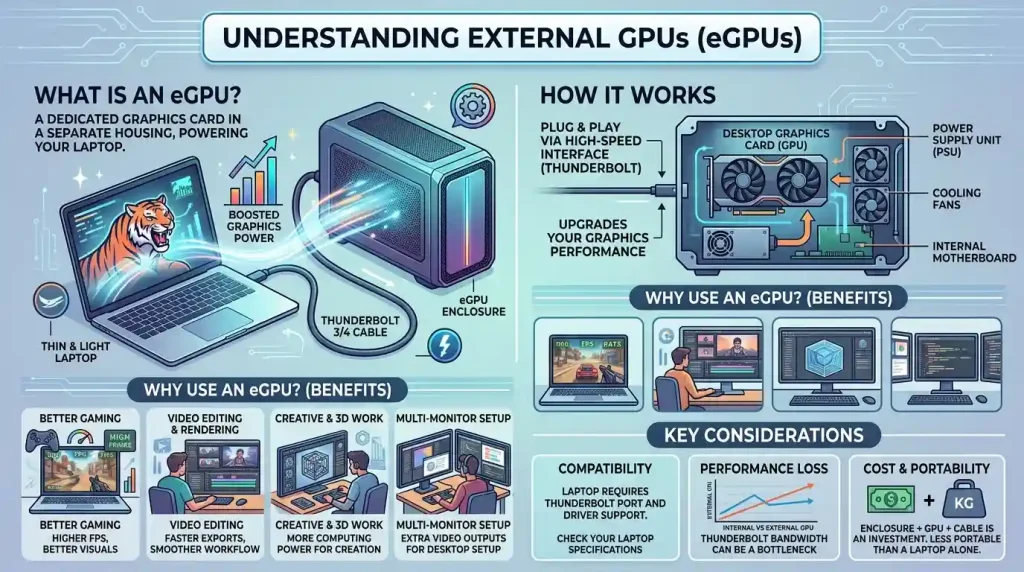
An eGPU is essentially a standalone enclosure that houses a desktop-grade graphics card, connecting to a computer externally to enhance its graphical capabilities. Laptops, by their very nature of being thin, light, and portable, often come with integrated graphics or less powerful discrete GPUs due to space and thermal constraints. This limitation can hinder performance in graphically demanding applications like modern video games, 3D rendering, video editing, and AI workloads.
The eGPU concept addresses this bottleneck by providing a dedicated graphics processing unit with its own power supply and cooling system, offloading intensive tasks from the laptop’s internal components. This transformation allows a portable laptop to achieve performance levels previously exclusive to bulkier desktop workstations, offering a versatile solution for users who need both mobility and significant graphical horsepower.
Why Consider an eGPU? The Benefits
The appeal of an eGPU lies in its ability to bridge the gap between laptop portability and desktop performance. There are several compelling reasons why a user might consider investing in an eGPU setup:
- Enhanced Graphics Performance: The most obvious benefit is a significant boost in graphical processing power. This translates to smoother gameplay at higher resolutions and frame rates, faster rendering times for video editing and 3D modeling, and improved performance in other GPU-intensive applications.
- Extend Laptop Lifespan: Rather than replacing an entire laptop when its integrated graphics become outdated, an eGPU allows users to upgrade their graphics capabilities independently. This can be a more cost-effective way to keep a capable laptop relevant for longer.
- Versatility and Portability: An eGPU offers the best of both worlds – the portability of a thin and light laptop for on-the-go tasks, and the power of a desktop workstation when docked at home or in the office. This flexibility means users can carry all their data and files on their laptop while leveraging powerful GPUs as needed.
- Improved Thermal Performance and Reduced Noise: By moving the high-performance GPU and its associated cooling system outside the laptop, internal temperatures can be lowered, and fan noise from the laptop itself can be reduced. The eGPU enclosure often has its own robust cooling.
- Multi-Monitor and VR Support: eGPUs enable support for multiple high-resolution external monitors, virtual reality (VR) applications, and even AI/machine learning tasks that demand substantial graphical fidelity and performance.
How eGPUs Work: The Core Technology
At its heart, an eGPU functions by bypassing the limitations of a computer’s internal graphics card. It connects to the host computer through a high-speed interface, most commonly Thunderbolt 3, Thunderbolt 4, or the newer Thunderbolt 5. These interfaces are crucial because they provide the high bandwidth necessary for smooth and efficient communication between the laptop and the external GPU.
Here’s a breakdown of the process:
- Connection Interface: Thunderbolt, developed by Intel, is the de facto standard for eGPUs due to its high bandwidth capabilities. Thunderbolt 3 and 4 offer up to 40 Gbps (gigabits per second) of throughput, which is equivalent to PCIe 3.0 x4 lanes. Thunderbolt 5, the latest iteration, significantly boosts this, offering up to 80 Gbps, with a potential burst mode reaching 120 Gbps, and increased power delivery up to 240W. This increased bandwidth helps minimize performance bottlenecks. Some solutions also use USB4, which shares many characteristics with Thunderbolt 3 and 4, or proprietary connections like Alienware’s Graphics Amplifier or OCuLink for direct PCIe connections. OCuLink provides pure PCIe connectivity and can offer near-native performance, though it currently lacks hot-plugging capabilities.
- eGPU Enclosure: The graphics card is housed within a specialized enclosure. This enclosure typically contains a PCIe slot for the graphics card, a dedicated power supply unit (PSU) to power the GPU (as laptop power bricks are insufficient for desktop GPUs), and often additional ports for USB, Ethernet, or more displays, effectively turning the setup into a docking station.
- Data Transfer: When connected, the laptop offloads graphics processing to the external GPU. Data travels from the laptop’s CPU to the eGPU via the Thunderbolt or USB4 cable. The eGPU then processes this data using its powerful graphics card and sends the rendered images back to either the laptop’s internal display or, more optimally, an external monitor connected directly to the eGPU. Connecting to an external monitor directly to the eGPU avoids sending the processed data back through the Thunderbolt cable to the laptop’s frame buffer, which can incur a performance penalty.
- Driver Integration: For the eGPU to function correctly, the operating system (Windows, macOS, or Linux) needs to recognize the external GPU and install the appropriate drivers. Modern operating systems often detect eGPUs automatically, but manual driver installation from NVIDIA or AMD’s websites is usually recommended for optimal performance and stability.
Essential Components of an eGPU Setup
A complete and functional eGPU setup comprises several key elements that must work in harmony:
- Laptop with Compatible Port: The most crucial requirement is a laptop equipped with a Thunderbolt 3, Thunderbolt 4, or Thunderbolt 5 port. While some USB-C ports visually resemble Thunderbolt, not all USB-C ports support the Thunderbolt protocol, which is necessary for eGPU functionality. Look for the lightning bolt symbol next to the port to confirm Thunderbolt compatibility. Macs with Intel processors and Thunderbolt 3 ports running macOS High Sierra 10.13.4 or later are also supported.
- eGPU Enclosure (Dock/Box): This is the housing for the desktop graphics card. Enclosures vary in size, power supply capacity, and additional features (like extra USB ports, Ethernet, or RGB lighting). Popular enclosures include the Razer Core X series, Sonnet Breakaway Box, and Cooler Master MasterCase EG200. The enclosure must provide sufficient wattage for your chosen GPU.
- Desktop Graphics Card (GPU): This is the powerhouse of the setup. Users typically purchase a full-size desktop graphics card from NVIDIA (e.g., RTX 40-series) or AMD (e.g., RX 7000-series). The choice of GPU depends on the intended workload and budget. It’s important to ensure the physical dimensions of the card fit within the chosen enclosure and that the enclosure’s power supply can adequately support it.
- High-Speed Thunderbolt Cable: A certified Thunderbolt 3, 4, or 5 cable is essential for optimal performance. Using the cable provided with the eGPU enclosure or an Apple Thunderbolt 3 (USB-C) cable is often recommended.
- External Monitor (Recommended): While an eGPU can render to the laptop’s internal screen, connecting an external monitor directly to the eGPU’s video outputs generally yields better performance by avoiding the data having to travel back to the laptop’s display buffer.
- Updated Drivers and BIOS: Ensuring your laptop’s BIOS, Thunderbolt drivers, and operating system are up-to-date is critical for smooth operation and compatibility.
Compatibility and System Requirements
Not all laptops are compatible with eGPUs, and certain specifications are non-negotiable for a successful setup. The primary requirement is a Thunderbolt 3 or newer port on your laptop. Some laptops, particularly older models, might have USB-C ports that do not support Thunderbolt, rendering them incompatible.
Key Compatibility Factors:
- Thunderbolt Version: While Thunderbolt 3 and 4 (both 40 Gbps) are common, Thunderbolt 5 (80-120 Gbps) offers the best performance by reducing bandwidth bottlenecks. Always verify the Thunderbolt version of your laptop.
- Operating System Support:
- Windows: Most modern Windows 11 laptops automatically detect eGPUs. However, manual driver installation for the specific GPU from NVIDIA or AMD is often required. Driver conflicts, especially with integrated GPUs from a different vendor, can sometimes occur and may require specific troubleshooting steps.
- macOS: eGPUs are supported on Intel-based Macs with Thunderbolt 3 ports running macOS High Sierra 10.13.4 or later. Apple recommends specific GPU configurations and Thunderbolt 3 chassis for optimal performance. M-series Macs currently do not support eGPUs.
- Linux: Linux support for eGPUs is generally good, though some manual configuration, particularly regarding device authorization and hotplugging, may be necessary.
- eGPU Enclosure and GPU Compatibility: Ensure the chosen enclosure can physically accommodate your desired desktop graphics card (length, height, width) and that its internal power supply unit (PSU) has sufficient wattage to power the GPU. High-end cards like the RTX 4080 or RTX 4090 require enclosures with 650W+ PSUs.
- CPU Bottleneck: Even with a powerful eGPU, the laptop’s CPU can become a bottleneck, especially in games or applications that are heavily CPU-dependent, potentially limiting the overall performance gains.
Setting Up Your eGPU: A Step-by-Step Guide
Setting up an eGPU is a relatively straightforward process, though attention to detail is key for optimal performance. Here’s a general guide:
- Verify Compatibility: Before purchasing, double-check that your laptop has a Thunderbolt 3, 4, or 5 port, and that your chosen eGPU enclosure and graphics card are compatible with each other in terms of physical size and power requirements.
- Install Graphics Card into Enclosure: If the eGPU enclosure doesn’t come with a pre-installed GPU, carefully open the enclosure and insert the desktop graphics card firmly into the PCIe slot. Secure it with the provided screws. Connect the power cables from the enclosure’s PSU to the graphics card.
- Connect Enclosure to Laptop: Use a high-quality Thunderbolt cable to connect the eGPU enclosure to your laptop’s Thunderbolt port.
- Connect Power and Power On: Plug the eGPU enclosure’s power supply into a wall outlet and power on the enclosure.
- Boot Laptop and Install Drivers: Boot your laptop. In most cases, Windows will detect the new hardware. Verify that the GPU is detected in Device Manager (Windows) or System Information (Mac). Download and install the latest drivers directly from the NVIDIA or AMD website for your specific graphics card. Restart your laptop if prompted.
- Connect External Monitor (Optional but Recommended): For the best performance, connect your external display directly to the video outputs on the eGPU itself, not to your laptop’s ports.
- Configure Settings: Some operating systems allow you to specify which applications should use the external GPU. Adjusting these settings can ensure your demanding tasks utilize the eGPU’s power.
Performance Considerations and Benchmarks
While eGPUs offer a significant performance boost, it’s important to have realistic expectations. The primary limitation of eGPUs compared to internal desktop GPUs is the bandwidth of the Thunderbolt connection. Even at 40 Gbps (Thunderbolt 3/4), this is roughly equivalent to a PCIe 3.0 x4 connection, which is less than the PCIe 3.0 x16 or PCIe 4.0 x16 lanes available to desktop GPUs.
Studies and benchmarks often show that eGPUs typically deliver 70-90% of the performance of the same graphics card installed directly in a desktop system. This performance gap can vary depending on the specific GPU, the application, and the resolution being used. For instance, the performance difference might be more pronounced at lower resolutions (like 1080p) where bandwidth limitations are more significant, and less so at higher resolutions (like 4K) where the GPU itself becomes the primary bottleneck.
Recent tests using high-end GPUs like the RTX 4090 in eGPU setups have shown performance around 77-78% of their desktop counterparts, while older cards like the RTX 2080 might achieve closer to 94% of desktop performance. Newer technologies like Thunderbolt 5 and OCuLink aim to further close this gap, with OCuLink even showing near-native performance in some tests with an RTX 5090.
| Aspect | Internal Desktop GPU | eGPU (Thunderbolt 3/4) | eGPU (Thunderbolt 5 / OCuLink) |
|---|---|---|---|
| Connection Type | Direct PCIe x16 (3.0/4.0/5.0) | Thunderbolt 3/4 (PCIe 3.0 x4 equivalent) | Thunderbolt 5 (PCIe 4.0 x4 equivalent, up to x8 dynamic) / OCuLink (direct PCIe 4.0 x4/x8, potentially x16) |
| Bandwidth | 64-256 GB/s (PCIe 3.0 x16 to 5.0 x16) | ~40 Gbps (5 GB/s) | ~80-120 Gbps (10-15 GB/s) / 64 GB/s (OCuLink PCIe 5.0 x16) |
| Performance vs. Desktop | 100% (Baseline) | 70-90% of Desktop Performance | Potentially 90-98% of Desktop Performance |
| Latency | Very low | Slightly higher due to tunneling overhead | Improved over TB3/4, OCuLink is very low |
| Portability | None | Excellent (GPU is external) | Excellent (GPU is external) |
| Upgradeability | High (easy GPU swap) | High (easy GPU swap within enclosure) | High (easy GPU swap within enclosure) |
Pros and Cons of External GPUs
Like any technology, eGPUs come with their own set of advantages and disadvantages:
Pros:
- Significant Performance Boost: Transforms a laptop into a powerful machine for gaming, content creation, and AI tasks.
- Cost-Effective Upgrade: Often more economical than buying a brand new high-end gaming or workstation laptop.
- Future-Proofing: Allows for easy GPU upgrades without replacing the entire system.
- Portability Maintained: Enjoy desktop-level power when needed without sacrificing the laptop’s inherent mobility.
- Improved Thermals: External cooling prevents laptop overheating.
- Multi-Device Compatibility: Some eGPU enclosures can be shared across multiple compatible laptops, desktops, or even tablets.
Cons:
- Performance Bottleneck: Thunderbolt bandwidth limitations mean eGPUs rarely achieve 100% of desktop GPU performance.
- High Initial Cost: The combined price of an enclosure and a powerful GPU can be substantial, making a dedicated desktop PC a more performant option per dollar for some.
- Compatibility Challenges: Not all laptops support eGPUs, and ensuring compatibility between the laptop, enclosure, and GPU can be complex.
- Setup Complexity: While generally straightforward, driver conflicts or detection issues can arise, particularly with mixed GPU vendors or certain operating systems.
- Bulkiness: Although the laptop remains portable, the eGPU enclosure itself adds a significant piece of hardware to a workspace, which isn’t ideal for highly mobile users who need high performance everywhere.
- Latency: While generally acceptable for most users, the tunneling overhead of Thunderbolt can introduce slightly higher latency compared to a direct PCIe connection, which some competitive gamers might notice.
The Future of eGPUs
The eGPU market has seen its ups and downs, but technological advancements suggest a potential resurgence. The advent of Thunderbolt 5, with its doubled bandwidth and increased power delivery, is poised to significantly reduce the performance penalty associated with external graphics, making eGPUs an even more attractive option. This enhanced connectivity could enable even higher-end GPUs to operate more effectively externally.
Furthermore, alternative interfaces like OCuLink, which provides a direct PCIe connection, are gaining traction, offering performance much closer to internal desktop GPUs and potentially bypassing some of Thunderbolt’s overheads. The continued growth of gaming handhelds and mini PCs also creates a natural ecosystem for eGPUs, allowing these compact devices to tap into desktop-class gaming or productivity when docked.
While some industry observers suggest that the rise of more powerful integrated graphics in laptops and the increasing performance of mobile discrete GPUs might diminish the need for eGPUs, the demand for pushing the boundaries of laptop capabilities remains. The future of eGPUs promises even greater flexibility, ease of use, and closer-to-native performance, making them a compelling solution for a wide range of users.
For those interested in the ongoing developments and community discussions around eGPUs, resources like eGPU.io provide a wealth of information and a vibrant forum for enthusiasts.
Conclusion
E GPU technology offers a powerful and flexible solution for extending the graphical capabilities of laptops and small-form-factor PCs. By harnessing the power of desktop-grade graphics cards through high-speed connections like Thunderbolt, users can transform their portable machines into formidable workstations or gaming rigs. While there are considerations regarding cost, compatibility, and performance overhead compared to a fully integrated desktop system, the benefits of enhanced performance, extended laptop lifespan, and unparalleled versatility make eGPUs a compelling option for gamers, content creators, and professionals alike. As connectivity standards continue to evolve, external GPUs are set to become an even more seamless and potent upgrade path, pushing the boundaries of what portable computing can achieve.