Radeon GPU Performance Guide: 7 Powerful AMD Gaming GPUs Ranked & Tested
Table of Contents
Radeon GPU Performance Guide for AMD gamers is more than just a collection of tips; it’s a comprehensive approach to unlocking the full potential of your AMD graphics card. In the dynamic world of PC gaming, every frame per second (FPS) and every millisecond of input lag can significantly impact your experience. While AMD’s Radeon GPUs are powerful right out of the box, understanding and utilizing the various software features, in-game settings, and advanced tuning options can transform your gameplay from good to exceptional. This guide will walk you through the essential steps, from understanding your GPU’s architecture to fine-tuning its performance, ensuring you get the most out of your AMD gaming rig.
Understanding Your Radeon GPU
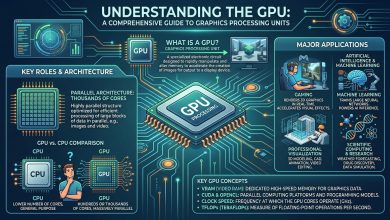
Before diving into optimizations, a fundamental understanding of your Radeon GPU’s core characteristics is crucial. AMD has continually evolved its graphics architectures, with each generation bringing significant advancements in performance, efficiency, and feature sets. The most relevant architectures for modern gaming are RDNA, RDNA 2, and RDNA 3, with RDNA 4 also making an appearance in the latest RX 9000 series.
Generations and Architecture
- RDNA (Radeon RX 5000 Series): Introduced in 2019, RDNA marked a significant shift towards gaming performance and power efficiency, also bringing PCIe 4.0 support.
- RDNA 2 (Radeon RX 6000 Series): Launched in 2020, RDNA 2 further enhanced ray tracing capabilities with dedicated hardware, introduced DirectX 12 Ultimate support, and integrated Infinity Cache for improved memory bandwidth and performance. It delivered a 50% improvement in performance per watt over RDNA.
- RDNA 3 (Radeon RX 7000 Series): Released in 2022, RDNA 3 features an advanced chiplet design, new compute units, and second-generation AMD Infinity Cache technology. It promises up to 54% more performance per watt than RDNA 2. RDNA 3 also includes increased AI throughput and second-generation raytracing technology. It supports DisplayPort 2.1 for ultra-high framerates and stunning visuals.
- RDNA 4 (Radeon RX 9000 Series): The latest generation, introduced in March 2026, offers a small performance boost of about 8% over the previous generation, with FSR 4 AI upscaling as its most important new feature.
Key Specifications and Their Impact
- VRAM (Video Random Access Memory): This is the dedicated memory on your GPU that stores game textures, models, and other graphical data. More VRAM allows for higher resolution textures and more complex scenes without performance bottlenecks. Modern games, especially at higher resolutions like 4K, demand substantial VRAM, with cards like the RX 7600 XT offering 16GB, the RX 7700 XT 12GB, and the RX 7800 XT 16GB, helping prevent slowdowns due to VRAM limitations.
- Clock Speed (Boost Clock/Game Clock): Measured in MHz, this indicates how fast the GPU’s processing units operate. Higher clock speeds generally translate to more calculations per second, leading to better performance. RDNA 3, for instance, was designed to support high clock speeds, with shaders operating at 2.3 GHz.
- Stream Processors (Compute Units): These are the fundamental processing units within the GPU that handle calculations for rendering graphics. More stream processors generally mean more parallel processing power and better performance.
- Infinity Cache: Introduced with RDNA 2, this on-die cache significantly boosts effective memory bandwidth, improving performance without needing extremely wide memory buses. RDNA 3 further refines this with second-generation Infinity Cache.
Essential Software Optimization with AMD Software: Adrenalin Edition
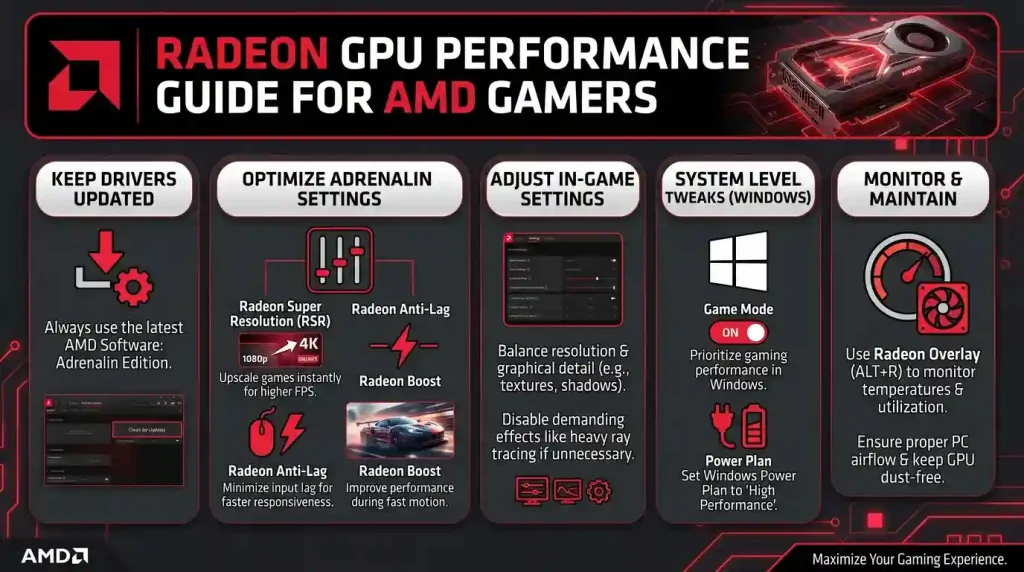
AMD Software: Adrenalin Edition is the control center for your Radeon GPU, offering a suite of features designed to enhance gaming performance, monitor system vitals, and personalize your experience. Keeping your drivers up to date is paramount, as new versions often bring performance optimizations and bug fixes.
Driver Updates and Clean Installation
Regularly updating your AMD drivers is critical. AMD consistently releases new versions that include performance enhancements for the latest games, stability improvements, and new features. If you encounter performance issues, stutters, or crashes, a clean installation of your AMD GPU drivers can often resolve them by eliminating corrupted files or conflicts.
Key Adrenalin Edition Features for Gaming
- Radeon Super Resolution (RSR): This is a powerful driver-based upscaling technology that allows you to lower the game’s rendering resolution for increased frame rates, then intelligently upscales the image to your monitor’s native resolution, maintaining sharp visuals. RSR works in nearly all games that use DirectX 11 and DirectX 12, as long as they are running in exclusive full-screen mode. It’s particularly useful for mid-range graphics cards seeking an FPS boost.
- AMD FidelityFX Super Resolution (FSR): Unlike RSR, FSR is an in-game upscaling technology that developers integrate directly into their titles. FSR renders the game at a lower resolution and uses advanced algorithms to reconstruct and upscale the image to a higher resolution, significantly boosting FPS with minimal visual impact. FSR 3.0 introduces “Fluid Motion Frames” for frame generation, which can dramatically increase frame rates by inserting entirely new frames between rendered ones. It is hardware-independent and works across a variety of graphics cards, including those from NVIDIA and Intel.
- Radeon Anti-Lag / Anti-Lag+: This feature reduces input lag by dynamically adjusting frame timing, making your games feel more responsive. Anti-Lag+, available on RDNA 3-based Radeon RX Series graphics, employs an advanced algorithm for an even more responsive experience. It works best in GPU-limited scenarios.
- Radeon Boost: Radeon Boost dynamically lowers the resolution during fast-paced movement, where visual fidelity is less noticeable, to increase frame rates and reduce input lag. When movement stops, the resolution is instantly restored. This feature works best in GPU-limited scenarios and is particularly beneficial in competitive shooters.
- Radeon Chill: This feature helps save power and reduce heat by regulating frame rates based on in-game activity. When you’re not actively moving or performing intense actions, Chill can lower the FPS to a predefined minimum, and then instantly ramp it back up when activity increases.
- Radeon Image Sharpening (RIS): RIS enhances visual clarity in 3D games with virtually no performance impact by applying a contrast-adaptive sharpening filter. It’s especially useful for mitigating blur often present in some games or when using upscaling technologies.
- Enhanced Sync: A V-Sync alternative that aims to reduce screen tearing without the input lag penalty often associated with traditional V-Sync. It works best when your FPS is well above your monitor’s refresh rate.
- HYPR-RX: Introduced in AMD Software: Adrenalin Edition 25.6.1, HYPR-RX is a one-click preset that automatically enables various AMD Software features, including Radeon Anti-Lag, Radeon Boost, and Radeon Super Resolution technologies, to work together for an improved gaming experience. This feature is currently supported with AMD Radeon RX 7000 Series Graphics and higher.
Mastering In-Game Settings
While AMD Software provides global optimizations, fine-tuning in-game settings is equally vital for balancing visual quality and performance. Understanding what each setting does can help you make informed decisions for your specific hardware and desired gaming experience.
Resolution and Refresh Rate
The display resolution has the most significant impact on GPU performance. Running games at your monitor’s native resolution is ideal for image quality, but lowering it can substantially boost FPS, especially when coupled with RSR or FSR. The refresh rate of your monitor (e.g., 60Hz, 144Hz, 240Hz) determines the maximum frames your screen can display per second, so aiming for an FPS close to or above your refresh rate provides a smoother experience. Technologies like AMD FreeSync help synchronize your GPU’s frame rate with your monitor’s refresh rate, eliminating screen tearing and stuttering.
Graphics Presets vs. Custom Settings
Most games offer graphics presets (Low, Medium, High, Ultra). While convenient, these don’t always offer the optimal balance for your system. Manually adjusting individual settings allows for more precise control. Focus on settings that have a high impact on performance:
- Texture Quality: Impacts the detail of surfaces in a game. Higher settings require more VRAM.
- Shadow Quality: Shadows are often very demanding. Lowering this can yield significant FPS gains with a moderate visual impact.
- Anti-Aliasing (AA): Reduces jagged edges on objects. Different methods exist (FXAA, TAA, MSAA, SMAA), with more demanding ones like Supersampling providing better quality at a higher performance cost. FSR can also act as an anti-aliasing solution.
- Ambient Occlusion: Adds realistic shading to objects based on their proximity to others. Can be performance-intensive.
- Post-Processing Effects: Bloom, depth of field, motion blur, and other effects can add to visual immersion but may incur a performance cost.
- Tessellation: Adds geometric detail to objects. Setting this to “AMD Optimized” can be a good balance.
- Anisotropic Filtering (AF): Enhances the sharpness of textures viewed at an angle. Has a relatively low performance impact and can generally be set higher.
Advanced Tuning: Overclocking and Undervolting
For enthusiasts seeking to extract every last bit of performance or improve efficiency, overclocking and undervolting your Radeon GPU can be beneficial. These processes involve modifying the GPU’s operational parameters beyond factory settings.
Overclocking: Boosting Performance
Overclocking involves increasing your GPU’s clock speed and/or memory clock speed to achieve higher frame rates. AMD Software: Adrenalin Edition provides built-in tools for this, often with one-click auto-overclocking features for Ryzen processors and Radeon 6000 series graphics cards. For more advanced users, manual tuning offers finer control over clock speeds and power limits. While overclocking can boost performance, it increases power consumption and heat output, requiring adequate cooling. Always proceed cautiously and in small increments, testing for stability after each adjustment.
Undervolting: Enhancing Efficiency
Undervolting reduces the voltage supplied to the GPU while maintaining its clock speed. The primary benefits include lower power consumption, reduced heat generation, and quieter fan operation. Surprisingly, undervolting can sometimes lead to slight performance improvements due to the GPU being able to maintain higher boost clocks for longer periods without hitting thermal or power limits. AMD’s Adrenalin software makes undervolting RDNA GPUs straightforward: navigate to Performance > Tuning, switch to Manual Tuning, enable GPU Tuning and Advanced Control, and adjust the Voltage Offset (mV) slider. Start with small decrements (e.g., 25mV) and rigorously test for stability using games or stress tests. Undervolting does carry a risk of instability, and it’s essential to check your GPU’s warranty terms before proceeding.
Here’s a simplified table comparing Overclocking and Undervolting:
| Feature | Overclocking | Undervolting |
|---|---|---|
| Primary Goal | Maximize Raw Performance (FPS) | Improve Efficiency (Lower Power, Heat, Noise) |
| Effect on Voltage | Increases or maintains higher voltage for stability at higher clocks | Reduces voltage supplied to GPU |
| Effect on Clock Speed | Increases GPU and/or Memory Clock Speed | Maintains or slightly increases stable clock speed at lower voltage |
| Effect on Temperature | Increases | Decreases |
| Effect on Power Consumption | Increases | Decreases |
| Risk of Instability | Higher if pushed too far | Present, but generally less damaging |
| Recommended Tool | AMD Software: Adrenalin Edition Performance Tuning | AMD Software: Adrenalin Edition Performance Tuning |
Monitoring and Analyzing GPU Performance
Effective performance optimization requires diligent monitoring. AMD Software: Adrenalin Edition offers robust tools to track your GPU’s vitals and game performance in real-time, helping you identify bottlenecks and confirm the impact of your tuning efforts.
In-Built Monitoring Tools
Within AMD Software: Adrenalin Edition, the “Performance” tab provides access to real-time metrics, including GPU temperature, clock speed, memory usage, and frame rates. You can also enable a performance overlay to display these metrics directly on your screen while gaming, eliminating the need to Alt-Tab out of your game. This feature is invaluable for instantly seeing the effects of setting changes. You can also log performance stats for later analysis.
Key Metrics to Monitor
- Frame Rate (FPS): The most direct measure of gaming performance. Consistent, high FPS is the goal.
- GPU Usage: Indicates how much your GPU is being utilized. If it’s consistently at 99-100%, your GPU is likely the bottleneck. If it’s low (e.g., below 70-80%) while FPS is also low, a CPU bottleneck or other issue might be at play.
- GPU Temperature: High temperatures can lead to thermal throttling, where your GPU automatically reduces its clock speed to prevent damage, thus reducing performance. Aim for temperatures within safe operating limits (typically below 80-85°C under load).
- VRAM Usage: Shows how much video memory is being used. If VRAM usage is consistently near its maximum, it can cause stuttering and performance drops.
- Clock Speed (Core and Memory): Monitoring these helps ensure your GPU is running at its expected frequencies or at your custom overclocked/undervolted values.
Troubleshooting Common Performance Issues
Even with careful optimization, you might encounter performance issues. Here’s how to troubleshoot some common problems with Radeon GPUs.
Driver-Related Issues
Corrupted or outdated drivers are a frequent cause of performance problems, crashes, and visual artifacts. A clean installation of the latest WHQL-certified AMD Radeon graphics driver is often the first and most effective solution. This involves using the Factory Reset option during installation or running the AMD Cleanup Utility before installing new drivers.
Overheating
Excessive GPU temperatures can lead to thermal throttling, stuttering, and even system crashes. Ensure adequate case airflow, clean your GPU’s heatsink and fans, and consider reapplying thermal paste if your card is older. Monitoring tools can help identify if overheating is the root cause. If you’re undervolting, it can help reduce temperatures.
Stuttering and Frame Drops
Beyond drivers and overheating, stuttering can be caused by various factors:
- VRAM Instability: If your VRAM is struggling, especially at higher memory clocks or temperatures, it can cause flickering or corrupted visuals.
- CPU Bottleneck: If your CPU cannot keep up with your GPU, it can lead to frame drops. Monitoring GPU usage can help identify this (if GPU usage is low while FPS is also low).
- Power Supply Issues: An unstable power supply can cause your GPU to flicker, throttle, or crash under load. Ensure your power supply is adequate for your system and PCIe cables are properly seated.
- Shader Cache Issues: Corrupted shader caches can lead to stutters. Clearing the shader cache in AMD Software can resolve this, especially after driver or game updates.
- Background Applications: Close unnecessary background applications that consume CPU or RAM resources.
- PCIe Link Instability: Incorrect PCIe settings or outdated BIOS can cause GPU disconnection issues. Ensuring your GPU is in the top PCIe x16 slot, configured for full bandwidth, and your BIOS is updated can help.
Conclusion
Optimizing your Radeon GPU for peak gaming performance is an ongoing journey that combines hardware understanding, software mastery, and meticulous tuning. By leveraging the powerful features within AMD Software: Adrenalin Edition, carefully adjusting in-game graphics settings, and exploring advanced options like undervolting, AMD gamers can significantly enhance their gaming experience. Remember to keep your drivers updated, monitor your system’s performance diligently, and troubleshoot systematically when issues arise. With a bit of patience and experimentation, your AMD Radeon GPU will deliver the fluid, immersive gameplay it was designed for. For further comprehensive details on AMD’s FidelityFX Super Resolution technology and its various iterations, you can refer to the official AMD FidelityFX Super Resolution documentation. This external resource provides in-depth technical information directly from the source, ensuring you have the most accurate details to complement your optimization efforts.