7 Powerful Tips to Optimize GPU Fan Speed – Cool & Quiet Gaming
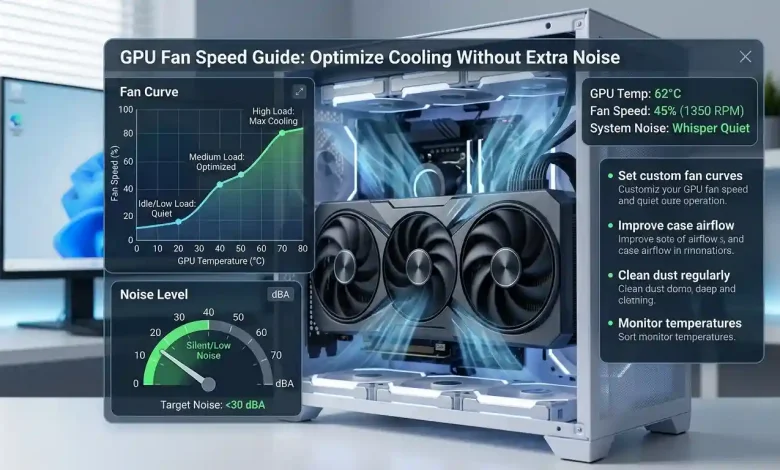
Table of Contents
GPU Fan Speed Guide: Graphics Processing Units (GPUs) are the powerhouse of any modern computer, especially for gaming, content creation, and intensive computational tasks. However, this immense power generates significant heat, making effective cooling paramount for maintaining performance, stability, and the longevity of your hardware. The cooling system, particularly the fans, plays a critical role in dissipating this heat. The challenge lies in optimizing GPU fan speed to keep temperatures in check without turning your PC into a jet engine. This comprehensive guide will delve into the intricacies of GPU cooling, fan speed management, and actionable strategies to achieve an optimal balance between efficient cooling and minimal noise.
Understanding GPU Thermals and Fan Mechanics
Modern GPUs are designed to operate under high loads, producing substantial heat. This heat, if not managed effectively, can lead to thermal throttling, where the GPU automatically reduces its clock speeds to prevent damage, resulting in decreased performance and a less smooth user experience. Understanding the fundamentals of how GPUs generate heat and how their cooling systems, primarily fans, work is the first step toward optimization.
- Heat Generation: The GPU die, VRAM, and VRMs (Voltage Regulator Modules) are the primary heat-generating components on a graphics card. As these components work harder, especially during demanding tasks like gaming or rendering, their temperature rises.
- Cooling System Components: Most GPUs rely on a combination of a heatsink, heat pipes, and fans. The heatsink absorbs heat from the GPU, which is then transferred through heat pipes to a larger fin array. The fans then draw cooler air over these fins, dissipating the heat into the surrounding environment.
- Fan Operation: GPU fans typically operate based on a predefined “fan curve,” which dictates fan speed (RPM or percentage) relative to the GPU’s temperature. Manufacturers often set these curves to balance cooling performance with acceptable noise levels, but these default settings aren’t always ideal for every user or system configuration. Some modern GPUs also feature a “0 RPM” mode, where fans remain off during idle or light loads for silent operation, only spinning up when a certain temperature threshold is met.
The Importance of Optimal GPU Fan Speed
Achieving the right GPU fan speed is a delicate balancing act. Running fans too slowly can lead to excessive heat buildup, potentially causing thermal throttling, system instability, and a reduced lifespan for your graphics card. Conversely, running fans at maximum speed constantly will ensure excellent cooling but comes at the cost of significant noise, which can be distracting and diminish the overall user experience. The goal is to find the “sweet spot” where your GPU remains within safe operating temperatures under various loads, while the fan noise is kept to a minimum.
Optimal fan speed directly impacts:
- Performance Stability: A well-cooled GPU can maintain its boost clocks for longer periods, leading to consistent frame rates and smoother performance.
- Hardware Longevity: Sustained high temperatures can degrade hardware components over time. Keeping your GPU within safe temperature ranges helps prolong its lifespan.
- Acoustics: Managing fan speeds intelligently prevents unnecessary noise, contributing to a quieter computing environment.
- Energy Efficiency: While less direct, efficient cooling can sometimes be achieved with less aggressive fan speeds if other optimization techniques are employed, potentially leading to marginal power savings.
Deciphering GPU Temperature Readings
Before optimizing fan speeds, it’s crucial to understand what constitutes a “normal,” “safe,” or “too hot” GPU temperature. These ranges can vary slightly between GPU manufacturers (NVIDIA vs. AMD) and specific models. However, general guidelines exist:
- Idle Temperatures: When your GPU is not under load (e.g., browsing the web, on the desktop), temperatures typically range from 30°C to 45°C. Anything consistently above 50°C at idle might indicate an issue with case airflow or background processes.
- Load Temperatures (Gaming/Intensive Tasks): Under heavy load, such as gaming or video rendering, GPU temperatures should ideally be between 65°C and 85°C. Many modern cards are designed to tolerate temperatures up to 90°C or even 95°C before thermal throttling kicks in, especially AMD GPUs. However, consistently staying above 85°C suggests that your cooling setup needs attention.
- Critical Temperatures: Temperatures consistently exceeding 90°C are generally considered too hot and will almost certainly trigger thermal throttling to prevent hardware damage. Prolonged operation at these extreme temperatures can significantly shorten the GPU’s lifespan.
Monitoring your GPU’s temperature is essential. Tools like MSI Afterburner, HWiNFO, HWMonitor, or GPU-Z can provide real-time temperature readings.
Common GPU Fan Speed Management Tools
Several software applications allow users to monitor GPU temperatures and customize fan speeds. These tools provide varying levels of control and compatibility:
- MSI Afterburner: Widely regarded as the industry standard, MSI Afterburner is a free, powerful utility that works with graphics cards from all brands, not just MSI. It offers extensive features, including hardware monitoring, GPU overclocking, undervolting, and, most importantly, highly customizable fan curve control.
- ASUS GPU Tweak III: For ASUS GPU owners, GPU Tweak III offers similar functionalities to MSI Afterburner, including real-time monitoring, overclocking, undervolting, and fan curve customization. It can also work with GPUs from other manufacturers.
- AMD Radeon Software: Adrenalin Edition: AMD provides integrated fan tuning capabilities within its Radeon Software for users with AMD graphics cards. This allows for custom fan curves and other performance adjustments.
- NVIDIA Control Panel / PNY VelocityX: While NVIDIA’s native control panel offers limited fan control, third-party utilities like PNY VelocityX (for PNY cards) or universal tools like MSI Afterburner are typically used for more granular control over NVIDIA GPUs.
- FanControl: This open-source, highly focused software is praised for its comprehensive control over CPU, GPU, and case fans, allowing users to manage all system fans from a single interface. It’s particularly powerful for creating complex fan curves based on various temperature sensors.
| Temperature Range (°C) | GPU Status (Typical) | Recommended Fan Speed % (Starting Point) | Noise Level |
|---|---|---|---|
| 30-45 (Idle) | Cool / Minimal Load | 0-30% (Silent operation possible) | Very Quiet / Silent |
| 45-60 (Light Load) | Normal / Web Browsing / Light Gaming | 30-45% | Low Humm |
| 60-75 (Moderate Load) | Typical Gaming / Medium Workload | 45-65% | Noticeable but Acceptable |
| 75-85 (Heavy Load) | Intensive Gaming / Rendering | 65-85% | Moderately Loud |
| 85+ (Critical) | Overheating / Thermal Throttling Risk | 85-100% (Immediate action needed) | Very Loud |
Strategies for Noise Reduction Without Compromising Cooling
Optimizing GPU fan speed for minimal noise while maintaining effective cooling involves a multi-faceted approach. Here are several key strategies:
- Custom Fan Curves: This is arguably the most effective method. Instead of relying on the manufacturer’s default curve, which might be overly aggressive or too passive, you can create your own.
- Gentle Ramps at Low Temps: Keep fan speeds low (or even 0% if supported) when the GPU is cool (e.g., below 40-45°C) to ensure silent operation during idle or light tasks.
- Smooth Transitions: Avoid sudden, steep increases in fan speed, which are often more noticeable and annoying than a consistent hum. Create gradual inclines as the temperature rises.
- Aggressive at High Temps: Ensure the fan speed ramps up sufficiently when the GPU reaches higher operating temperatures (e.g., 70-80°C) to prevent thermal throttling. A common approach is to aim for 100% fan speed around 85°C.
- Adjust Fan Speed Update Period: Some software like ASUS GPU Tweak III allows you to adjust how quickly fans respond to temperature fluctuations. A higher update period can prevent fans from constantly ramping up and down due to momentary temperature spikes, leading to a smoother, less distracting sound profile.
- Undervolting Your GPU: Undervolting involves reducing the voltage supplied to your GPU while maintaining or even improving its clock speeds. Lower voltage directly translates to less heat generated, which means fans don’t have to work as hard, resulting in lower temperatures and significantly less noise. Many users report substantial temperature drops (e.g., 7-10°C) with no noticeable performance loss, and sometimes even a slight gain due to better thermal stability. Tools like MSI Afterburner or ASUS GPU Tweak III are excellent for undervolting.
- Optimizing Case Airflow: The overall airflow within your PC case plays a crucial role in GPU cooling. Poor case airflow can trap hot air, forcing GPU fans to work harder.
- Intake and Exhaust Balance: Ensure a balanced setup with sufficient intake fans (usually front or bottom) bringing cool air into the case and exhaust fans (usually rear or top) expelling hot air.
- Cable Management: Tidy cable management prevents obstructions to airflow, allowing air to move freely through the case.
- Fan Placement: Consider adding intake fans near the GPU or at the bottom of the case, especially in compact builds, to provide fresh air directly to the graphics card. The physical orientation of the GPU (e.g., vertical mounting) can also influence heat dissipation depending on the chassis design and fan configuration.
- Room Temperature: Keeping your room cooler will directly translate to lower internal PC temperatures.
- Cleaning and Maintenance: Dust accumulation is a common culprit for inefficient cooling and increased noise. Dust acts as an insulator and obstructs airflow, making fans work harder.
- Regular Cleaning: Periodically clean your GPU fans, heatsinks, and case filters using compressed air.
- Thermal Paste Replacement: On older GPUs (2-3+ years), the factory thermal paste can dry out and become less effective. Replacing it with fresh, high-quality thermal paste can significantly improve heat transfer from the GPU die to the heatsink, leading to lower temperatures.
- Aftermarket GPU Coolers: For users with particularly noisy or hot GPUs, especially older models with less efficient stock coolers, an aftermarket GPU cooler can be a viable solution. These often feature larger heatsinks and quieter, more efficient fans, offering superior cooling and noise reduction compared to stock solutions. Companies like ARCTIC (e.g., Accelero series) and be quiet! offer such products. However, this involves disassembling the GPU’s stock cooler and potentially voiding its warranty, so it’s a more advanced option.
- Frame Rate Limiting (V-Sync, DLSS/FSR): Limiting frame rates in games or using upscaling technologies like NVIDIA DLSS or AMD FSR can reduce the workload on your GPU, which in turn lowers heat production and allows fans to run slower and quieter.
For more detailed technical insights into optimizing GPU performance and cooling, one can refer to resources like Wikipedia’s entry on Graphics Processing Units, which provides a comprehensive overview of their architecture and operational principles.
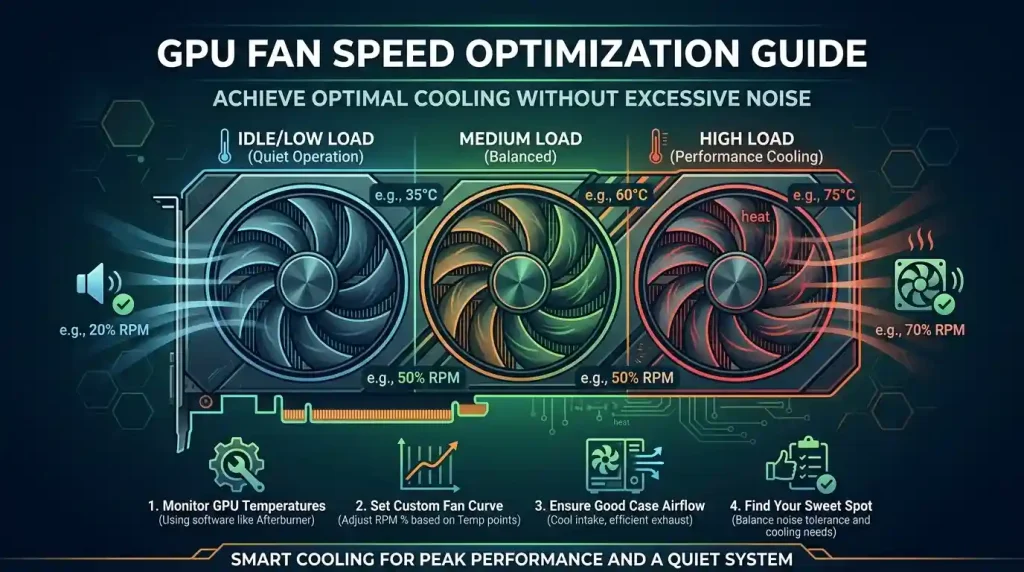
Advanced Custom Fan Curve Creation
Creating an effective custom fan curve requires a bit of experimentation to find the perfect balance for your specific GPU, case, and noise tolerance. Here’s a more detailed approach:
- Establish a Baseline: Before making any changes, monitor your GPU’s temperatures and fan speeds under various loads (idle, light gaming, heavy gaming) with its default settings. Note down both temperatures and corresponding fan noise levels.
- Open Your Fan Control Software: Use MSI Afterburner, ASUS GPU Tweak III, or AMD Radeon Software. Navigate to the fan control section and enable “user-defined software automatic fan control.”
- Define Key Points on the Curve: A fan curve is essentially a graph where the horizontal axis represents GPU temperature (°C) and the vertical axis represents fan speed (%). You’ll typically set multiple points (nodes) along this curve.
- Idle Zone (e.g., 0-40°C): Set the fan speed to 0% or a very low percentage (e.g., 20-30%) in this range. Many modern cards support 0 RPM mode at low temperatures.
- Light Load Zone (e.g., 40-55°C): Gradually increase fan speed. For instance, at 40°C, set to 30%; at 50°C, set to 40%. The goal is to keep it quiet but ensure airflow.
- Moderate Load Zone (e.g., 55-70°C): Continue a gentle ramp. For example, 55°C at 50% fan speed, increasing to 65% at 70°C. This is often the gaming “sweet spot.”
- Heavy Load Zone (e.g., 70-85°C): Here, the fan speed should ramp up more decisively to keep temperatures in check. You might set 75°C to 75% fan speed, and 85°C to 95-100% fan speed. Remember that 100% fan speed can be very loud, so aiming for 85-90% at peak load might be a good compromise if temperatures are manageable.
- Test and Refine: After setting a curve, apply the settings and test your system under various loads.
- Stress Testing: Run a benchmark tool (e.g., Unigine Heaven, FurMark) to push your GPU to its limits and observe temperatures and fan behavior.
- Gaming Sessions: Play your most demanding games for an extended period (30-60 minutes) and monitor GPU temperatures and listen to fan noise.
- Adjust Iteratively: If temperatures are too high, increase fan speeds at the corresponding temperature points. If noise is excessive and temperatures are fine, try slightly reducing fan speeds. Make small adjustments (e.g., 5% fan speed or 2°C temperature) and re-test.
- Smooth Transitions: Pay attention to how quickly fan speeds change. If they’re constantly fluctuating, adjust the curve to be smoother or use the “fan speed update period” setting if available.
- Save Your Profile: Once you find a stable and satisfactory fan curve, save it as a profile within the software. Ensure the software is set to start with Windows and apply your custom profile automatically if desired.
Monitoring and Maintenance for Longevity
Setting up an optimal GPU fan speed and cooling solution is not a one-time task. Regular monitoring and maintenance are crucial to ensure continued performance and longevity:
- Continuous Monitoring: Keep a hardware monitoring tool running in the background, especially during gaming or intensive tasks, to ensure your GPU stays within safe temperature limits. Many tools offer on-screen displays for easy viewing while gaming.
- Dust Control: Make PC cleaning a routine. Dust filters, if present, should be cleaned regularly. Use compressed air to clear dust from heatsinks and fans.
- Driver Updates: Keep your graphics drivers updated. Manufacturers often include cooling profile improvements and bug fixes in new driver releases.
- Environmental Factors: Ensure your PC is in a well-ventilated area, not confined in a cabinet or against a wall that blocks airflow.
- Listen to Your PC: A sudden increase in fan noise or unusual sounds can be an early indicator of a cooling issue.
Conclusion
Optimizing GPU fan speed is a fundamental aspect of PC management for anyone looking to maximize performance, ensure hardware longevity, and enjoy a quieter computing experience. By understanding the principles of GPU thermals, utilizing powerful software tools like MSI Afterburner, and implementing strategies such as custom fan curves and undervolting, users can achieve a harmonious balance between efficient cooling and minimal noise. While it requires a bit of experimentation and ongoing attention, the rewards of a cool, quiet, and high-performing graphics card are well worth the effort. Taking a proactive approach to your GPU’s thermal management will undoubtedly enhance your overall PC experience for years to come.