GPU Tweak II Features and Performance Settings Guide: 9 Powerful Ways to Unleash Your Graphics Card’s Full Potential
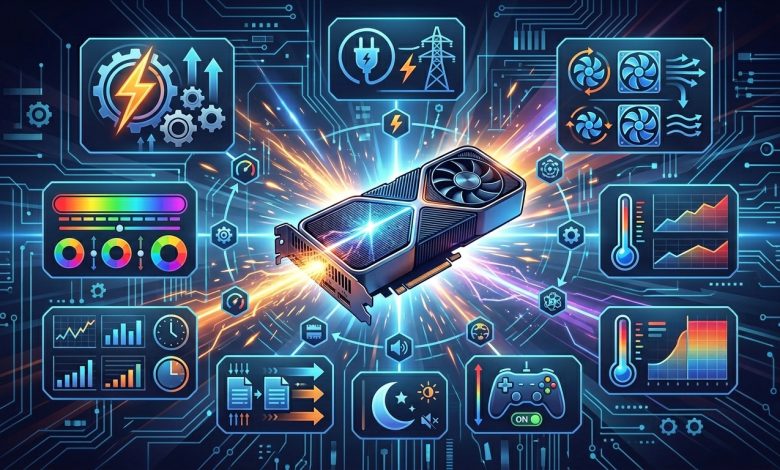
Table of Contents
- Introduction: The Power of GPU Tweak II
- Understanding GPU Tweak II: An Essential Utility for ASUS Graphics Cards
- Exploring the Core Features of GPU Tweak II
- Mastering Performance Settings for Optimal Gaming and Productivity
- Creating and Managing Custom Profiles
- Tips for Achieving Optimal Performance and Stability
- Conclusion: Maximizing Your GPU Investment with Precision
GPU Tweak II is a powerful and intuitive software utility developed by ASUS, designed to help users monitor, tweak, and optimize the performance of their ASUS graphics cards. Whether you are a casual gamer looking for a quick performance boost or a seasoned overclocker aiming to extract every last bit of power from your hardware, GPU Tweak II offers a comprehensive suite of features to cater to your needs. This guide will delve into the various features and performance settings available in GPU Tweak II, providing you with the knowledge to customize your graphics card’s operation for optimal gaming, productivity, and system stability.
Understanding GPU Tweak II: An Essential Utility for ASUS Graphics Cards
ASUS GPU Tweak II serves as a centralized control panel for your graphics card, offering an intuitive interface to access a range of functionalities for monitoring and fine-tuning. It provides both a Simple Mode for quick adjustments and a Professional Mode for advanced overclockers, ensuring accessibility for all user levels. The software is compatible with a wide array of ASUS graphics cards, including NVIDIA GeForce and AMD Radeon series, running on Windows operating systems. Its primary purpose is to allow users to adjust crucial graphics card parameters such as clock speeds, voltage, and fan speeds, thereby optimizing performance and cooling. Beyond just performance enhancement, GPU Tweak II also integrates robust monitoring tools that display real-time statistics like GPU clock speed, temperature, and VRM usage, giving users a clear picture of their system’s health and performance during operation. The ability to make these adjustments on-the-fly, even while in-game, makes it an invaluable tool for enthusiasts seeking dynamic control over their graphics hardware.
Exploring the Core Features of GPU Tweak II
GPU Tweak II is packed with features designed to simplify the process of optimizing your graphics card. These features range from one-click preset modes to sophisticated automated overclocking tools, ensuring that users can achieve their desired performance levels with ease.
Pre-set Operating Modes for Every Scenario
One of the most user-friendly aspects of GPU Tweak II is its inclusion of several pre-set operating modes, allowing users to instantly switch between different performance profiles based on their current activity. These modes are designed to offer a balance of performance and acoustics without requiring extensive manual configuration.
- OC Mode (Overclock Mode): This mode is designed to unleash the maximum performance from your graphics card by applying a factory-stable overclock. It typically increases the GPU boost clock and power target, making it ideal for benchmarking and playing the most demanding games.
- Gaming Mode: Often the default setting for ASUS graphics cards, Gaming Mode provides an optimal balance between performance and silence. It offers solid performance for gaming without pushing the card to its absolute limits, aiming for a comfortable and stable experience over extended periods.
- Silent Mode: When quiet operation is paramount, such as during productivity tasks, video watching, or light browsing, Silent Mode reduces the power target and slightly lowers boost clock offsets. This allows the fans to spin at lower RPMs or even stop entirely (with 0dB fan technology), significantly reducing noise output.
- My Profile: This mode allows users to save and quickly switch between their own custom-tuned profiles, offering unparalleled flexibility to tailor settings for specific games or applications. This feature is particularly useful for experienced users who have fine-tuned their settings for particular workloads.
Automated Overclocking with OC Scanner
For users who are new to overclocking or prefer an automated approach, GPU Tweak II includes the OC Scanner feature. This intelligent tool automatically tests the graphics card and identifies the optimal stable overclocking settings for NVIDIA GPUs. The OC Scanner algorithm systematically increases clock speeds and tests for stability, saving the validated settings as a profile without overwriting driver data, thus allowing for easy reversion to default settings. While some users have noted that other tools like MSI Afterburner might yield slightly better results in some cases, the OC Scanner in GPU Tweak II provides a convenient and safe entry point into overclocking. It removes the guesswork and extensive manual testing typically associated with overclocking, making performance enhancement accessible to a broader audience. However, it’s worth noting that some users have experienced issues with the OC Scanner failing to complete or encountering conflicts with other system optimization software like AI Suite, which might require troubleshooting such as uninstalling conflicting programs.
System Optimization with Gaming Booster
Beyond graphics card specific adjustments, GPU Tweak II also features a “Gaming Booster” function designed to optimize the entire system for a smoother gaming experience. This feature works by freeing up system resources that might otherwise be consumed by background processes.
Gaming Booster offers three main functions:
- Visual Effects: This option allows users to boost performance by temporarily turning off non-essential Windows visual effects, thereby allocating more GPU and CPU resources to games.
- System Services: Users can automatically or manually disable unnecessary Windows services or processes that run in the background, further minimizing resource consumption and potential conflicts during gaming.
- Memory Defragmentation: This tool helps in re-arranging and freeing up system memory without closing running processes, which can contribute to smoother gameplay, especially in memory-intensive titles.
Real-time Monitoring and On-Screen Display (OSD)
Effective monitoring is crucial for both optimizing and maintaining the health of your graphics card. GPU Tweak II provides a comprehensive real-time monitoring dashboard that displays critical information about your GPU. This includes GPU clock speed, memory clock, temperature, fan speed, voltage, and VRAM usage. The software can present this data in continuous graphs, allowing users to track performance trends over time.
A particularly useful feature is the On-Screen Display (OSD), which allows you to monitor these vital statistics directly within your games. The OSD is customizable, enabling users to select which parameters they want to see, such as FPS, GPU temperature, and clock speeds, providing immediate feedback on how changes to settings are impacting performance. This in-game overlay is especially valuable when fine-tuning settings for specific games, as it eliminates the need to alt-tab out of the game to check statistics.
Mastering Performance Settings for Optimal Gaming and Productivity
For those who wish to take manual control, GPU Tweak II’s Professional Mode provides granular control over a wide array of performance settings. This allows for precise tuning to achieve maximum performance, quietest operation, or the best balance between the two.
GPU and Memory Clock Speed Adjustments
Adjusting the core GPU clock and memory clock speeds is a fundamental aspect of overclocking. Higher clock speeds generally lead to increased performance in games and other graphically intensive applications.
- GPU Clock (MHz): This setting controls the operating frequency of your graphics processing unit. In GPU Tweak II, you can incrementally increase the GPU clock speed. It is recommended to make small increases (e.g., 10-20 MHz at a time) and test for stability after each adjustment to avoid system crashes or artifacts. The goal is to find the highest stable clock speed that your GPU can maintain under load.
- Memory Clock (MHz): This refers to the clock speed of the VRAM (Video Random Access Memory) on your graphics card. Increasing the memory clock can improve texture loading times and overall performance, especially in games with high-resolution textures. Similar to the GPU clock, adjustments should be made in small increments (e.g., 50-100 MHz) with stability testing in between. It’s worth noting that some older versions or specific GPU Tweak II configurations might display memory clock values as four times the commonly used number, so users should be aware of this difference when comparing with other overclocking guides.
Managing Voltage, Power Target, and Temperature Target
These settings are crucial for maintaining stability and preventing damage when overclocking. They directly influence the power delivery and thermal characteristics of your GPU.
| Setting | Description | Impact on Performance/Stability | Recommended Adjustment Strategy |
|---|---|---|---|
| GPU Voltage (mV) | Controls the voltage supplied to the GPU chip. Higher voltage can stabilize higher clock speeds but generates more heat. | Increases overclocking headroom but significantly raises GPU temperature and power consumption. Excessive voltage can damage the GPU. | Increase in very small increments (e.g., 10mV) only if higher clock speeds are unstable. Monitor temperatures closely. Only applicable if GPU has an unlocked BIOS. |
| Power Target (%) | Sets the maximum power draw allowed for the graphics card. Expressed as a percentage of the default power limit. | Higher power target allows the GPU to boost to higher frequencies for longer periods, preventing power throttling. Essential for maximizing overclocked performance. | Increase to the maximum allowed by the software, especially during overclocking, to prevent performance limitations due to power constraints. |
| Temperature Target (°C) | Defines the desired maximum operating temperature for the GPU. The card will try to stay at or below this temperature by adjusting clock speeds and fan speeds. | Lowering the temperature target can lead to more aggressive fan curves and potentially lower stable clock speeds if cooling is insufficient. Higher targets allow for more thermal headroom for overclocking. | Adjust based on desired noise levels and cooling capacity. Lower targets for better longevity and stability, higher targets for pushing clock limits, but always within safe operating ranges (typically below 85°C for most GPUs). |
Advanced Fan Control and Custom Curves
Effective cooling is paramount for stable and sustained performance, especially when overclocking. GPU Tweak II offers comprehensive fan control options to manage your graphics card’s cooling system.
- Automatic Fan Control: This is the default setting, where the GPU automatically adjusts fan speeds based on temperature thresholds defined by the manufacturer. It aims for a balance between cooling and noise.
- Manual Fan Speed: Users can set a fixed fan speed percentage. This is often used during benchmarking to ensure maximum cooling, but can result in increased noise.
- Custom Fan Curves: This advanced feature allows you to create a personalized fan curve, mapping specific fan speeds to corresponding GPU temperatures. By plotting points on a graph, you can define how aggressively your fans should ramp up as the GPU temperature increases. This enables fine-tuning for optimal noise-to-cooling balance.
- 0dB Fan Technology: Many modern ASUS graphics cards incorporate 0dB fan technology, which allows the fans to stop spinning entirely when the GPU temperature falls below a certain threshold, providing silent operation during light loads. GPU Tweak II allows you to manage or enable/disable this feature if supported by your card.
- FanConnect II / External Fan Support: Some ASUS ROG Strix graphics cards feature FanConnect II headers, allowing you to connect case fans directly to the GPU. GPU Tweak II can then control these external fans based on GPU temperatures, optimizing cooling for the entire system around the graphics card. This provides a cohesive cooling solution, though some users have reported issues with external fan control not applying correctly on Windows startup.
Creating and Managing Custom Profiles
The “My Profile” feature within GPU Tweak II is incredibly valuable for users who engage in diverse activities on their PC. It allows you to create, save, and easily switch between multiple custom profiles, each with its own unique set of GPU settings. For instance, you could have a profile optimized for a specific demanding game, another for a quieter browsing experience, and yet another for content creation that requires stable performance without aggressive overclocking. When creating a custom profile in Professional Mode, you have complete control over GPU clock, memory clock, voltage, power target, temperature target, and fan curves. After adjusting these parameters, you simply save them as a new profile, giving it a descriptive name. This flexibility means you can tailor your graphics card’s behavior to perfectly match the demands of any application with just a few clicks.
Tips for Achieving Optimal Performance and Stability
Overclocking your graphics card with GPU Tweak II can yield significant performance benefits, but it’s crucial to proceed with caution to maintain system stability and prevent hardware damage. Here are some essential tips for a successful overclocking and tuning experience:
- Start Gradually: When increasing clock speeds (GPU and memory) or voltage, do so in small increments. For example, increase GPU clock by 10-20 MHz and memory clock by 50-100 MHz at a time.
- Test for Stability: After each adjustment, thoroughly test your system for stability. Use demanding games or benchmarking tools like FurMark or 3DMark to stress-test your GPU. Look for artifacts, crashes, or freezes. If you encounter any issues, reduce the last adjustment until stability is regained.
- Monitor Temperatures: Always keep a close eye on your GPU temperature. GPU Tweak II’s monitoring tools are invaluable here. Aim to keep your GPU below 85°C under full load to ensure longevity. If temperatures are too high, adjust your fan curve to increase cooling or reduce your overclock.
- Adjust Fan Curves: Customize your fan curve to provide adequate cooling for your overclock while balancing noise levels. More aggressive fan curves will keep temperatures lower but will be louder.
- Increase Power Target: When overclocking, increasing the power target to its maximum allowed percentage is often a good first step to ensure the GPU has enough power headroom and doesn’t throttle performance prematurely.
- Consider Voltage Carefully: Only increase GPU voltage if necessary to stabilize higher clock speeds and if your GPU’s BIOS is unlocked. Even then, do so in very small increments (e.g., 10mV) and with extreme caution, as excessive voltage can potentially damage your hardware. Always cross-reference safe voltage limits for your specific GPU model.
- Update Drivers: Ensure your graphics card drivers are always up-to-date. Newer drivers often bring performance improvements and better stability, which can enhance your overclocking potential and compatibility with GPU Tweak II.
- Backup Settings (Mentally or Physically): While GPU Tweak II saves profiles, understanding your stable settings is key. If you experience issues, reverting to default or a known stable profile is always an option. If conflicts arise with other software, a clean driver installation using a tool like DDU might be necessary, and sometimes even a clean reinstallation of GPU Tweak II itself.
For more in-depth information on the principles of graphics card overclocking and its impact on hardware, you can refer to resources like Wikipedia’s article on overclocking, which provides a broader context on the practice. It’s important to remember that while GPU Tweak II makes overclocking more accessible, understanding the underlying principles ensures a safer and more rewarding experience.
Conclusion: Maximizing Your GPU Investment with Precision
GPU Tweak II stands as an indispensable tool for any ASUS graphics card owner looking to truly harness the full capabilities of their hardware. From its intuitive Simple Mode, offering one-click performance boosts, to the granular control provided by its Professional Mode for seasoned enthusiasts, the software caters to a diverse range of users. The ability to switch between pre-set operating modes, leverage the automated OC Scanner, and fine-tune critical performance parameters like GPU and memory clock speeds, voltage, power targets, and advanced fan curves empowers users to optimize their system for various tasks. With comprehensive real-time monitoring and an in-game On-Screen Display, users can continuously track their GPU’s health and performance, ensuring stability while pushing boundaries. By carefully utilizing GPU Tweak II’s extensive feature set and following best practices for stability, you can unlock significant performance gains, enhance your gaming experiences, and ultimately maximize the return on your graphics card investment with precision and confidence.